Orders
The Orders page is the live queue: every order from every source — the client dashboard, the API,
drip-feed and your own mass orders — with its status, its provider response and the actions you can
take on it. This guide follows the live admin at smmpanelz.com/go-admin/orders.
Reading the screenshots. Blue boxes mark a data value, blue numbered badges mark the thing you click, and grey patches mean the data is blurred. In this guide that includes client names, order links, service names and every provider detail — those are hidden on purpose, so what you see is the structure, not someone's order.
Page anatomy
Four bands, top to bottom: the status tabs, the toolbar (Export, search, field selector), the filter row, and the order table with its per-row Actions button.
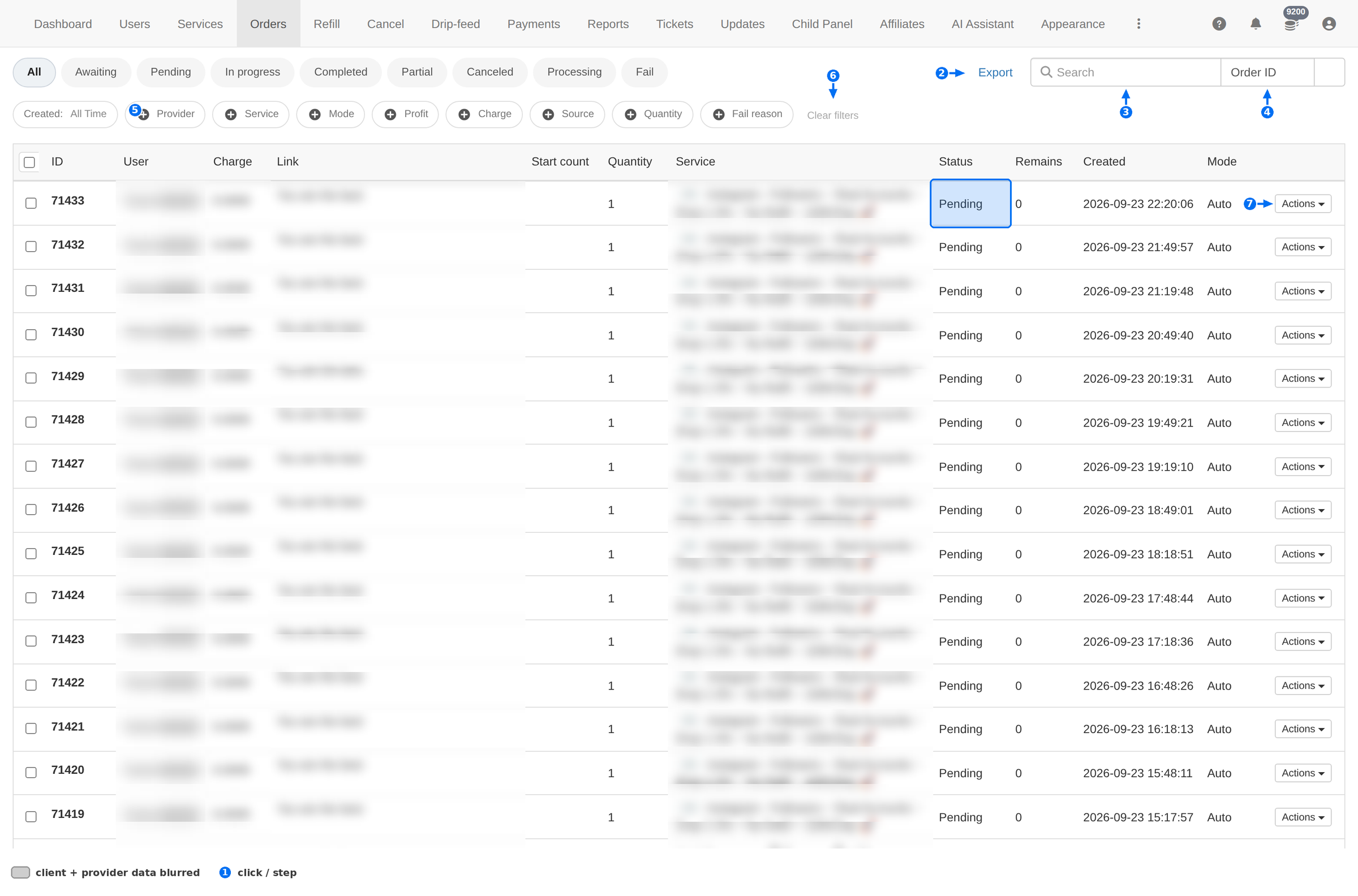
| # | Element | What it does |
|---|---|---|
| 1 | Status tabs | Switches the list between order states. See Status tabs. |
| 2 | Export | Downloads the current selection as a file — it exports what the filters are showing, so filter first. |
| 3 | Search | Looks up a single order. |
| 4 | Search field | Chooses what the search matches: Order ID, Link, Username, Service and the other order fields. |
| 5 | Provider filter | Shows only orders that went to one provider. See Filters. |
| 6 | Clear filters | Resets every filter at once and returns to the default list. |
| 7 | Actions | The per-order menu. Its contents change with the order's status — see Row actions. |
Status tabs
The tabs are the fastest way to answer "what needs me right now?". Each one filters the list and the address bar reflects it, so a filtered view can be bookmarked or shared.
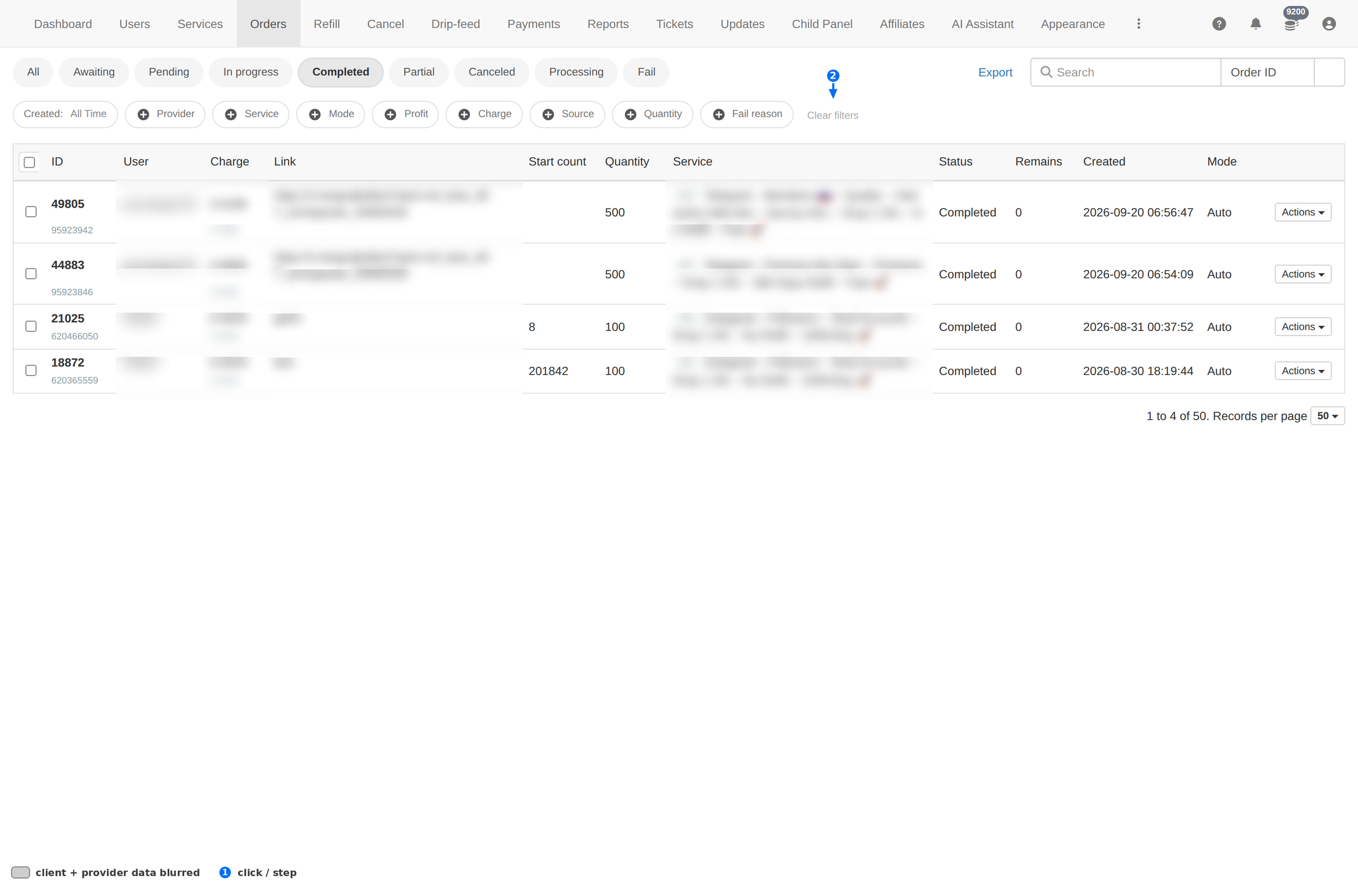
| Tab | What it contains |
|---|---|
| All | Every order, newest first — the default view. |
| Awaiting | Accepted but not yet sent to a provider. |
| Pending | Sent to a provider, waiting for it to start. |
| In progress | The provider is delivering. |
| Completed | Finished. This is where refunds, partials and start-count fixes live. |
| Partial | Delivered less than ordered. |
| Canceled | Canceled, with or without a refund. |
| Processing | Being handled by the panel. |
| Fail | The provider refused or errored. Pair this with the Fail reason filter. |
Column reference
| Column | Meaning |
|---|---|
| ID | The order number. Quote it in every conversation about the order — it is what the client sees too. |
| User | The client who ordered. A small label next to the name shows the source, for example Drip-feed. |
| Charge | What the order costs the client. |
| Link | The target the client submitted — the profile, post or video the service works on. |
| Start count | The count the service started from, used to calculate delivery. |
| Quantity | How much was ordered. |
| Service | The service ordered, shown as its ID plus its name. |
| Status | Current state — the same words as the tabs. |
| Remains | How much is still undelivered. A large Remains on a completed order is what a partial is. |
| Created | When the client placed the order. |
| Mode | Auto for a normal order; other modes come from drip-feed and manual handling. |
| Actions | The per-order menu. |
Search
Searching by Order ID is exact and instant, and it is the only search you should use when a client quotes a number.
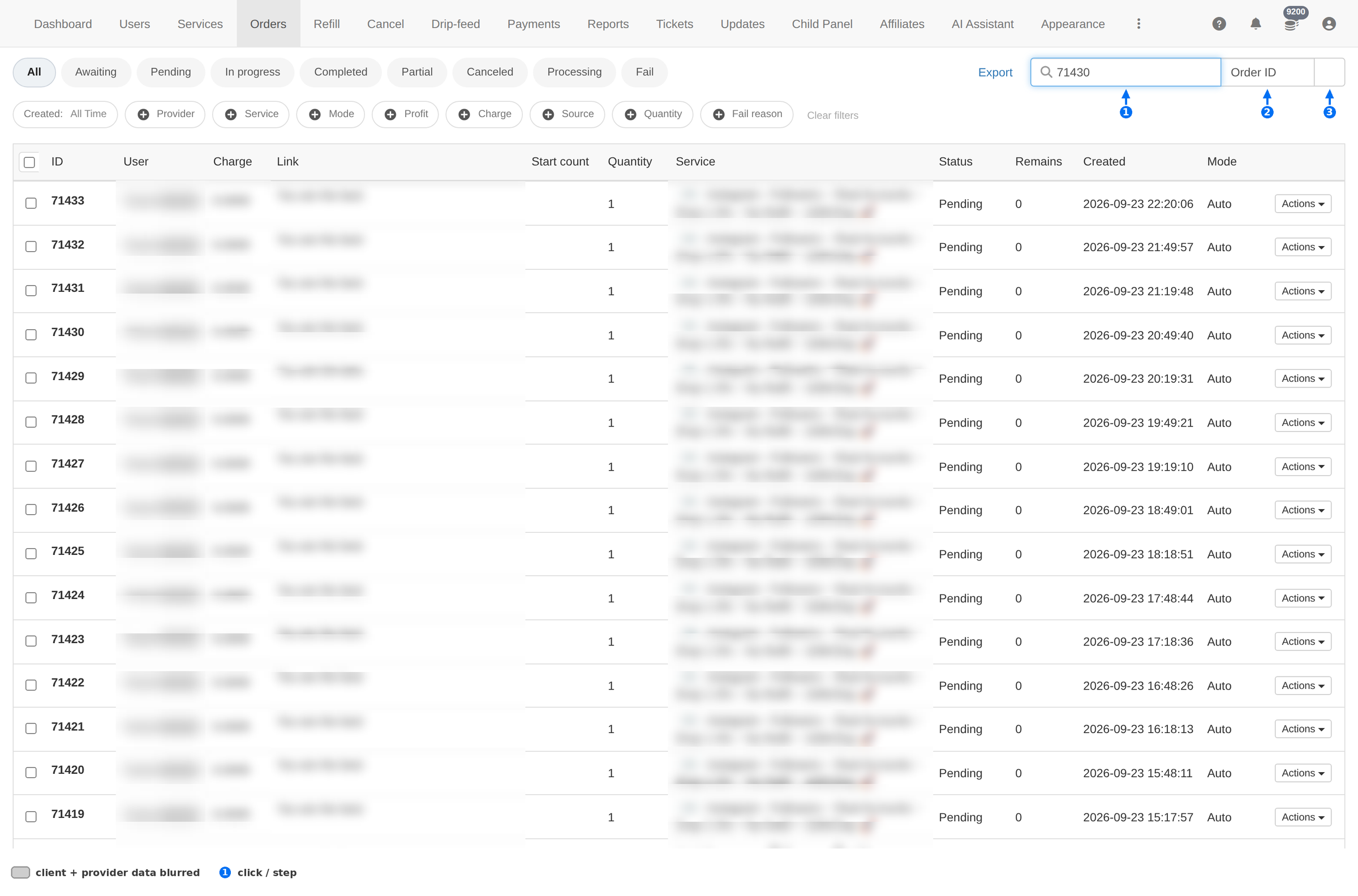
- Choose the field. Order ID when you have the number; Username when you only have the client; Link when you are hunting for every order on one target.
- Type and submit with the magnifier or Enter.
- Still nothing? Check the status tab and the date filter first — a search only looks inside what the filters are showing.
Searching by Link is the fastest way to answer "why did this account lose followers?" — you see every order that ever touched that target.
Filters
The filter row narrows the list by everything that matters operationally. Clear filters at the end resets the lot.
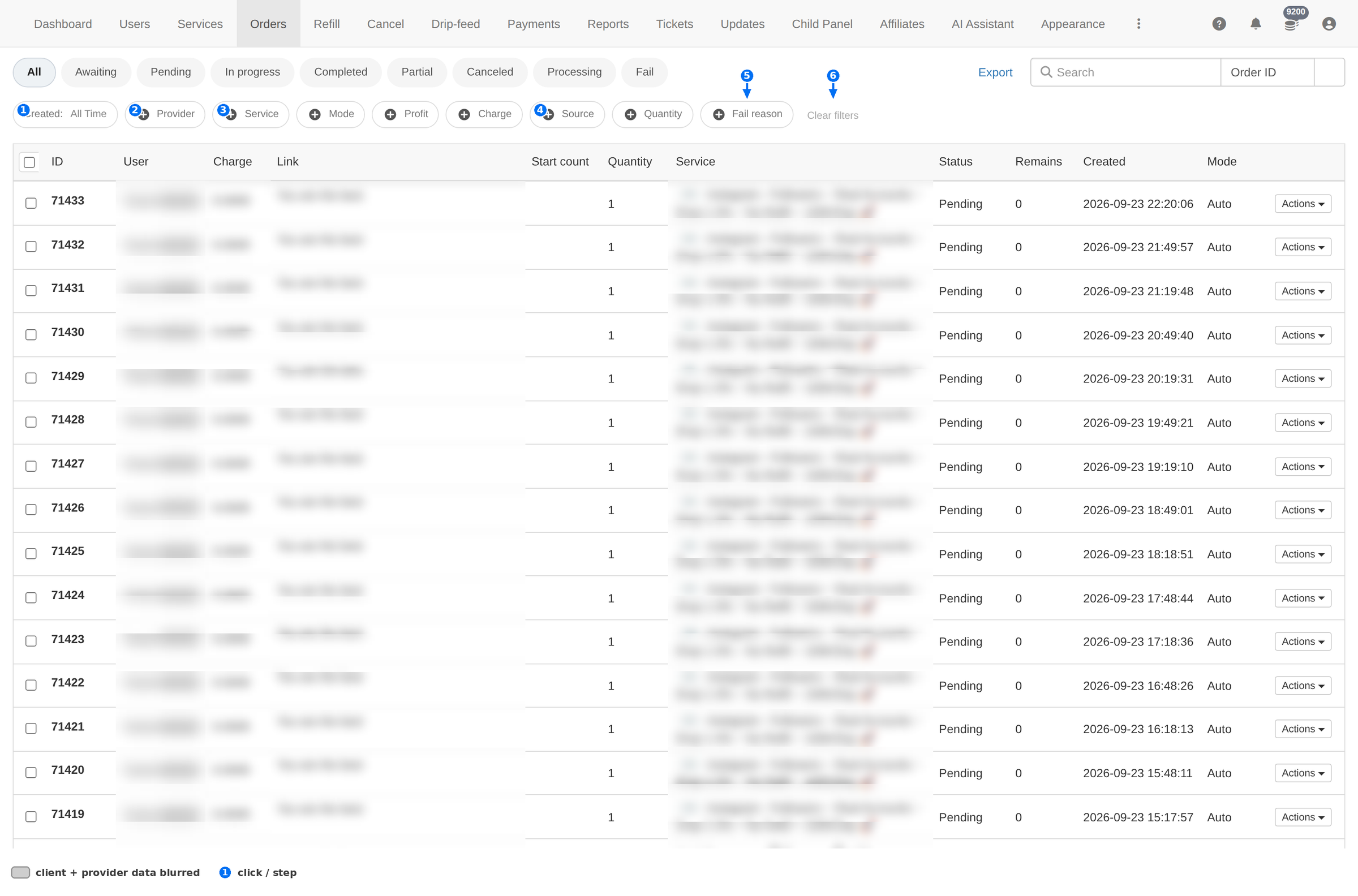
| Filter | What it does |
|---|---|
| Created | Date range: All Time, Last 30 Days, Last 90 Days, Last year. Start here when a report "looks empty". |
| Provider | Only orders sent to one provider — pick from your provider list. Use it when a provider is slow or down. |
| Service | Only orders for one service, with the number of orders next to each. |
| Mode | Auto or Manual. |
| Profit | A numeric range — filters on your margin, so it answers "which orders lost money?". |
| Charge | A numeric range on the order value. |
| Quantity | A numeric range on the ordered amount. |
| Source | Where the order came from: Dripfeed, API, Mass, Refiller. |
| Fail reason | Why orders failed, with a count each — for example Not enough provider balance, Invalid provider API key, Quantity below minimum allowed, Quantity exceeds maximum…. This is the single most useful filter when something breaks at scale. |
| Clear filters | Removes every filter, including the status tab. |
A large Fail reason count with one reason means the problem is on the provider side, not with the client. Check that provider's balance and API key before you answer any tickets.
Row actions
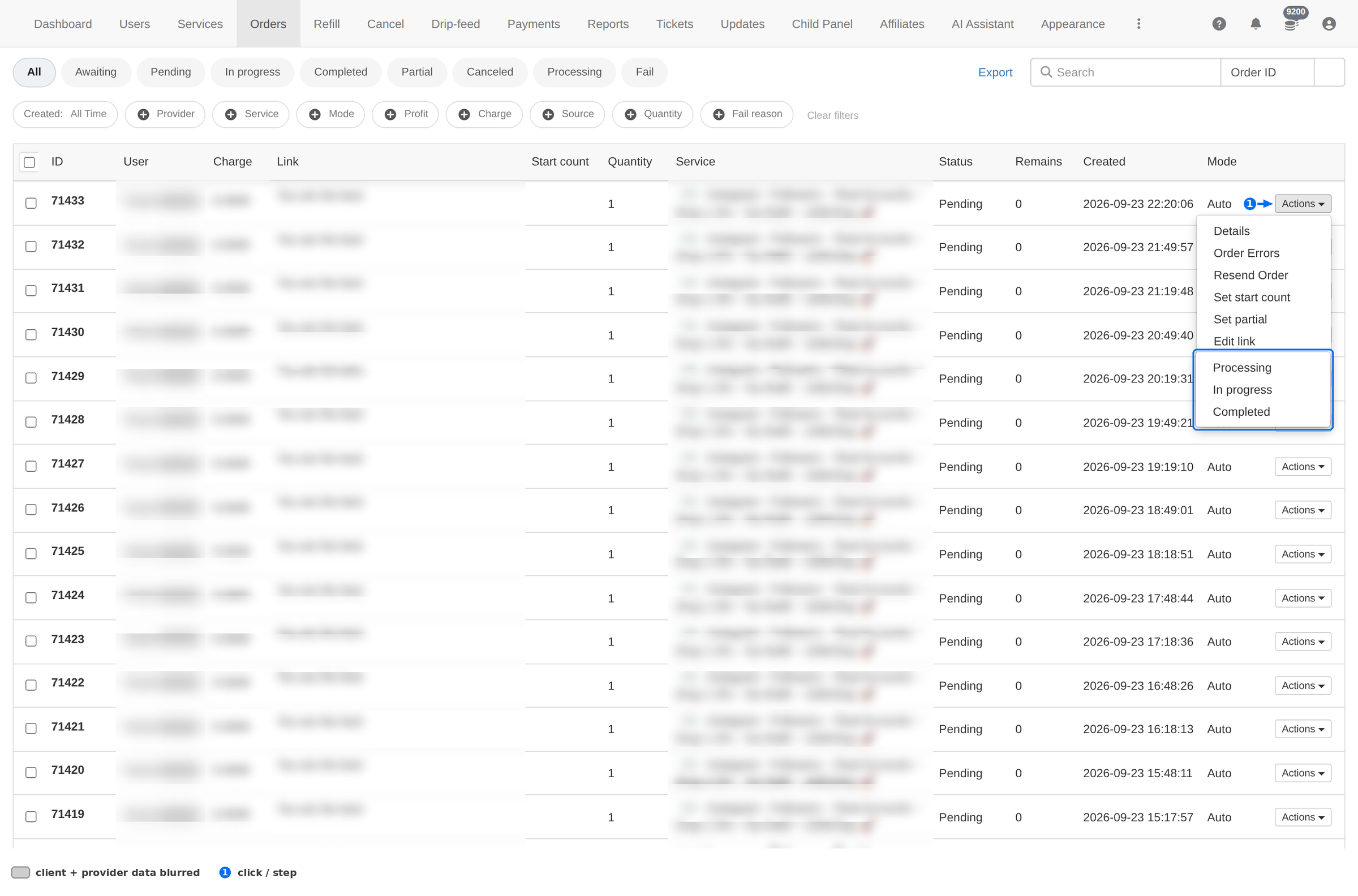
The Actions menu is not the same everywhere — it offers the transitions that make sense for the order's current status. Two states matter most.
On a pending order — move it along
On a completed order — fix the outcome
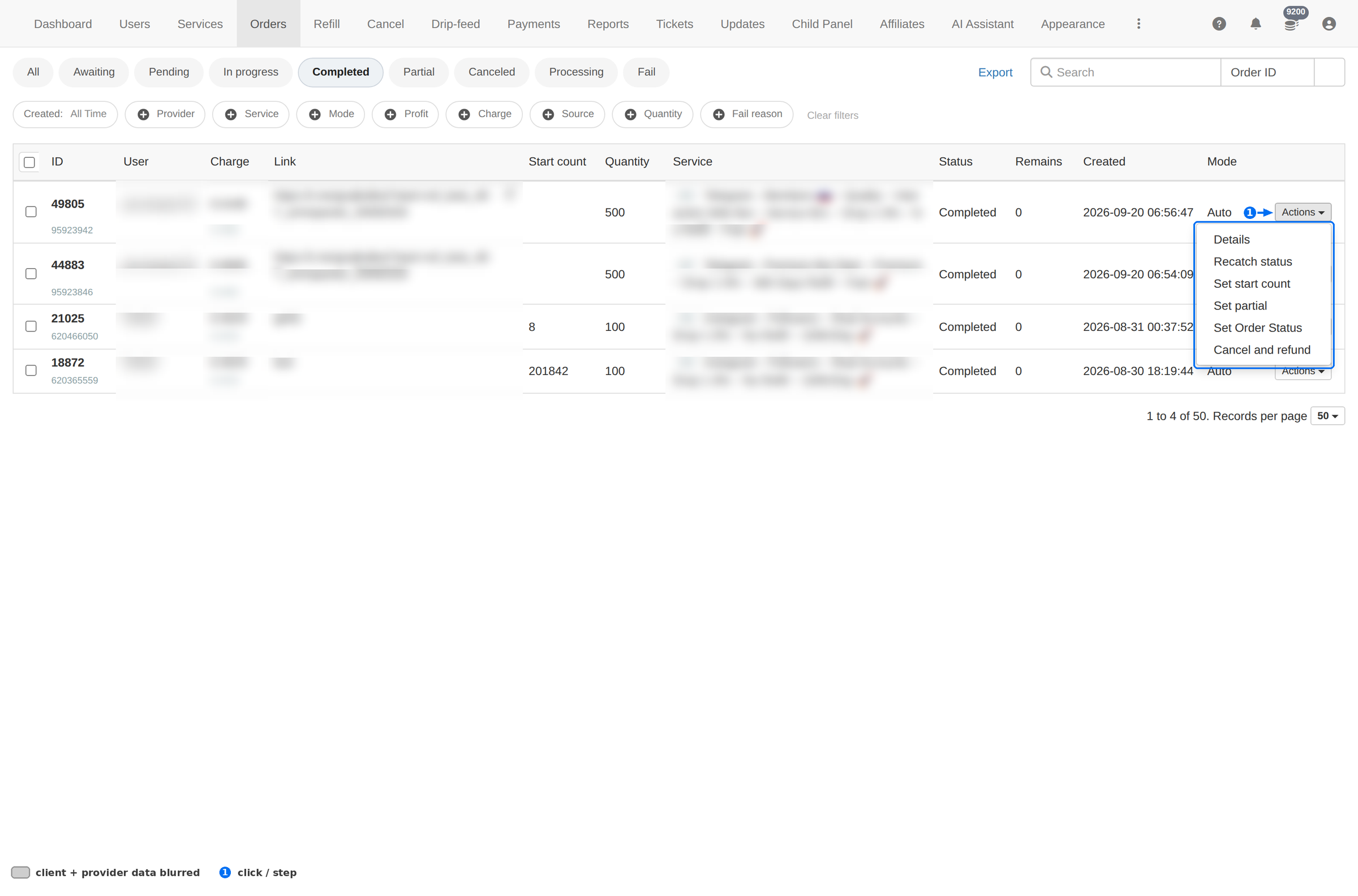
| Action | When you use it |
|---|---|
| Details | Opens the order's own view, including the provider's raw answer. See Order details. |
| Recatch status | Asks the provider again and refreshes the status. Use it when an order looks stuck but the provider says it is done. |
| Set start count | Corrects the starting count so delivery is calculated from the right number. |
| Set partial | Marks the order as partly delivered — the honest way to close an order the provider under-delivered. |
| Set Order Status | Sets any status by hand. This is your override; use it deliberately, because the client sees the result. |
| Cancel and refund | Stops the order and returns the money to the client's balance. |
| Processing / In progress / Completed | The status moves offered on a pending order, in the order an order normally goes through them. |
Cancel and refund moves real money. The client's balance goes up by the order value — check the Remains column first, because refunding an order that was partly delivered overpays the client.
Order details
Actions → Details opens the order's own view. It is the page to open when a provider's answer does not match what you see in the list.
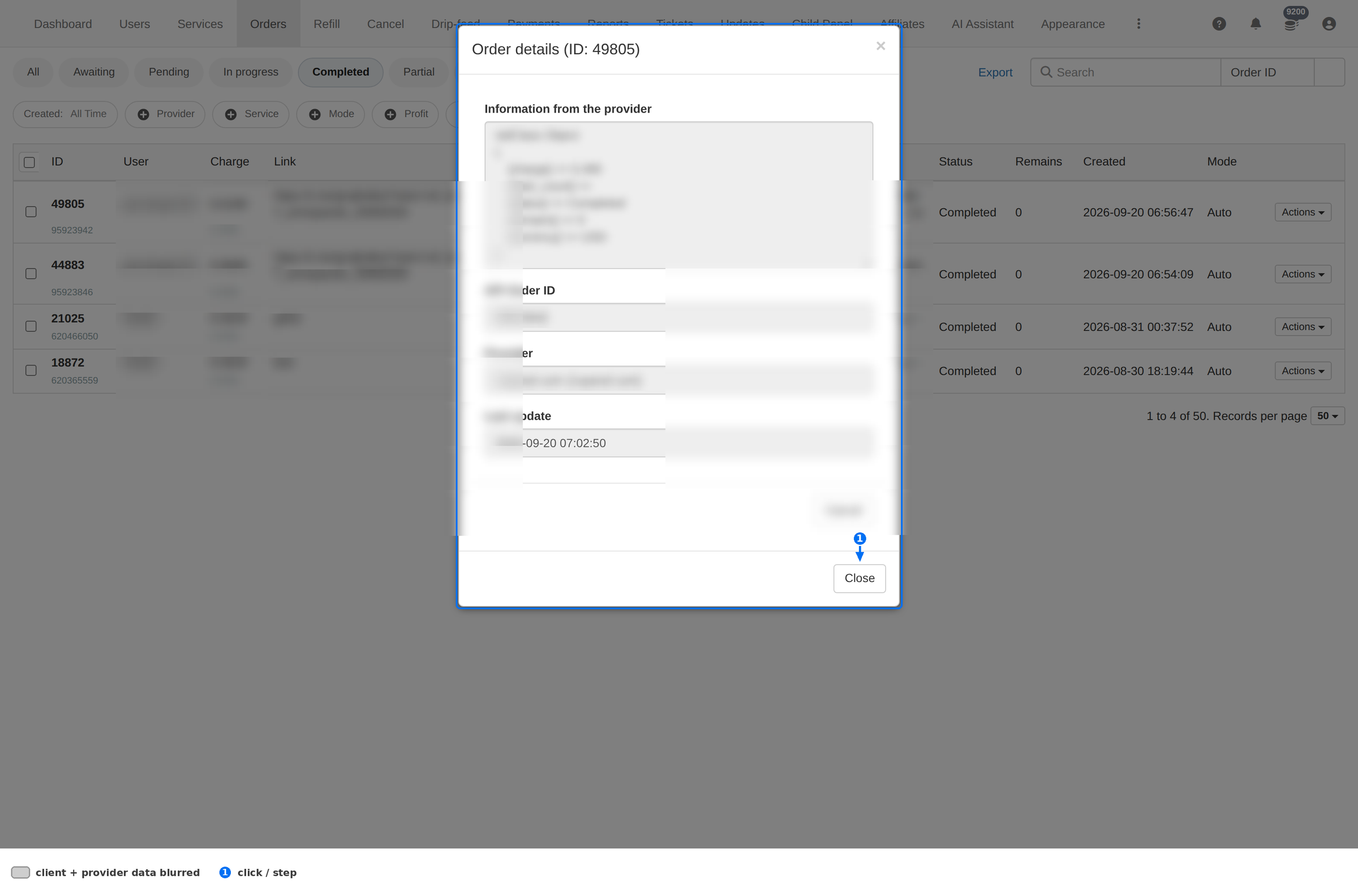
| Field | What it tells you |
|---|---|
| Information from the provider | The raw answer the provider sent back for this order — charge, start count, status, remains, currency. If a status looks wrong in the list, this is the source of truth. |
| API Order ID | The order's number at the provider. Give this to the provider's support, not to your client. |
| Provider | Which provider is delivering the order. |
| Last update | When the panel last heard from the provider. |
There is no order page reachable by clicking the row — the only way in is Actions → Details. The ID in the list is text, not a link.
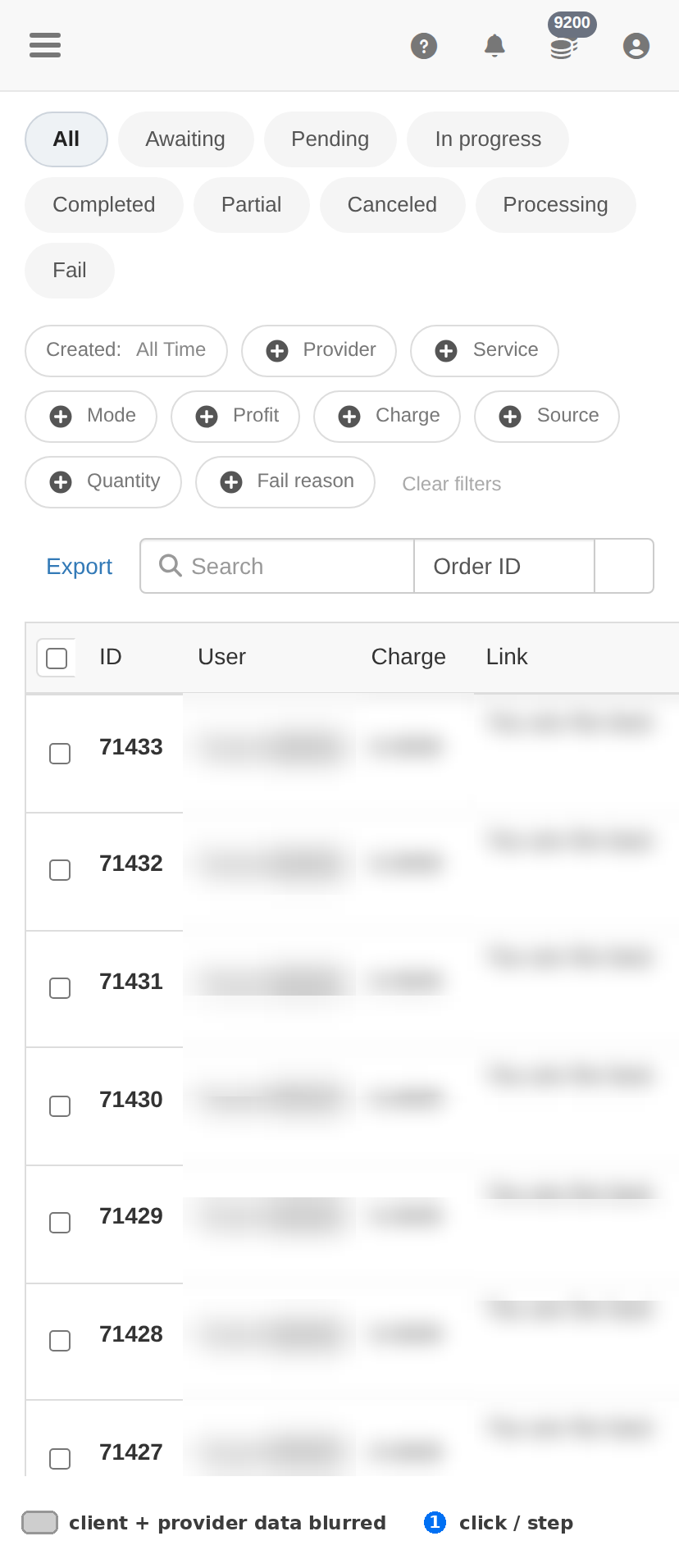
On a phone
The status tabs and the filter row scroll sideways, and the table keeps its own horizontal scroll, so the page itself never breaks.
Troubleshooting
An order is stuck on Pending
- Open Actions → Details and read Information from the provider — the raw status there beats the list.
- Use Recatch status to ask the provider again.
- Still pending after that? Filter by Provider and check whether all of that provider's orders are stuck — if they are, the problem is the provider, not the order.
A wave of orders failed
- Open the Fail tab and read the Fail reason filter counts.
- Not enough provider balance → top up that provider.
- Invalid provider API key → the key changed or was revoked; fix it in the provider's settings.
- Quantity below minimum / exceeds maximum → the service's limits changed at the provider.
The client says the order was never delivered
- Check Remains: zero means the provider reported full delivery.
- Open Details and compare the provider's start count with the client's own count — a mismatch usually means the client lost followers from somewhere else.
- If the provider genuinely under-delivered, close it honestly with Set partial, or refund with Cancel and refund.
An order is missing from the list
- Reset the status tab to All.
- Check the Created filter — a date range is the second most common reason a row disappears.
- Search by Order ID.
- Remember the list is paginated: newest orders are on page 1.
Export does not contain what you expect
- Export follows the filters: set the status tab, date range and any other filter first, then export.
- Use Clear filters before exporting when you want everything.