Services import
Importing is how a provider's catalogue becomes your catalogue. It is a three-step wizard, and the
important part is the last step: nothing is committed until you set your own rates. This guide
follows the live importer at smmpanelz.com/go-admin/api-services — reachable from
Services → Import services.
Reading the screenshots. Blue numbered badges mark what you click, grey patches are blurred data. Here that is the provider name, the provider's own service names (they often contain the provider's name) and the price columns. Categories, counts and controls stay readable.
How the wizard works
The stepper at the top of the page shows where you are:
| Step | What happens |
|---|---|
| 1 · Choose Provider | Pick which provider to pull the catalogue from, then fetch it. |
| 2 · Select Services | Browse the fetched catalogue and tick what you want. Nothing is added yet. |
| 3 · Edit & Import | Set your selling price and limits per service, then commit the import. |
Nothing you do in steps 1 and 2 touches your catalogue. You can fetch, browse and go Back as often as you like — the import only happens on the last step.
Step 1 — Choose provider
Pick the provider from the dropdown — each entry shows the currency it bills you in — then hit Fetch Services to pull its catalogue.
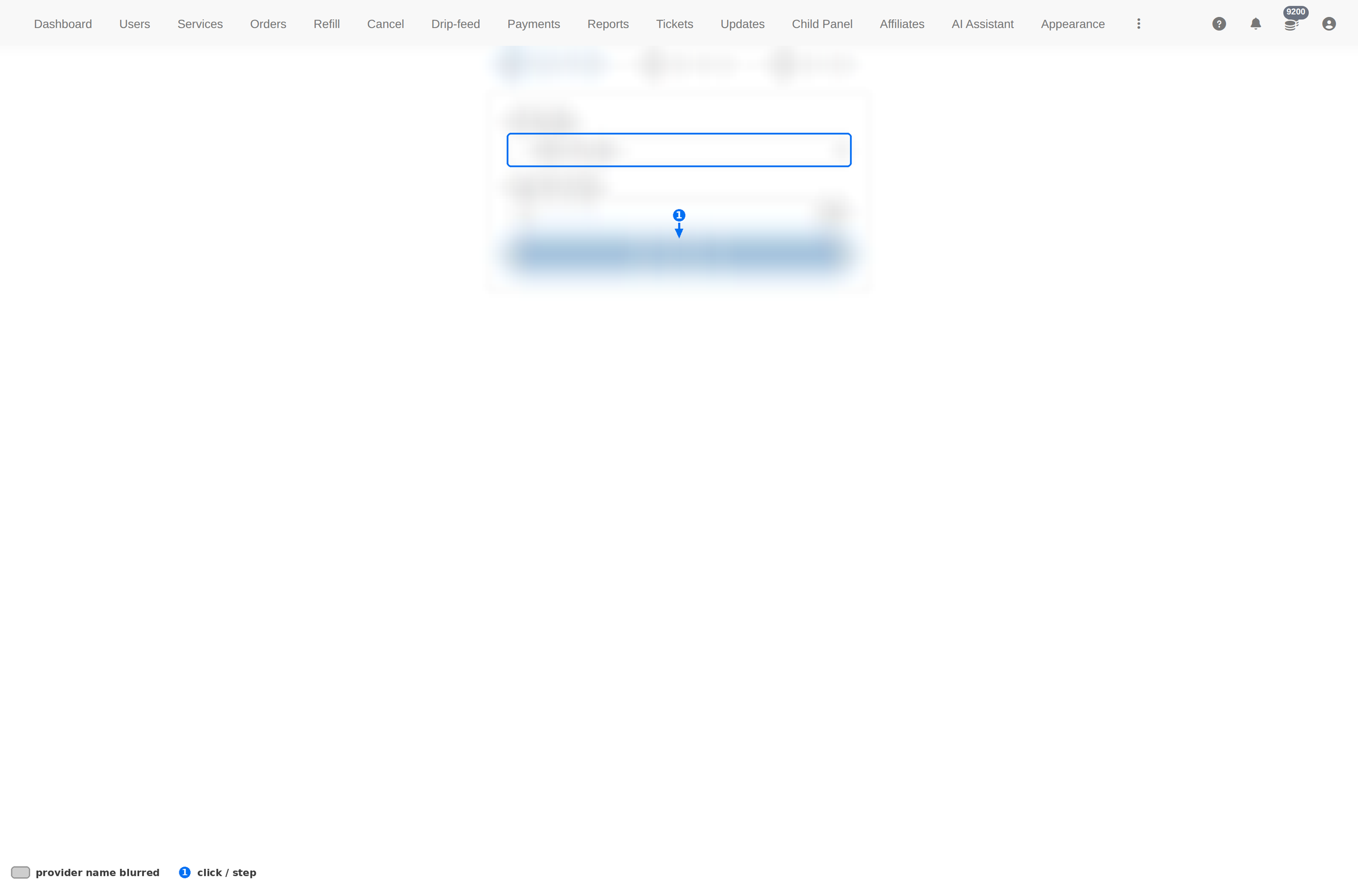
- Pick the provider whose catalogue you want. The currency shown is what that provider charges you in.
- Fetch Services and wait — a big provider takes several seconds to answer.
- If it fails, the provider's API key is the first thing to check in your provider settings.
Step 2 — Select services
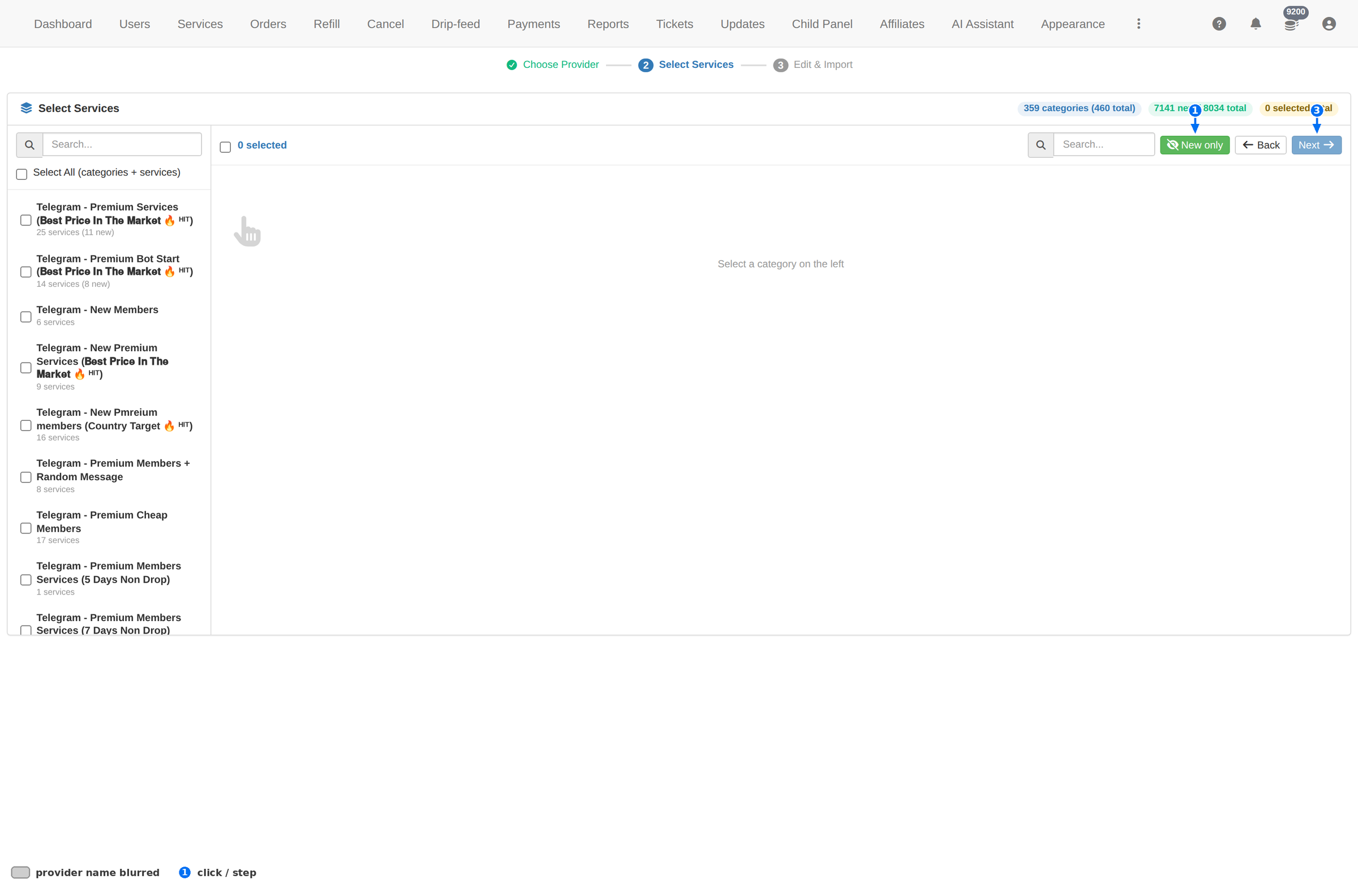
The fetched catalogue arrives as a category tree, with counters that tell you what is worth importing and what you already have.
| On screen | What it means |
|---|---|
| 359 categories (460 total) | How many categories this provider returned. |
| 7141 new / 8034 total | New = services you do not have yet. Total = everything the provider returned. The difference is what you already imported. |
| 0 selected total | What you are about to import. It stays zero until you tick something. |
| New only | Hides the services you already have, so you only look at what is actually new. |
| Select All (categories + services) | Ticks the entire catalogue in one go. |
| N services (M new) | Each category shows its size and how many of those are new — the fastest way to find the handful worth importing. |
| Back / Next | Paging through the tree, and on to the pricing step. |
Do not press Select All on a provider with thousands of services. In testing, ticking an entire 8,000-service catalogue made the browser tab crash under the weight of the tree. Tick one category at a time — a category is 10–30 services and imports in a moment.
Work with New only switched on, and import the categories whose new count is non-zero. That is the whole point of the counter: re-importing things you already have just creates duplicates to clean up.
Step 3 — Edit & import
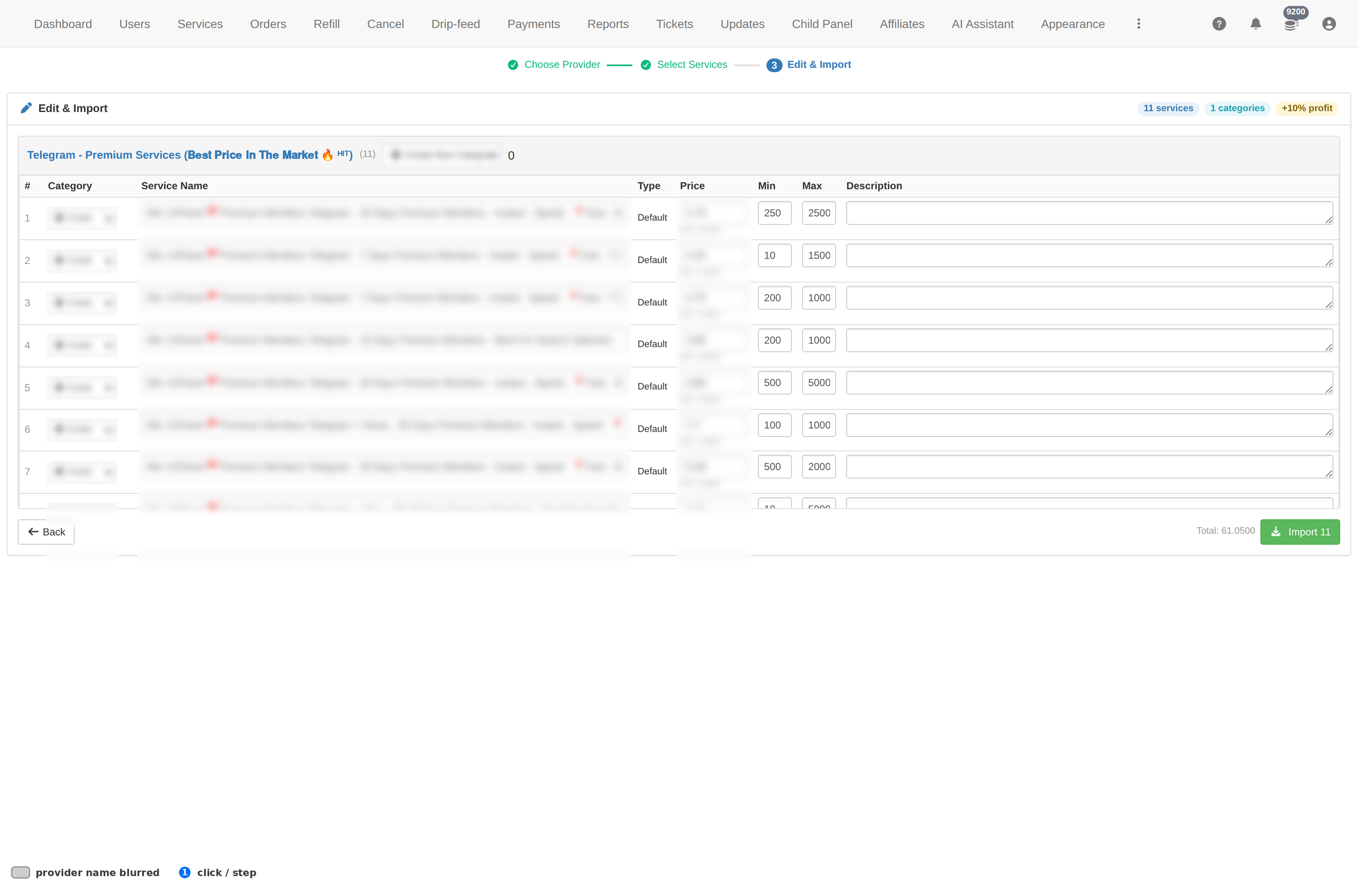
This is the step that matters. Everything you selected is listed with the provider's cost and your selling price side by side, and every row is editable before you commit.
| Column / control | What you do with it |
|---|---|
| # | Row number of the services you selected. |
| Category | The category it will land in — check this, because it decides where clients find it. |
| Service Name | The name as the provider calls it. Rename it here if you want your own wording. |
| Type | The service type it will be created with. |
| Price | Your selling price. The provider's own cost sits right under it (the API figure), so you can see your margin on the same line. |
| Min / Max | The order window for the service. Inherited from the provider — tighten it if you want smaller minimums off your catalogue. |
| Description | The text clients read on the service. Empty by default; a good line here reduces support questions. |
| +10% profit | The markup applied on top of the provider's cost when prices are filled in. Change it before you edit individual rows. |
| Total | The sum of the prices in this batch — what the whole selection is worth at your rates. |
| Back | Return to selection without importing anything. |
| Import N | Commits the batch: N services are created in your catalogue. This is the only button in the wizard that changes anything. |
Setting your rates
- Set the markup first. The profit control fills prices for the whole batch — do it before you hand-edit rows, or your edits get overwritten.
- Read the API figure on each row. That is what the provider charges you. Your price minus that is the margin; anything at or below it is a loss-making service.
- Fix Min/Max before importing. They come from the provider and can be far wider than you want clients to order.
- Check the Total. It is your sanity check that the batch is the size you think it is.
- Then import. Import in category-sized batches — easier to spot a mistake, and far kinder to the browser.
The import is one-way. Imported services appear in your catalogue straight away, with the status the provider gives them. Review the rates before you press Import — cleaning up a thousand wrongly-priced services afterwards is the expensive part.
On a phone
The importer works on a phone, but step 3's table is wide — the price columns need horizontal scrolling. Do the import on a desktop when you are doing more than a handful of services.

Troubleshooting
Fetch Services returns nothing or errors
- Check the provider's API key in your provider settings — an expired or revoked key is the usual cause.
- Check the provider itself is up; if its own panel is down, the fetch fails.
- Try a different provider to confirm the importer itself is fine.
Everything shows as "new" even though you imported before
- The provider changed its service IDs or names — the importer matches on what the provider reports now.
- Turn on New only and compare counts before importing; a changed ID means a duplicate service.
The browser freezes or the tab crashes
- You ticked too much at once. Reload and select one category at a time.
- Never use Select All on a catalogue with thousands of services.
Prices came out wrong
- Check the profit markup — it is applied to the batch, so a wrong value here is wrong everywhere.
- Rows you edited by hand keep their value; rows you did not were filled by the markup.
- Fix the price on the Services page afterwards — one service at a time.
Imported services do not show to clients
- They inherit the provider's status; an off service stays off.
- Filter the Services page by Status and switch them on.
- Check the category — a service in a category nobody browses is effectively invisible.