Services
Services is your catalogue: everything you sell, grouped by category, with the rate you charge,
the provider behind it and whether clients can see it. This guide follows the live admin at
smmpanelz.com/go-admin/services.
Reading the screenshots. Blue boxes mark a data value, blue numbered badges mark what you click, grey patches are blurred data. On this page that means the Provider column (provider names) and the Rate column (your pricing) — plus any provider name that hides inside a service name. Service names and categories stay readable.
Page anatomy
The toolbar holds the three things you do here — add a service, add a category, import from a provider — and the row of filter buttons lives inside the table header itself.
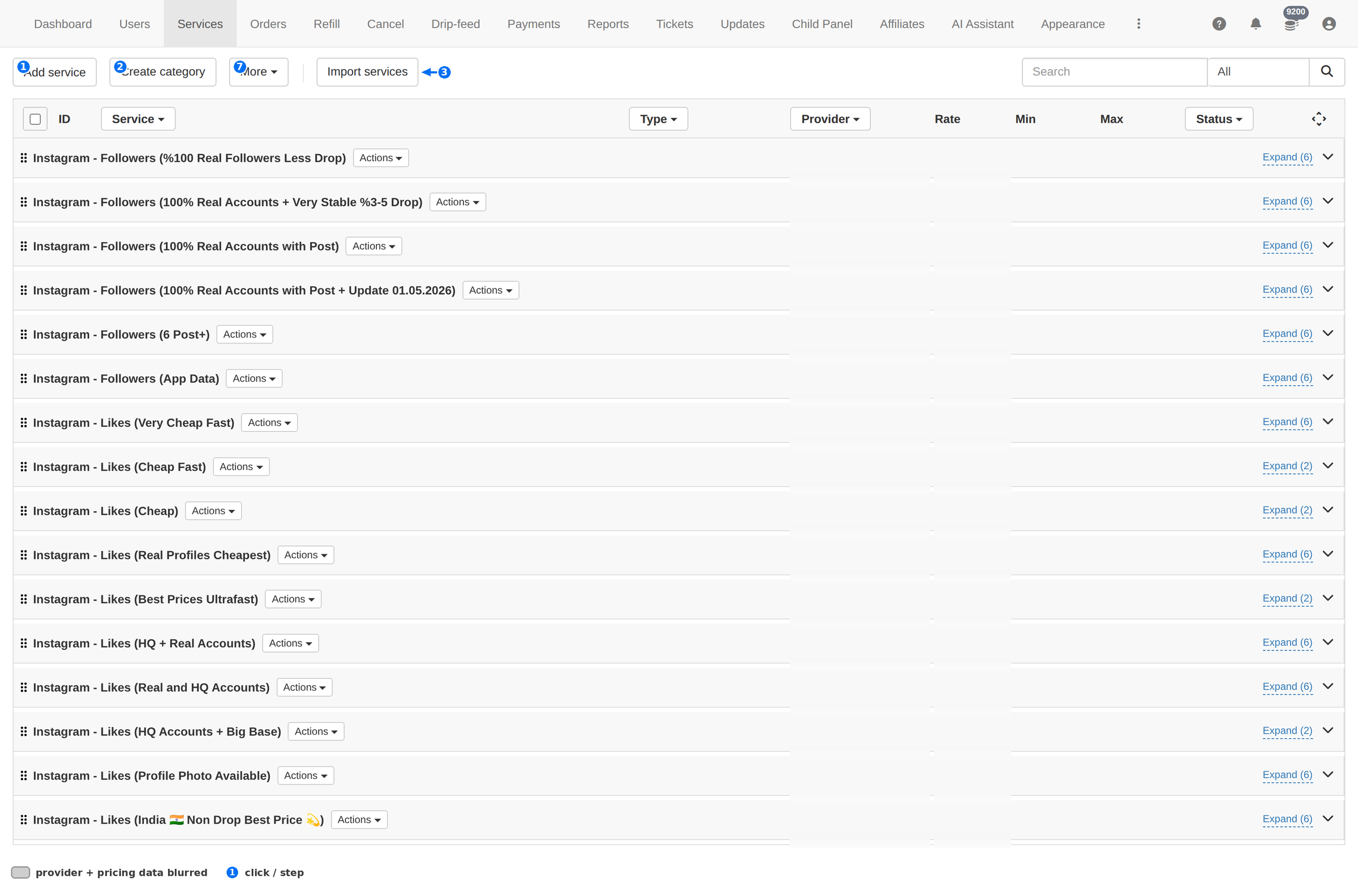
| # | Element | What it does |
|---|---|---|
| 1 | Add service | Opens the new-service form on this page. See Adding a service. |
| 2 | Create category | Adds a category to group services under. |
| 3 | Import services | Takes you to the provider importer — its own three-step wizard. See Services import. |
| 4 | Provider filter | Shows only services that come from one provider. |
| 5 | Status | Filters by whether the service is visible to clients. |
| 6 | Type | Filters by service type (default and the custom types you have defined). |
| 7 | More | The remaining filters, so the header does not overflow. |
| — | Actions | The per-service menu at the end of each row. |
Categories & expand
The list is not one long list of services — it is a list of categories, each one collapsed. Every category row shows its name and a count, and opens with Expand.
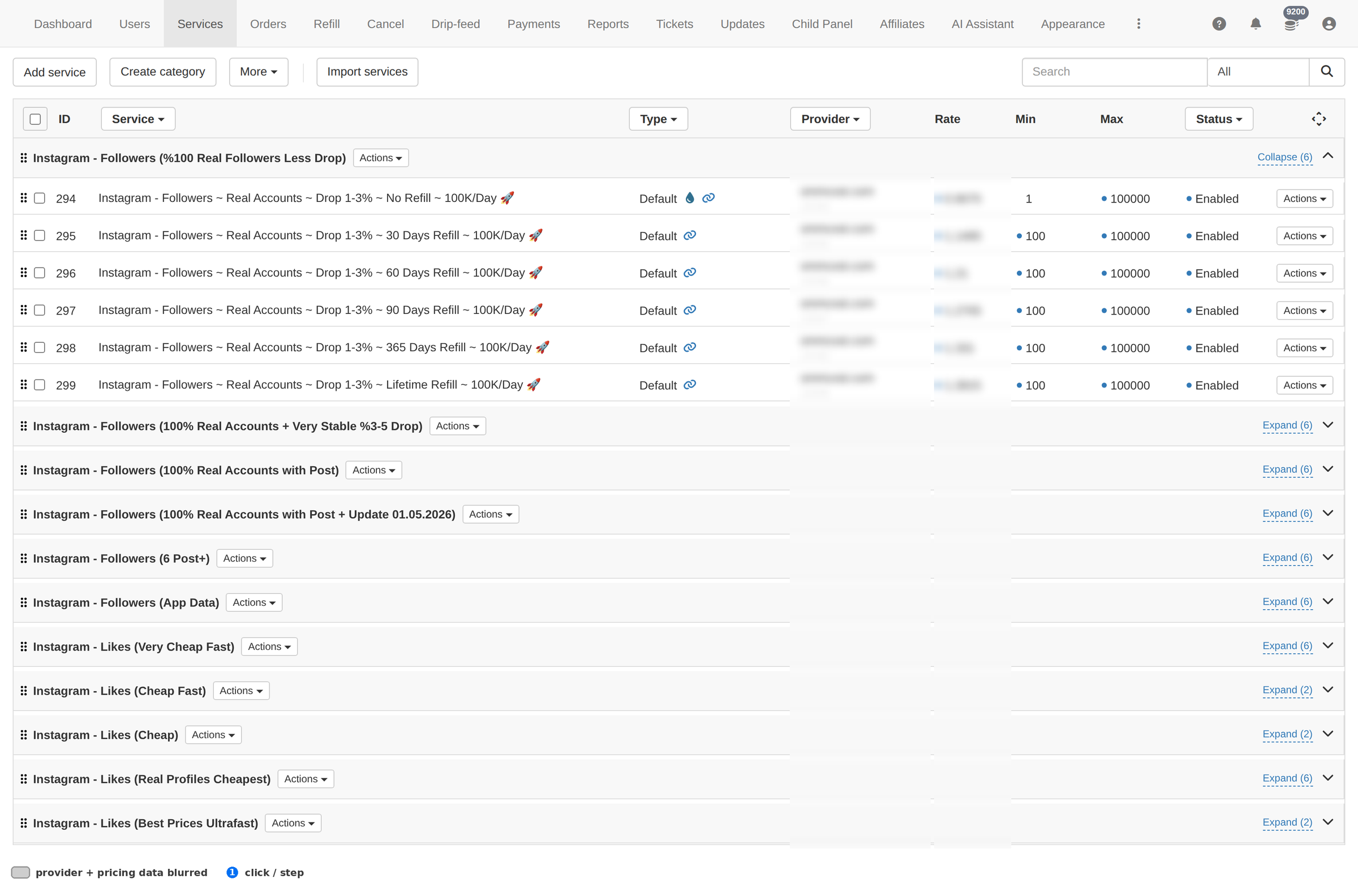
This matters when you are looking for one service: expand its category first — the collapsed view hides every service inside it, so a search for a service name can look empty when the service is really there.
Column reference
| Column | Meaning |
|---|---|
| ID | The service ID clients and the API use when ordering. |
| Service | The service name — on a category row this is the category. |
| Type | The service type it was created with. |
| Provider | Which provider delivers it. Blurred in these screenshots. |
| Rate | Your price per 1000. Blurred in these screenshots. |
| Min | The smallest quantity a client may order. |
| Max | The largest quantity a client may order. |
| Status | Whether the service is on or off. An off service still exists but clients cannot order it. |
Filters
The filter buttons sit in the table header, directly above the column they filter — so Provider filters the Provider column, Status the Status column, and so on. Anything that does not fit is under More.
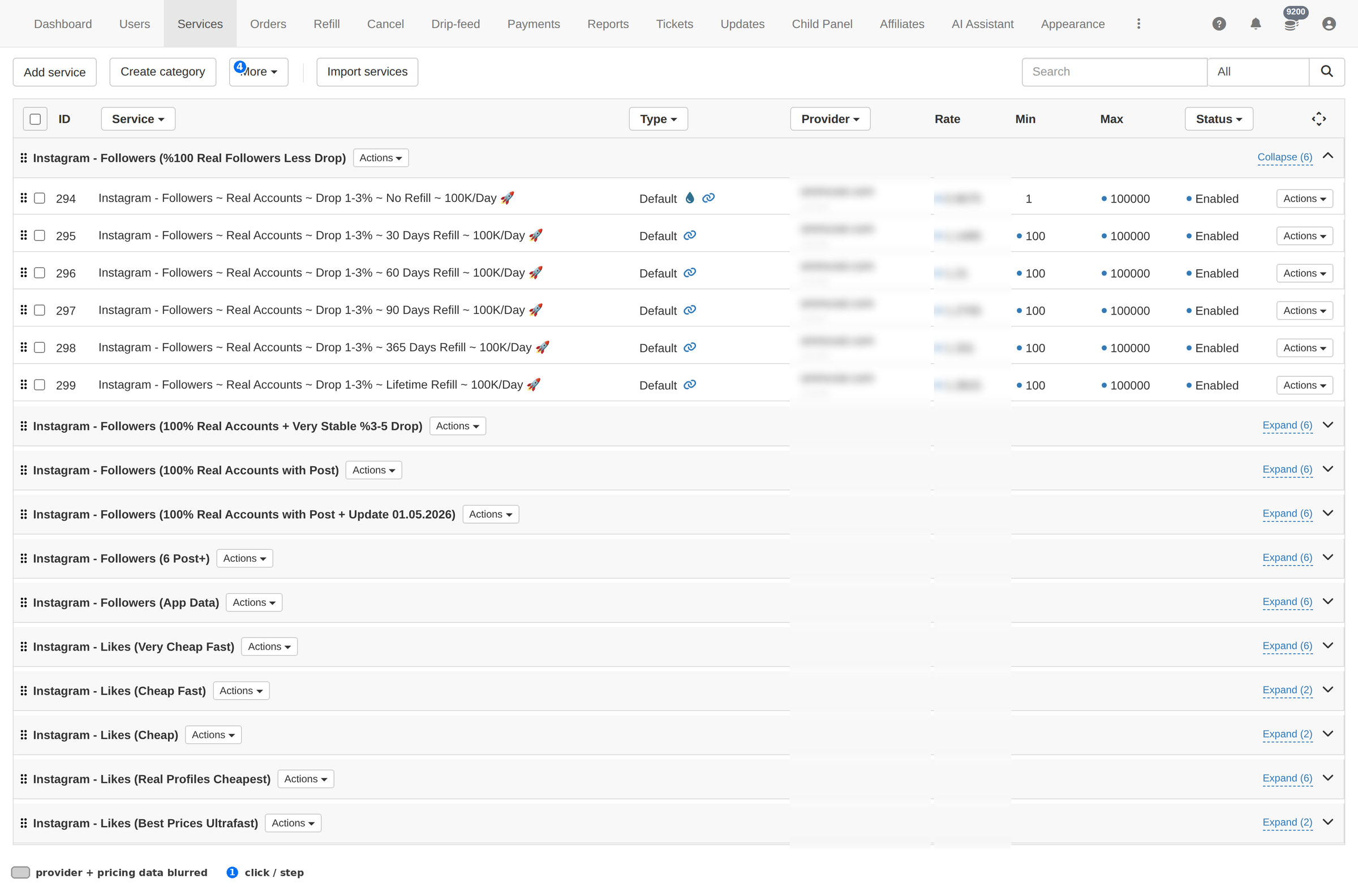
- Provider — when one provider is down or you are reviewing everything you buy from it.
- Status — to find services that are off and should not be.
- Type — to review one kind of service at a time.
- More — the rest, including the name/ID search fields.
Selecting rows with the checkboxes brings up the bulk bar, which lets you act on many services at once (Actions) or drop the selection (Cancel).
Adding a service
Add service opens a form on the same page — it is not a popup, so scroll up when you open it. The fields it asks for:
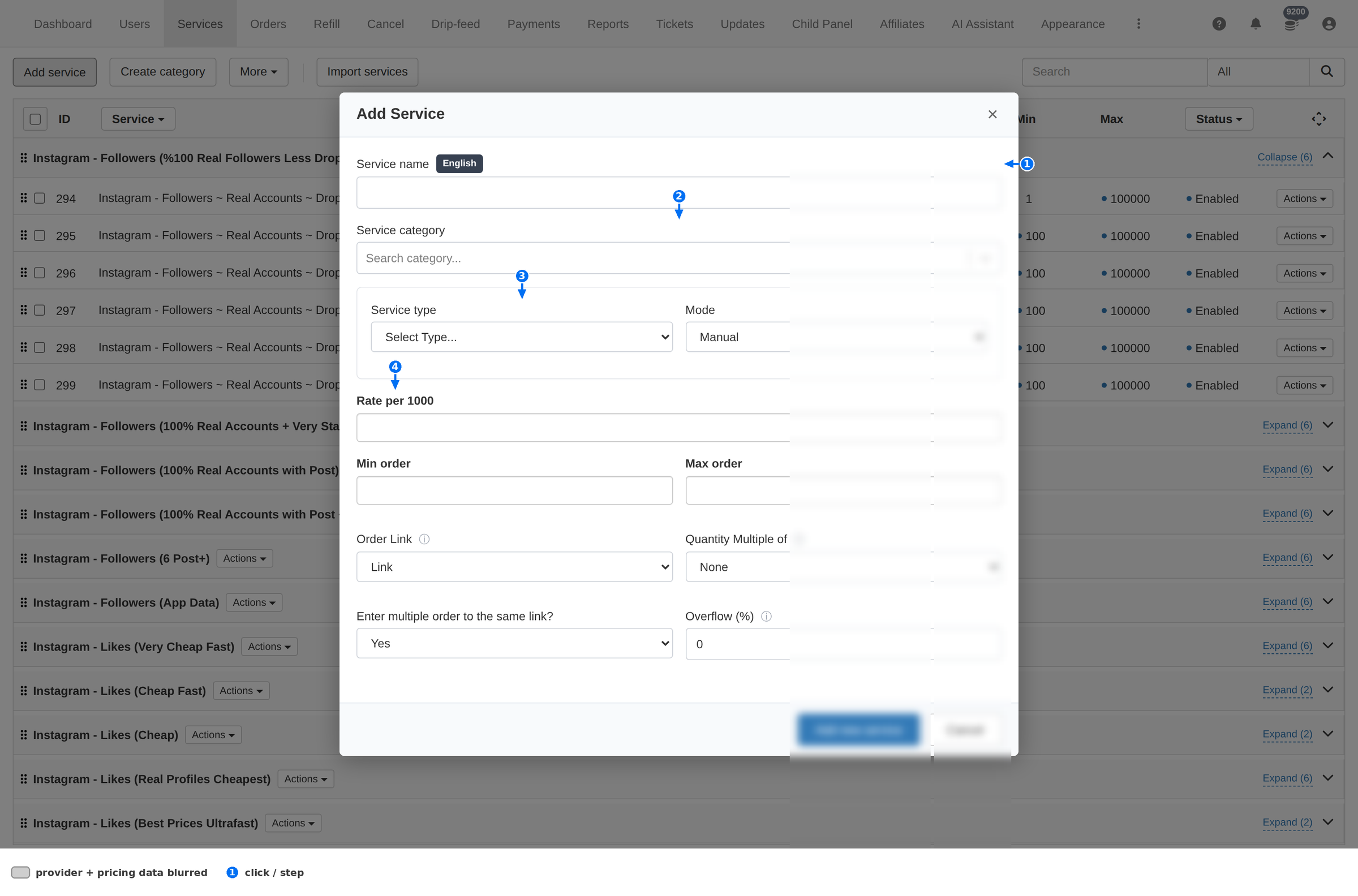
| Field | What to put there |
|---|---|
| Service name English | What the client sees in your catalogue. This is the name that sells, so write it the way a client searches for it. |
| Service category | The category it sits under. Clients browse by category, so this is not cosmetic. |
| Service type | How the service behaves (the standard type plus any custom ones you have defined). |
| Mode | How orders are processed for it. |
| Rate per 1000 | Your price per 1000 — the number clients are charged against. |
| Min order / Max order | The order window. Set these to match the provider's own limits, or clients will order quantities the provider refuses. |
| Order Link | What the client must paste (a profile, post or video URL). |
| Quantity Multiple of | Forces orders to step in multiples — useful for services sold in packs. |
| Enter multiple order to the same link? | Whether the same link may be ordered more than once. |
| Overflow (%) | How much extra the provider may deliver beyond the ordered quantity. |
Min and Max are the field people get wrong. If a client can order less than the provider accepts, those orders fail after the money is already charged — which turns into tickets and refunds. Copy the provider's limits when you create the service.
Creating a category
Create category adds a new group to the list. Categories are how clients browse, so a catalogue with three clear categories outsells one with sixty vague ones. Create the category first, then add services into it with Service category.
Importing services
Import services leaves this page and opens the importer at
smmpanelz.com/go-admin/api-services, where you pick a provider, fetch its catalogue
and import what you want — with your own rates set before anything is committed.
That flow is long enough to have its own guide: Services import →
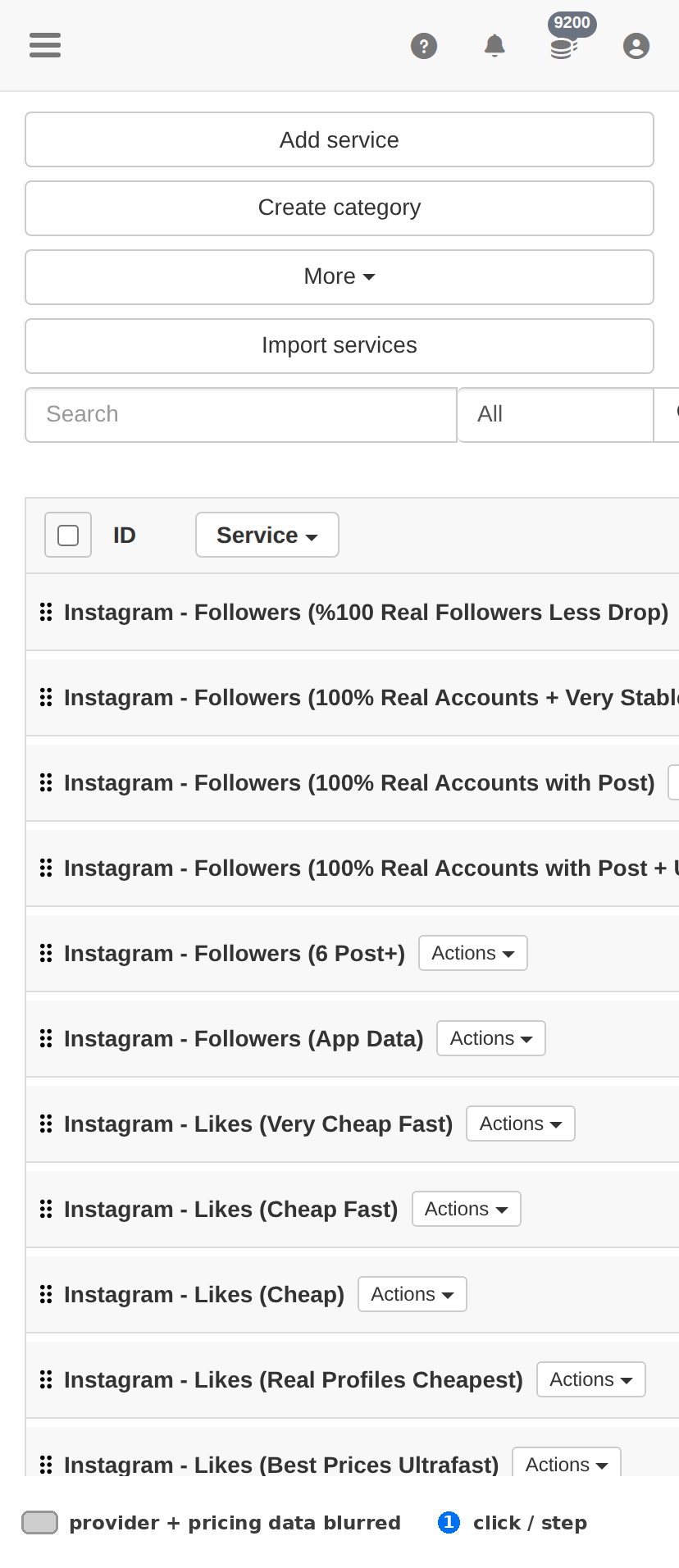
On a phone
The category list keeps its own horizontal scroll and the header filters scroll with it, so the page itself stays intact.
Troubleshooting
A service is missing from the list
- Clear the header filters — a Provider or Status filter left on is the usual reason.
- Expand the category it should be in: collapsed categories hide their services.
- Search by service ID rather than by name — names get renamed, IDs do not.
Clients cannot order a service
- Check Status: if it is off, the service is invisible to clients.
- Check Min and Max against what the client is trying to order.
- Check the provider behind it is still working — filter by Provider and look at the whole group.
Orders fail right after a client pays
- Compare Min/Max with the provider's real limits.
- Check the Orders page's Fail reason filter — it names the reason for the whole wave at once.
- Fix the service limits, then refund the failed orders with Cancel and refund on the Orders page.
The list feels endless
- Filter by Provider or Type instead of scrolling.
- Keep categories collapsed; expand only the one you are working in.