Every list in the admin ends its rows with an Actions button. This page is the dictionary for all of them: what each entry does, when to reach for it, and whether it touches a client's money. Read the section for the page you are on.
How these menus work
- The menu changes with the row. A pending order and a completed order offer different entries — the panel only shows the moves that make sense for that record's current state.
- Read before you click. Nothing here asks "are you sure?". A click is the action.
- Grey entries still act. An entry that looks disabled is usually just styled; check the row's state instead of assuming it is inert.
- Nothing is saved until you press the dialog's button. Entries that open a form (Edit user, Set password) are safe to explore — Cancel or Esc discards.
Four entries move real money: Cancel and refund (orders), Approve & Refund (cancel requests), Copy rates (users) and Set partial (orders). They are listed together at the bottom of this page.
Users
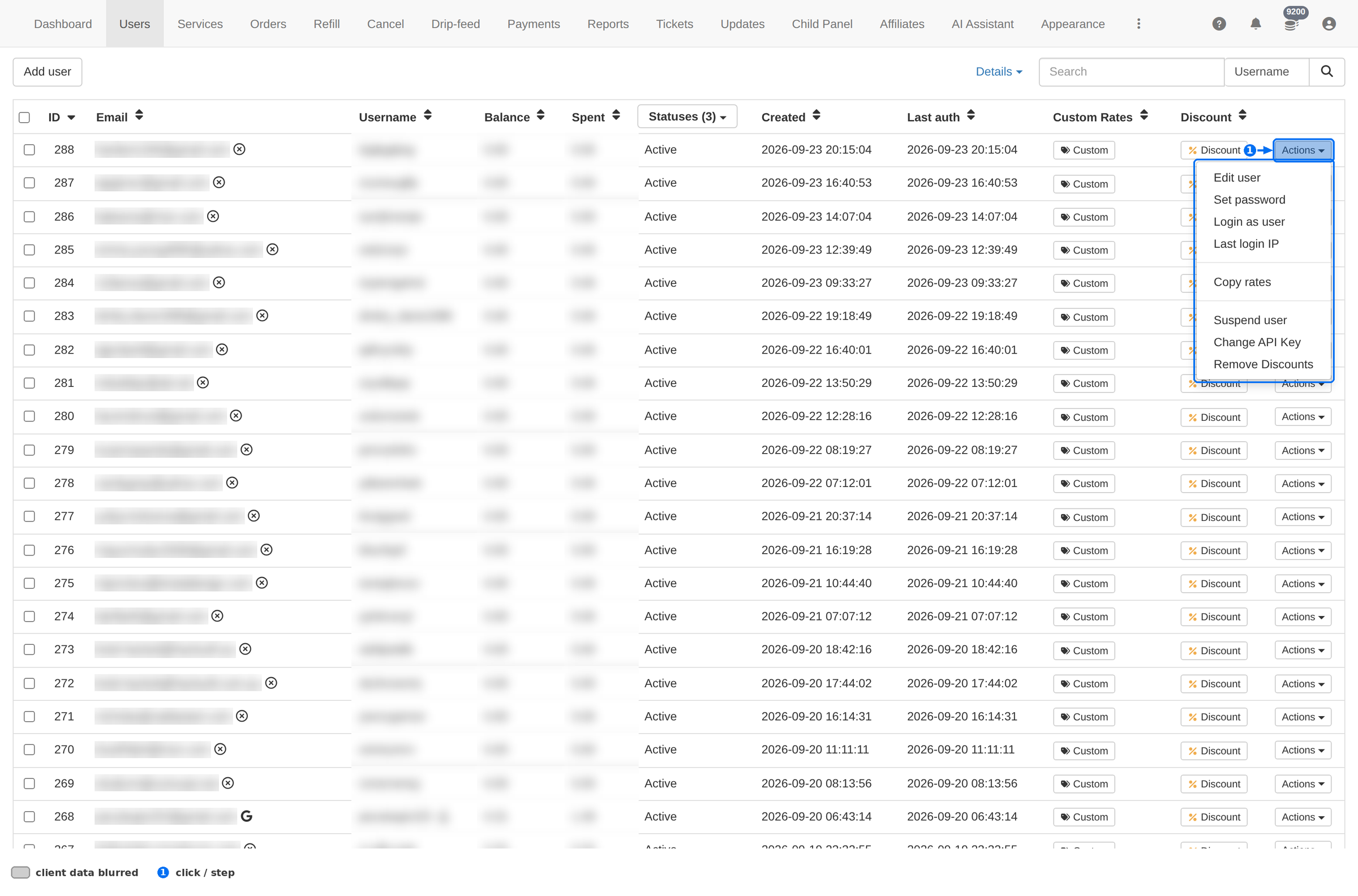
| Action | What it does | Moves money? |
|---|---|---|
| Edit user | Opens a form for the email, the Debt Status flag and Email Verified. Press Update to save. | No |
| Set password | Sets a new password for the client. Ends nothing else — existing sessions may stay alive. | No |
| Login as user | Opens the client's own dashboard, signed in as them. Use it to reproduce a report exactly. Anything you order there is a real order. | Indirectly |
| Last login IP | Shows where the last session came from. The first thing to check on an abuse report. | No |
| Copy rates | Copies another client's custom rates onto this client. Overwrites this client's own custom rates. | Indirectly |
| Suspend user | Blocks ordering and API access. Deletes nothing and is reversible — the safe first move on abuse. | No |
| Change API Key | Issues a new API key, invalidating the old one. The client's integration breaks until they update it. | No |
| Remove Discounts | Takes the client back to standard pricing. Their next order costs more than their last. | Indirectly |
Suspend, never delete. There is no delete-user entry, and that is deliberate — a suspended client keeps their history, so a chargeback you later win can still be reconciled.
Services
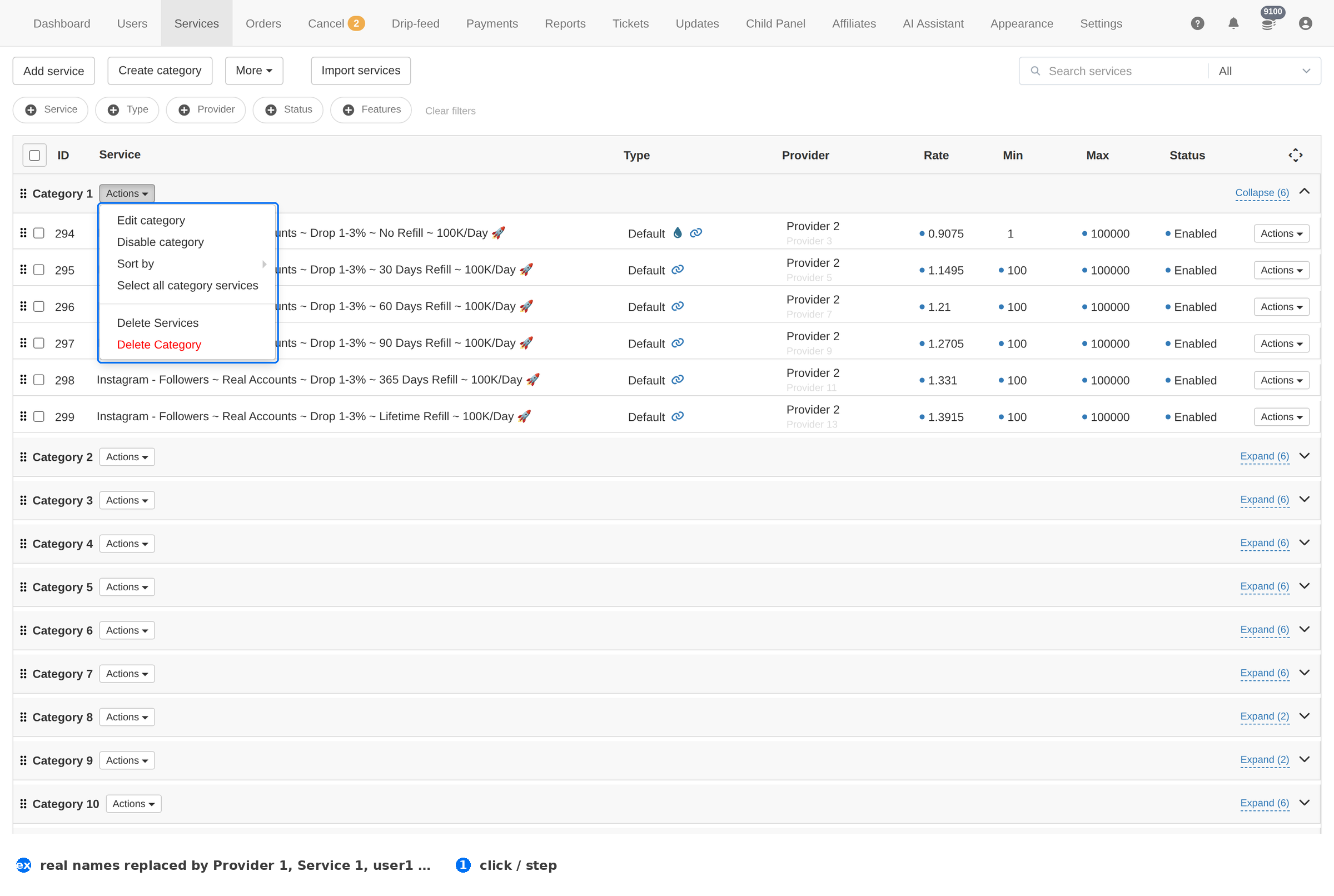
| Action | What it does | Moves money? |
|---|---|---|
| Edit category | Renames the category or changes how it is presented. Every service inside it moves with it. | No |
| Disable category | Takes the whole category off the client site. Clients lose access to every service inside it at once. | No |
| Sort by → Rate (low to high / high to low) | Reorders the services inside the category by price. Presentation only. | No |
| Select all category services | Ticks every service in the category — the way to act on a whole category without expanding it. | No |
| Delete Services | Deletes the selected services. Orders already placed keep their history, but the services stop being orderable. | No |
| Delete Category | Removes the category itself, with every service inside it. The one entry here that destroys a whole group at once. | No |
| Delete empty categories More | Clears out categories that hold no services. A cleanup tool for after a big import. | No |
Delete Services is the one irreversible entry here. If a service might come back, use the service's own Status and switch it off instead — an off service is invisible to clients but keeps its ID, its rate and its order history.
Orders
The Orders menu is status-dependent — this is the entry most admins misread. The full menu, as it appears on a pending order, in order:
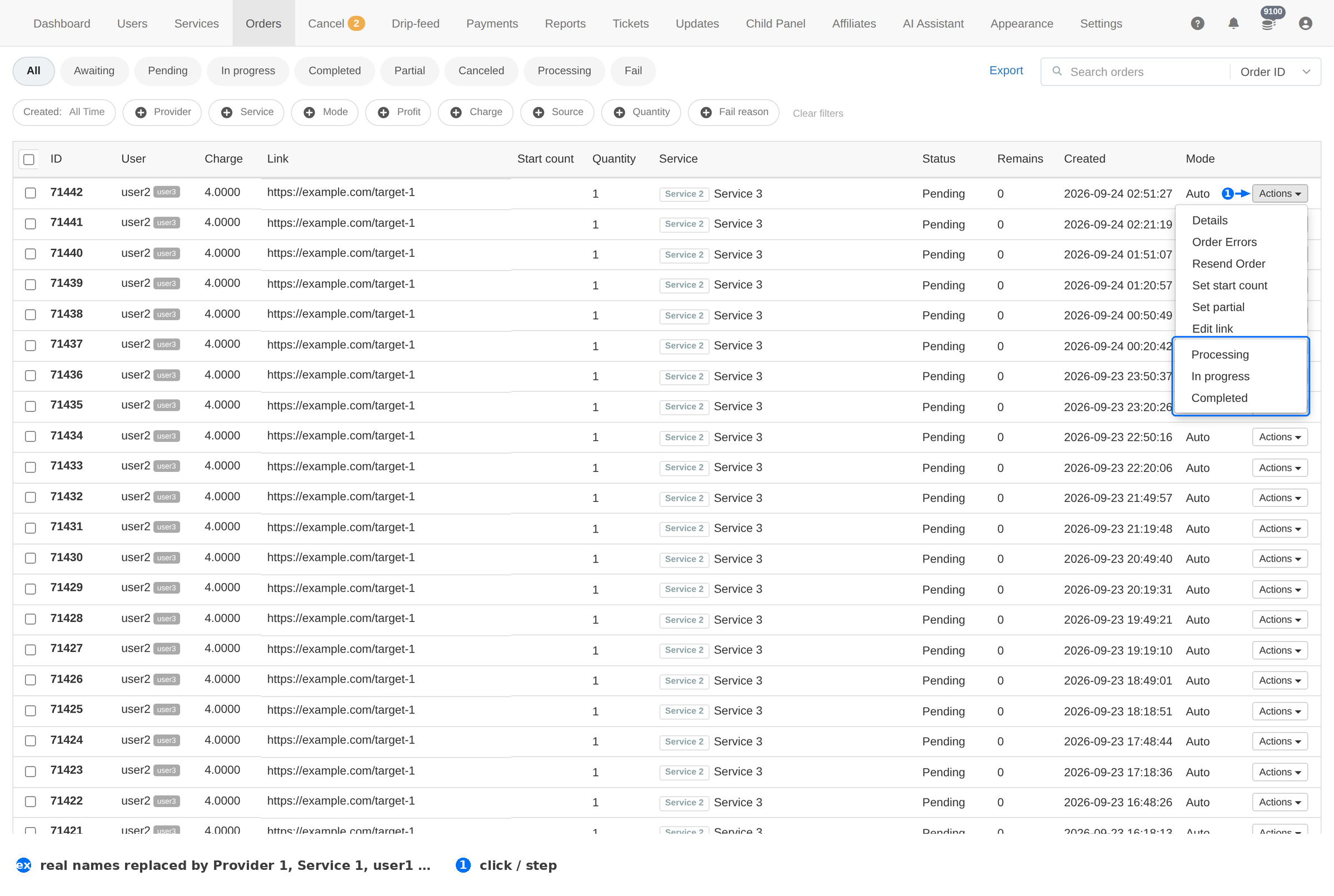
| Action | What it does | Moves money? |
|---|---|---|
| Details | Opens the order's own view: the provider's raw answer, the provider's order ID, the provider name and the last update. The only way in — the ID in the list is not a link. | No |
| Order Errors | Shows what went wrong with this order — the provider's error text. The first thing to open on a failed order, because it names the cause instead of making you guess. | No |
| Resend Order | Sends the order to the provider again. Use it when the first attempt failed on a transient error (a timeout, a provider blip) rather than a permanent one. | No |
| Set start count | Corrects the count the order started from, so delivery is calculated against the right base. | No |
| Set partial | Marks the order as partly delivered — the honest close when the provider under-delivered. The unspent part stays with the client. | Yes |
| Edit link | Changes the target the order works on. Use it when the client pasted the wrong profile — not to point an order at a different account. | No |
| Change status → Processing / In progress / Completed | A submenu that moves the order along its normal life. Completed here does not ask the provider — use it only when you know delivery happened. | No |
| Set Order Status | Sets any status by hand, including the ones the submenu does not offer. Your override; the client sees the result. | No |
| Cancel and refund | Stops the order and returns the whole order value to the client's balance. | Yes |
Work a failed order in this order: Order Errors to read the cause → fix what it names (provider balance, API key, service limits) → Resend Order. Skipping straight to Resend sends the same broken order again and fails the same way.
Cancel and refund pays back the full order value, not what was left. Check the Remains column first: an order that was 80% delivered should be closed with Set partial, not refunded. Refunding a partial order overpays the client and you cannot take it back.
Cancel requests
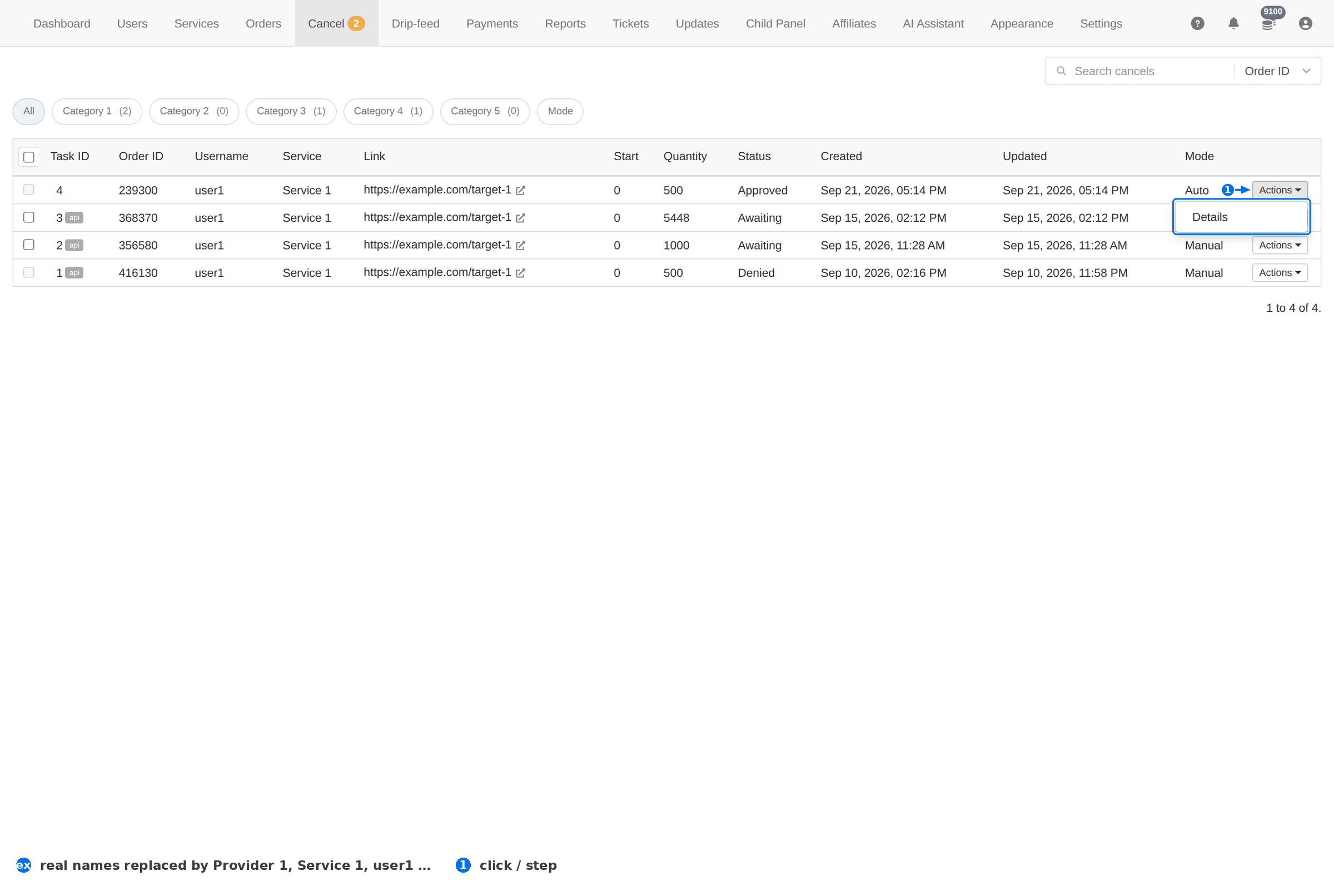
| Action | What it does | Moves money? |
|---|---|---|
| Approve & Refund | Accepts the client's request and returns the order's value to their balance. This is the one that pays out. | Yes |
| Reject | Refuses the cancel. The order carries on delivering. Tell the client what was delivered. | No |
| Details | Opens the request's own view — the order it belongs to, the service, the link and the counts. | No |
Reject is not the unfriendly answer. If the provider already delivered, rejecting is the honest one — approving would refund money for work that was done. Answer the ticket with what was delivered rather than leaving the request open.
Tickets
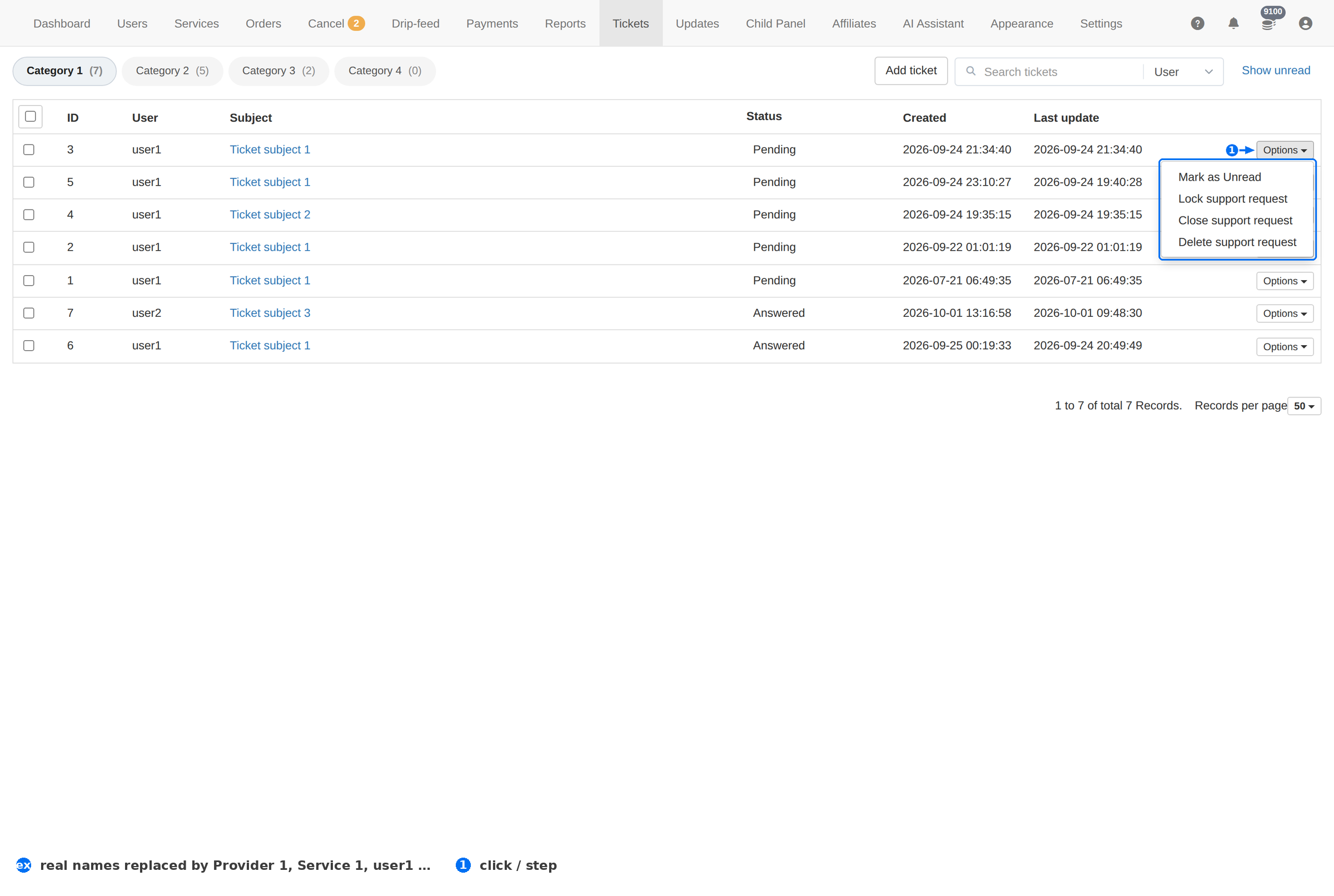
| Action | What it does | Moves money? |
|---|---|---|
| Mark as Unread | Puts the ticket back in your unread list. Use it to park a ticket you must come back to. | No |
| Lock support request | Stops the client adding messages. The thread stays readable. | No |
| Close support request | Marks it resolved. A new client message reopens it. | No |
| Delete support request | Removes the ticket and its thread. Irreversible — and it destroys the evidence if the issue returns. | No |
Appearance
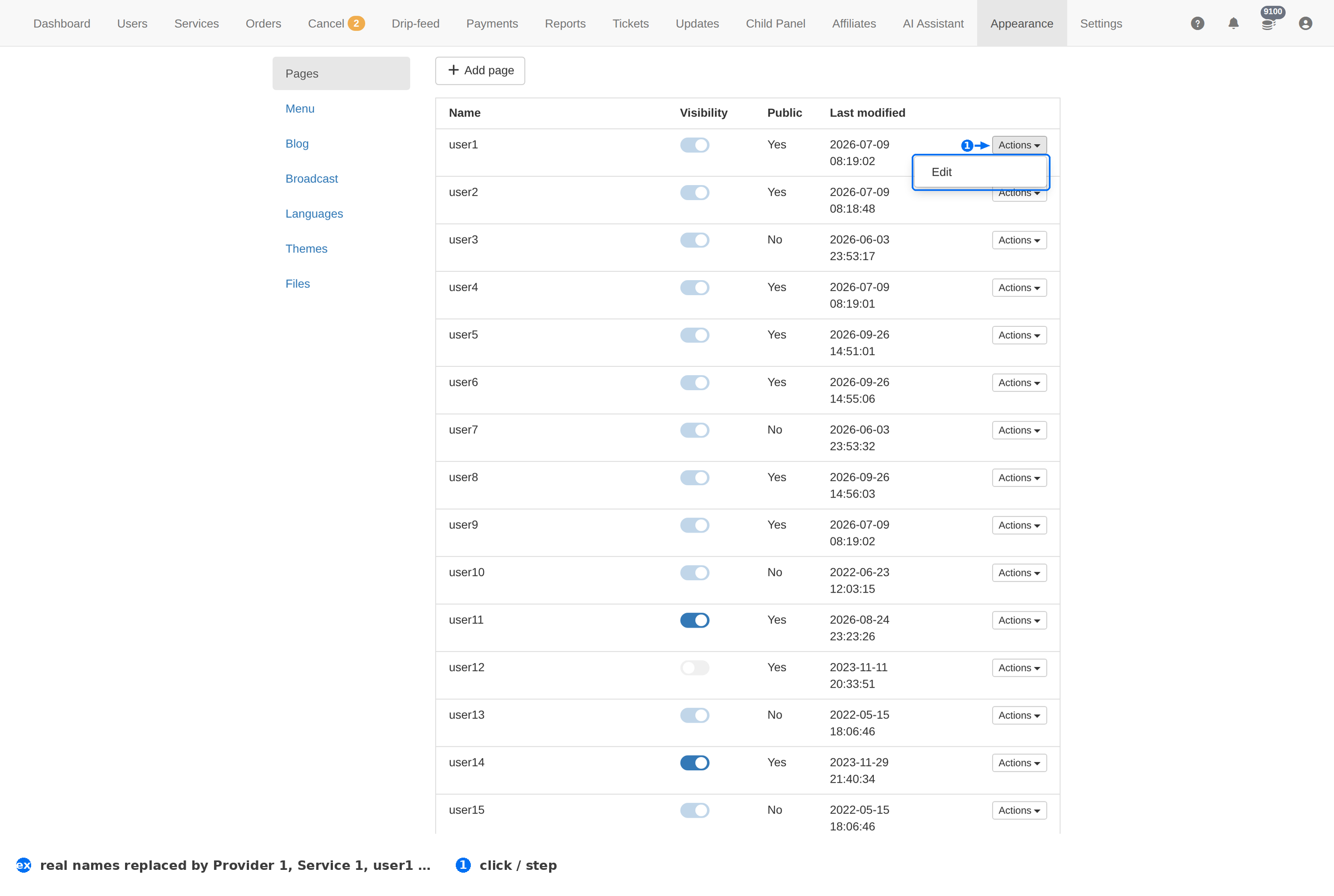
| Action | What it does | Moves money? |
|---|---|---|
| Edit | Opens the page's editor. What you can change depends on the row — a page, a menu item, a post. | No |
| Delete | Removes the page from the client site. The built-in pages do not offer it; pages you created do. | No |
Child Panel
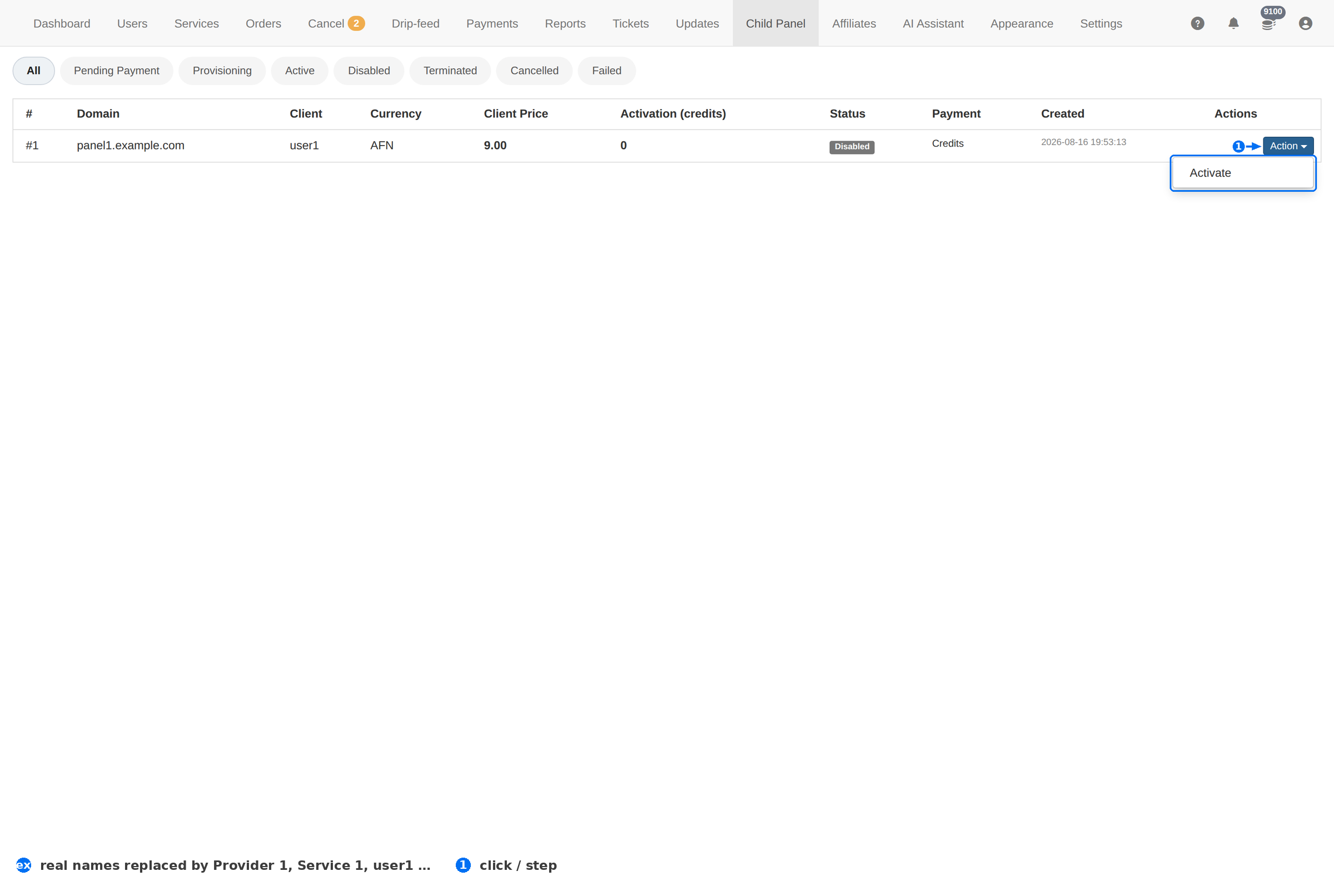
| Action | What it does | Moves money? |
|---|---|---|
| Activate | Turns the child panel on and takes the activation credits from the owner's balance. Until it is activated, the reseller's clients cannot order. | Yes — from the reseller's credits |
Activation draws on the reseller's balance, not yours. If their balance is short the activation fails and the panel stays in Pending Payment. Ask them to top up before you retry.
Which actions move money
Five entries change a balance. Everything else on this page is a state change.
| Action | Page | What it does to money |
|---|---|---|
| Cancel and refund | Orders | Returns the full order value to the client's balance. Check Remains first. |
| Set partial | Orders | Closes the order as under-delivered. The unspent part stays with the client — no new refund is issued. |
| Approve & Refund | Cancel requests | Returns the order's value to the client's balance and stops the order. |
| Activate | Child Panel | Charges the activation credits to the reseller's own balance. |
| Copy rates | Users | Overwrites this client's custom rates with another client's. Not a balance change, but it changes every future charge. |
Nothing in an Actions menu lets you set a balance directly. That is on purpose: money should enter the system as a recorded payment on Payments, so the client's history and your revenue report both stay true.