Service updates is the change log: every time a provider changed a service's price, minimum or maximum, the panel records it here. Live admin: smmpanelz.com/go-admin/services-updates.
Reading the screenshots. Blue numbered badges mark what you click, service names read as Service 1, Service 2 — which also covers the provider name that hides inside them
Page anatomy
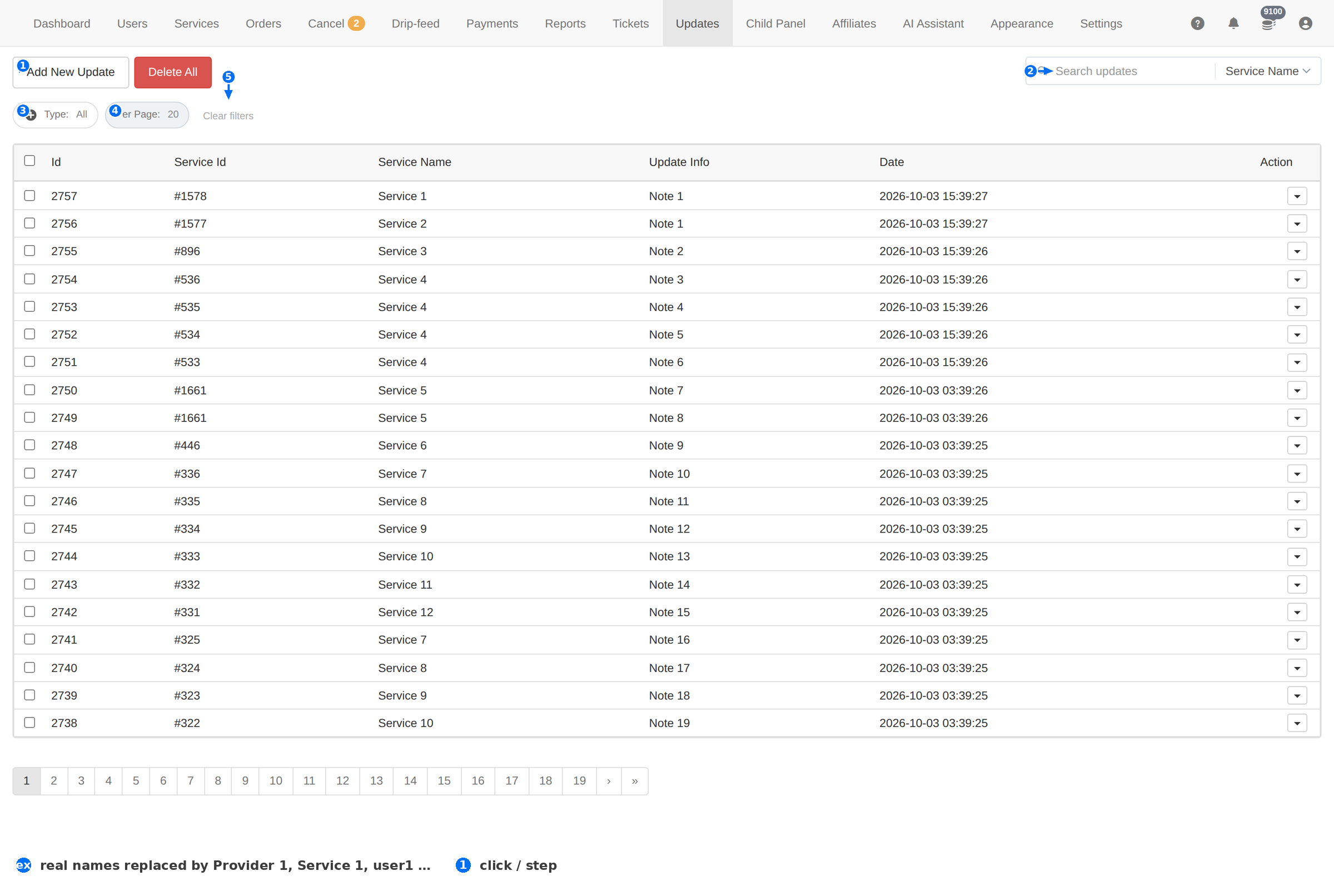
| # | Element | What it does |
|---|---|---|
| 1 | Add New Update | Publishes an update of your own — for a change you made that clients should see. |
| 2 | Search | Finds a change by service name. |
| 3 | Type: All | Filters by the kind of change. |
| 4 | Per Page: 20 | How many rows to show. |
| 5 | Clear filters | Resets the filters. |
Column reference
| Column | Meaning |
|---|---|
| Id | The update's own number. |
| Service Id | The service that changed, as its ID — the unambiguous way to look it up. |
| Service Name | The service's name at the time. Blurred in these screenshots. |
| Update Info | What changed, in the panel's own words — for example Min changed from 50 to 100. |
| Date | When the panel recorded the change. |
Why this page matters
Orders fail for reasons that look like a client problem and are not. When a provider raises a minimum, every order below the new minimum fails at the provider — after the client has already paid. This log is where you see that happen.
- Read it after a wave of failures. Match the failure date with the dates here.
- Follow the Service Id. Copy it into the Services page search to reach the service itself.
- Update your own limits. If the provider's minimum rose, raise your Min to match, or clients keep ordering quantities that cannot be delivered.
- Tell the clients if the price moved. Add New Update publishes a notice of your own.
A change here is the provider's change, not yours. Fixing the Min/Max on the service is your job; the provider will not do it for you.
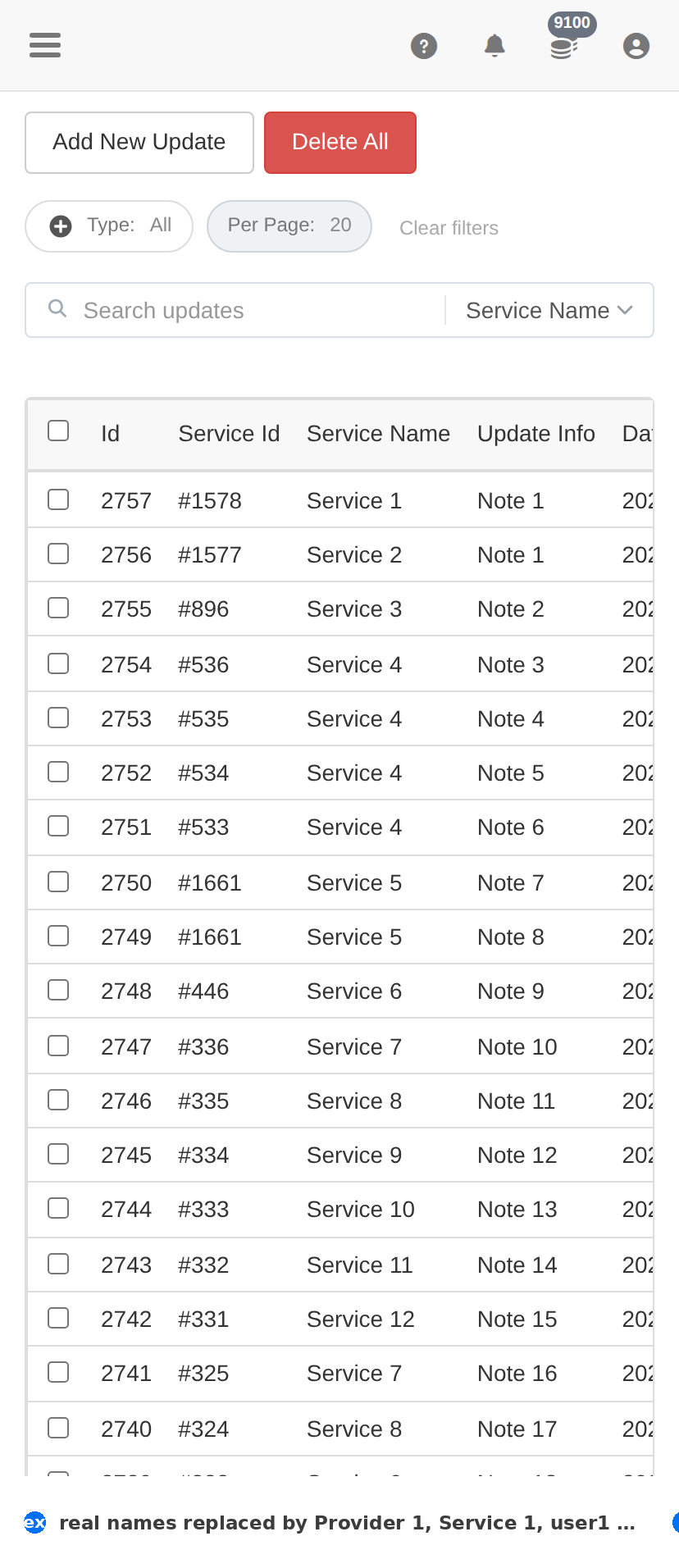
On a phone
Troubleshooting
A service suddenly rejects orders
- Search this page for the service's ID and check the date of the last change.
- Compare the change with the failure reason on Orders → Fail reason.
- Correct the service's limits on the Services page.
The log is empty
- The panel only records changes it sees while syncing with providers — a quiet period means nothing moved.
- If you expect entries and see none, the provider sync is not running.