When a client asks to stop an order, it lands here — not on the Orders page. This is the queue you work through: approve the ones the provider has not started, deny the ones already delivering. Live admin: smmpanelz.com/go-admin/cancels.
Reading the screenshots. Blue boxes mark a data value, blue numbered badges mark what you click, client names and links read as user1 and https://example.com/target-1
Page anatomy
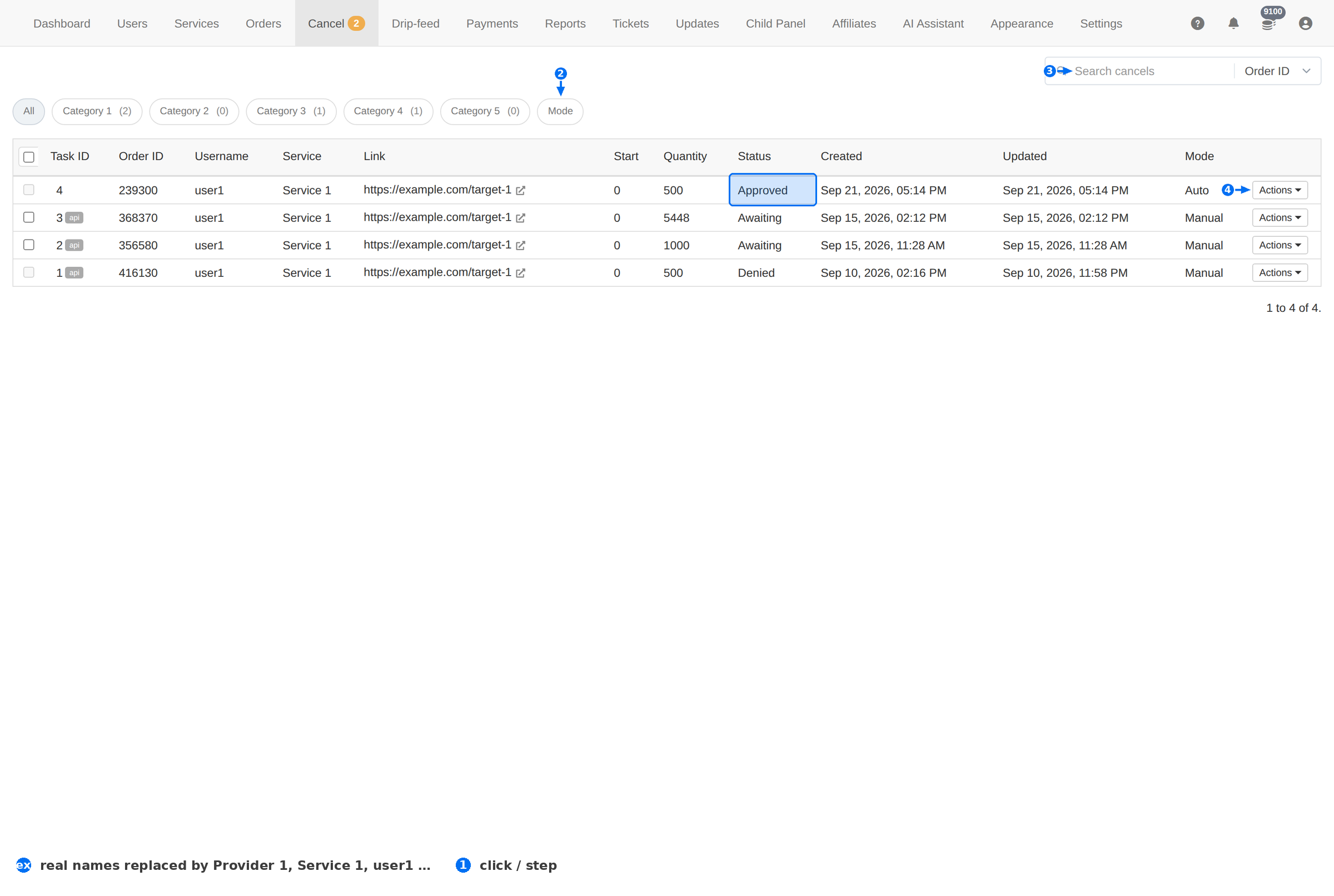
| # | Element | What it does |
|---|---|---|
| 1 | State tabs | Filters the queue: All, Awaiting, Inprogress, Approved, Denied, Error. Each carries a count. |
| 2 | Search | Finds a request by Order ID or Username. |
| 3 | Mode | Filters by Auto or manual handling. |
| 4 | Actions | The per-request menu — approve or deny. |
Request states
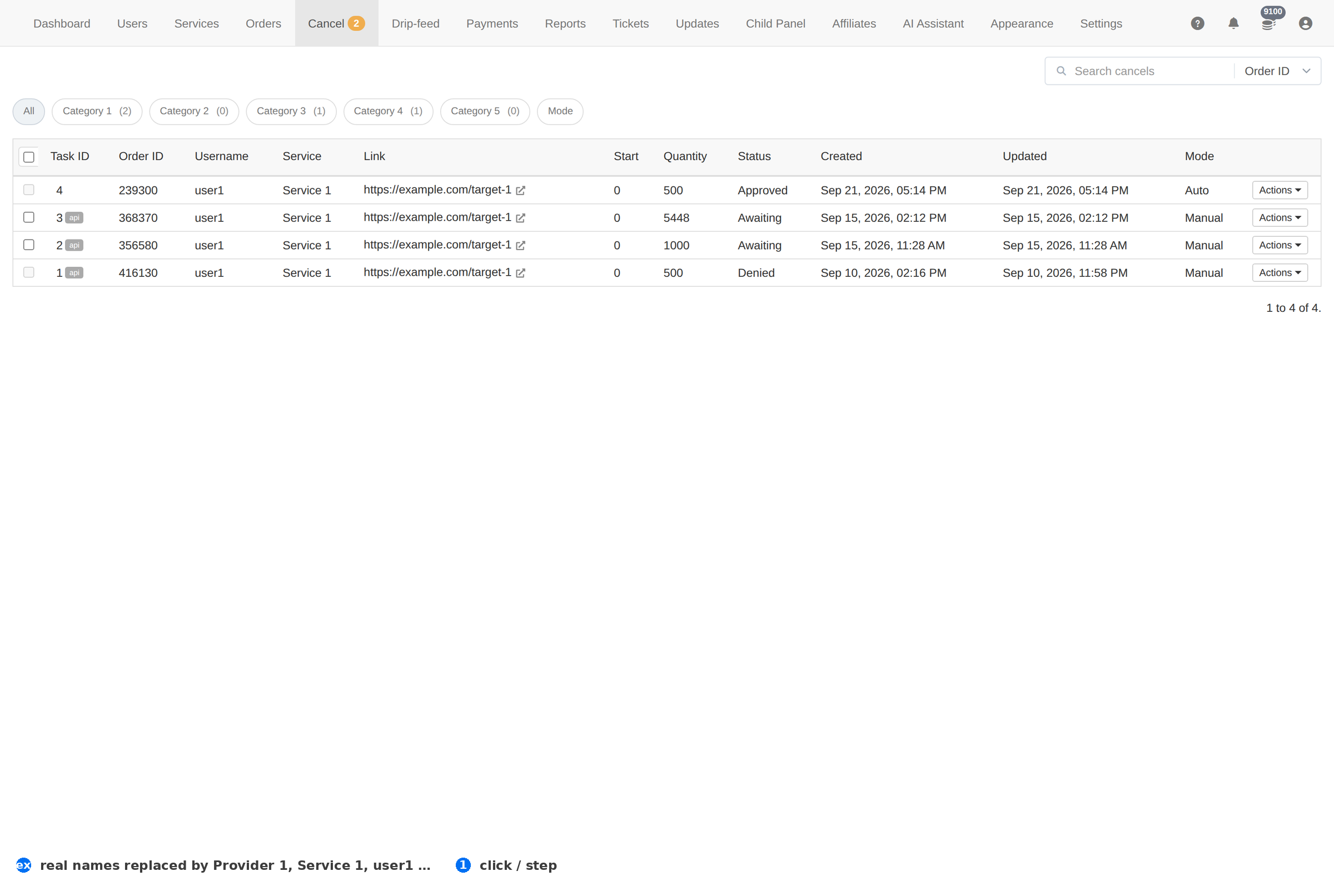
| Tab | What it means |
|---|---|
| Awaiting | The client asked, nothing has been decided. This is the number that matters. |
| Inprogress | The cancel is being processed with the provider. |
| Approved | Accepted — the order stops and the money goes back to the client's balance. |
| Denied | Refused, usually because the provider had already delivered. The order carries on. |
| Error | The provider refused the cancel or the call failed. Read the row before you answer the client. |
An approved cancel moves money. It returns the order's value to the client's balance. Check the order's Remains on the Orders page first — approving a cancel on an order that was partly delivered overpays the client.
Column reference
| Column | Meaning |
|---|---|
| Task ID | The cancel request's own number — not the order's. |
| Order ID | The order being cancelled. Use this when you look it up on the Orders page. |
| Username | The client who asked. |
| Service | The service the order was for. |
| Link | The target the order was working on. |
| Start | The count the order started from. |
| Quantity | How much was ordered. |
| Status | The request state — the same words as the tabs. |
| Created / Updated | When the client asked, and when the state last changed. |
| Mode | Auto when the panel handled it, manual when you did. |
Working the queue
- Open the Awaiting tab. That count is the only one that means work.
- Look up the order. Copy the Order ID and search it on Orders — read the Status and Remains.
- Not started yet? Approve. The provider is not delivering, so stopping costs nothing.
- Already delivering? Deny, and tell the client what was delivered. That is a service problem, not a refund problem.
- Provider refuses the cancel? The request lands in Error. Close it honestly on the order with Set partial or Cancel and refund.
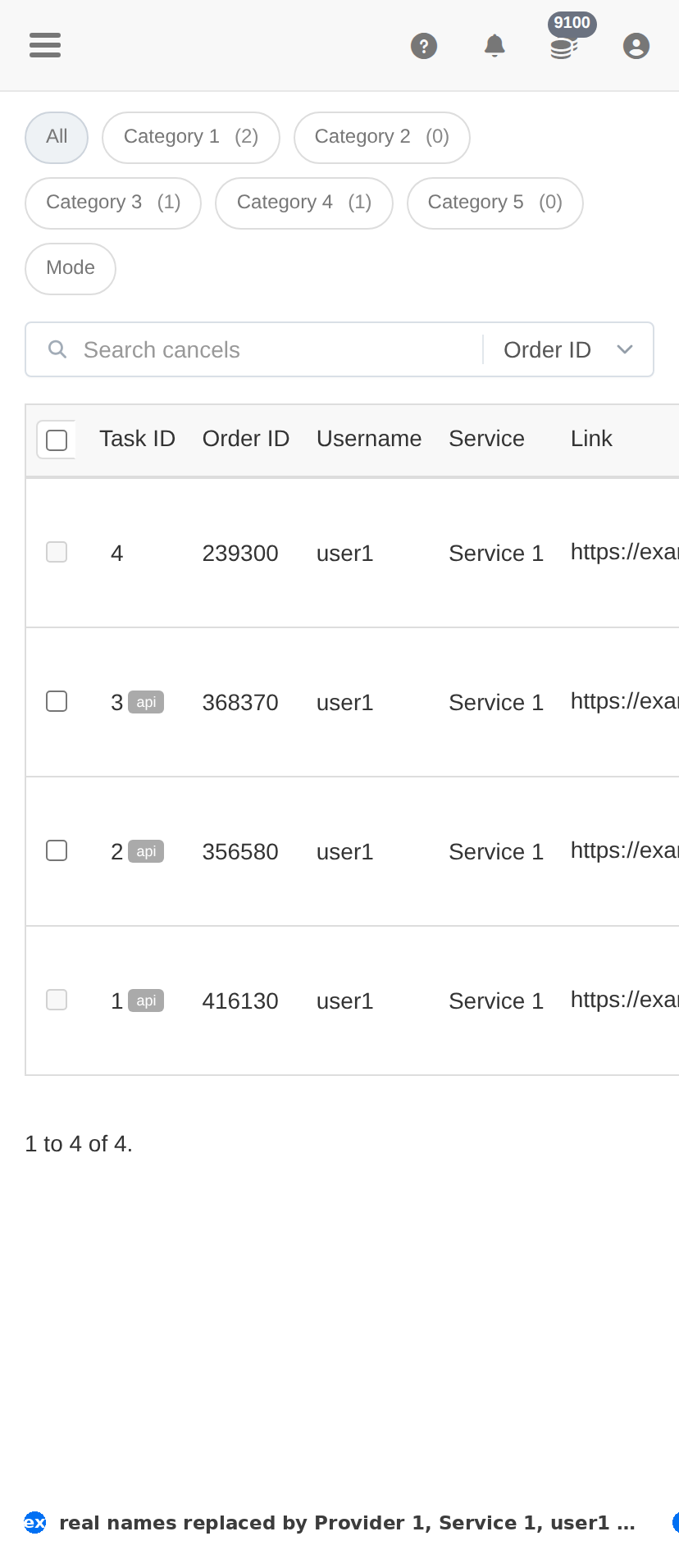
On a phone
Troubleshooting
The client says they cancelled but the order still runs
- Check whether the request is still Awaiting — asking is not the same as being approved.
- If it is Denied, the order was already delivering; explain what was delivered.
- If it is Error, the provider refused — close the order manually instead.
A cancel was approved but no money came back
- Confirm the request is Approved and not just Inprogress.
- Check the client's balance on Users — a credit to a suspended account still lands, but the client may not be able to spend it.
The queue is full of old requests
- Work the Awaiting tab oldest-first; a request nobody answered is a ticket waiting to happen.
- Where the provider already delivered, deny with a one-line reason rather than leaving it open.