Which languages the client site offers, and the translations behind them. One page of the Appearance section — the client-facing site, not the admin.
Page anatomy
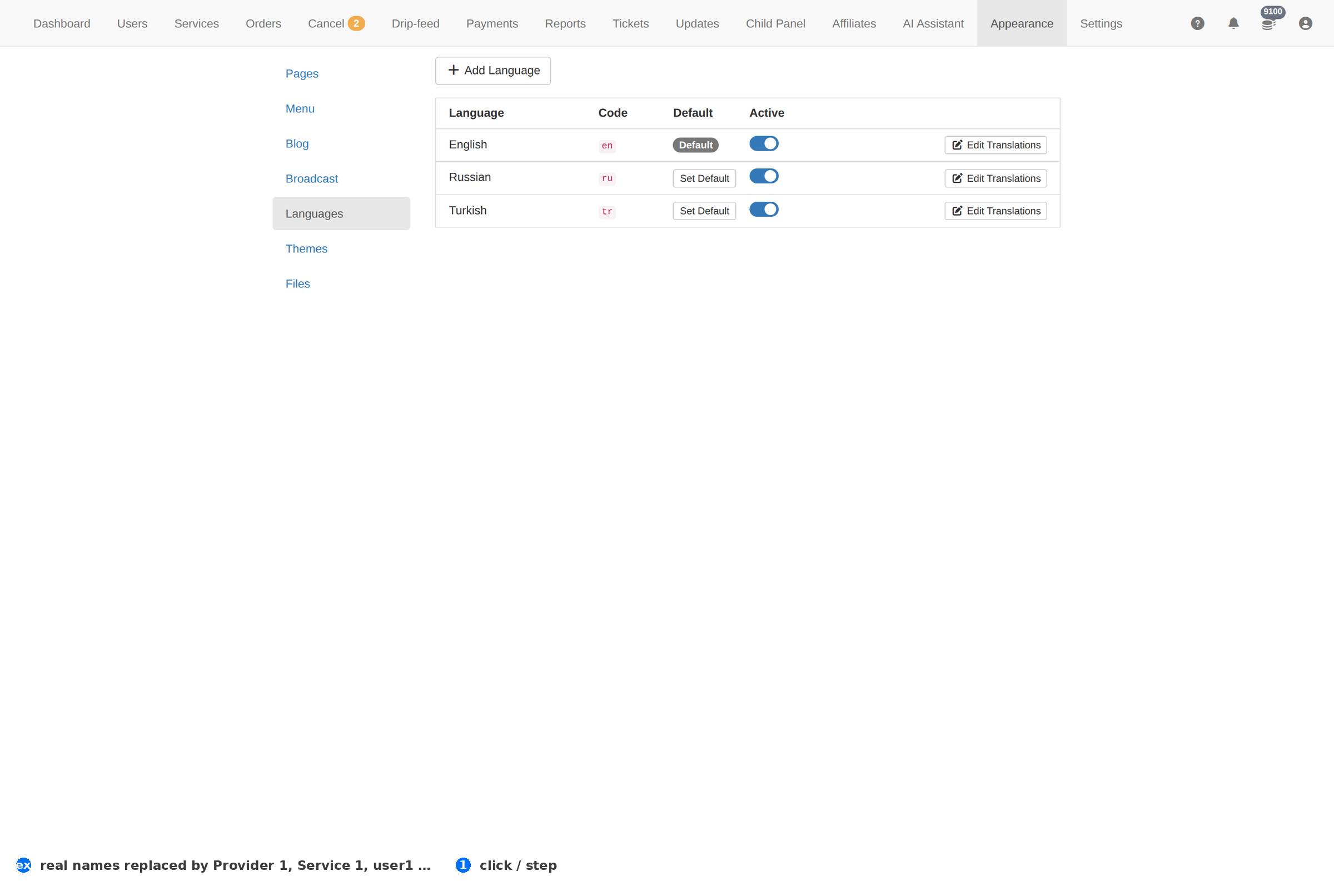
Column reference
| Column | Meaning |
|---|---|
| Language | The language's name. |
| Code | Its short code, used in URLs and by the theme. |
| Status | Whether it is offered to clients. |
How to work this page
- Add a language before you translate anything. The order matters: the language exists first, then its strings.
- Translate the pages clients see most — the service list, signup and the order form. A half-translated site reads worse than an untranslated one.
- Check the client site after switching, not just this list.
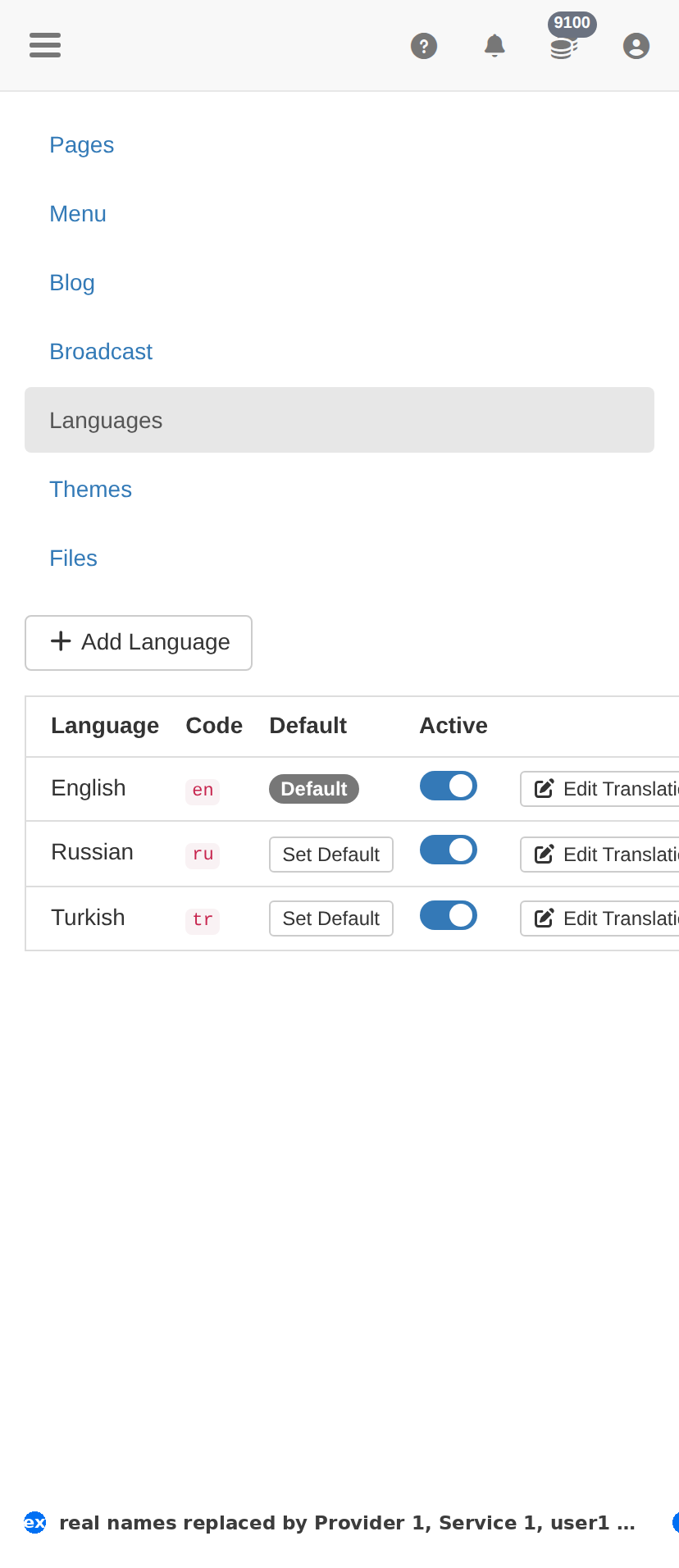
On a phone
Troubleshooting
A change did not appear on the client site
- Hard-refresh the client site — client-facing CSS and assets are cached.
- Confirm the change saved here first: an unsaved form looks identical to a cached page.
- Check the item's own status column; something switched off will not show regardless.
You want to undo a change
- There is no undo. Set the item back to its previous value deliberately.
- For anything you are unsure about, take a screenshot of this page before you change it — that is your record.