The dashboard is the first thing you see after signing in: the money, the order backlog and the status split for the whole panel, plus links straight into the lists behind each number.
Reading the screenshots. Blue numbered badges mark the thing you click, in order. Blue boxes mark a data value worth looking at. Real names are replaced by readable placeholders in the panel's own font — Provider 1, Service 3, [email protected] — so the layout and the click are exactly as they appear in your admin, and nothing about a real client is exposed.
Page anatomy
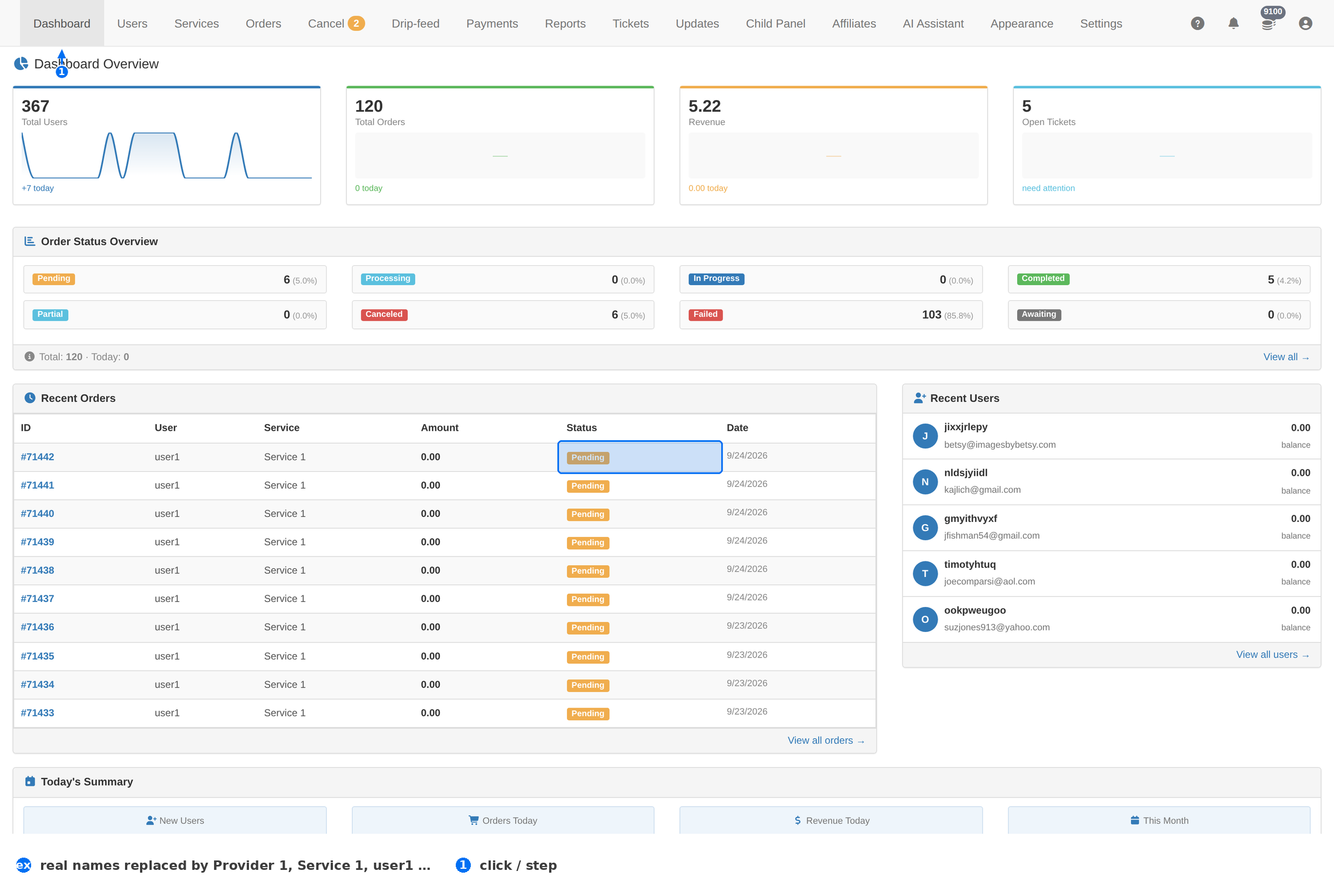
The numbers
| Number | What it tells you |
|---|---|
| Credit balance (top-right) | What you hold with the panel. Click it to top up. |
| Status cards | How many orders sit in each state, with the share of the total. This is your backlog at a glance. |
| Recent orders | The newest orders with their client, service, amount, status and date. |
Order status split
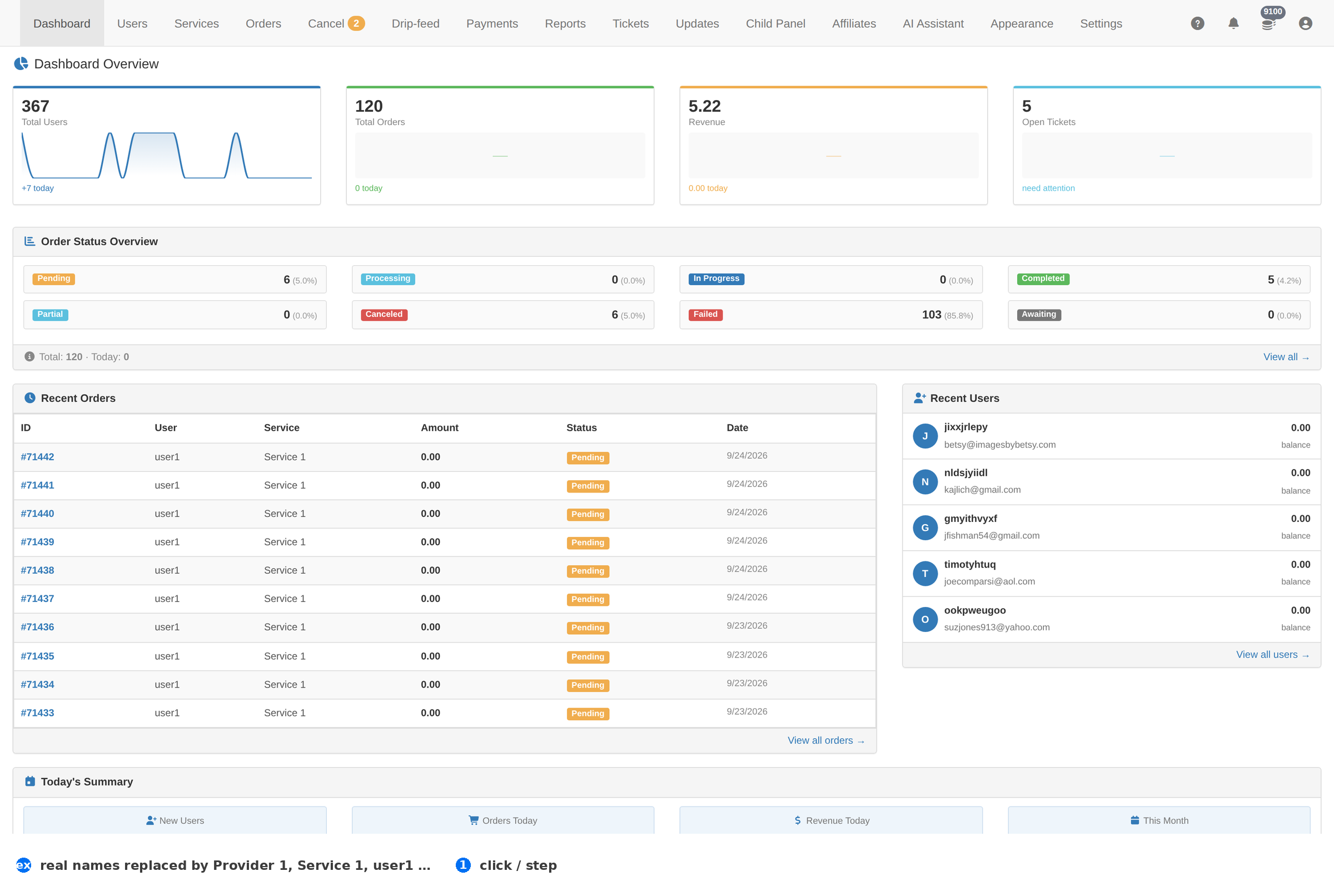
| Status | Read it as |
|---|---|
| Pending | Accepted, not yet started by the provider. A large number here is a provider problem, not a client problem. |
| Processing | Being handled by the panel. |
| In Progress | The provider is delivering right now. |
| Completed | Finished and paid for. |
| Partial | Delivered less than ordered — these usually want a refund or a partial close. |
| Canceled | Stopped, with or without money returned. |
| Failed | The provider refused or errored. Pair this with the Fail reason filter on Orders. |
| Awaiting | Queued by the panel, not yet sent to a provider. |
A big Failed or Pending share is the first thing to look at every morning. Open Orders → Filters and read the Fail reason counts — one dominant reason means a single provider is broken, and it is usually balance or an API key.
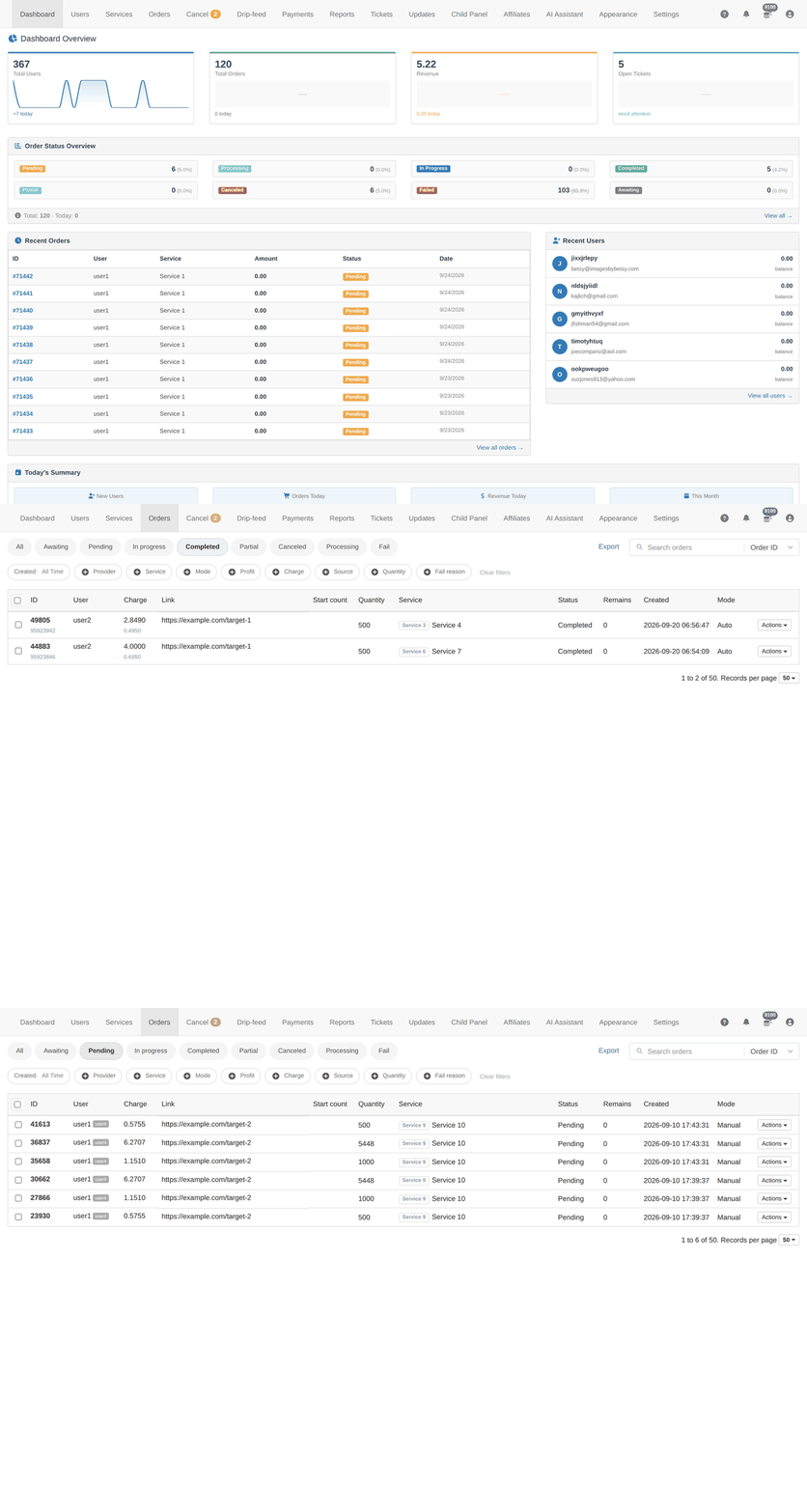
What to do from here
- Check the split. A spike in Failed or Pending is your work for the day.
- Open the list. Click the status card or View all orders to reach the filtered Orders page.
- Top up. If the cause is a provider running out of balance, fix that before you answer any tickets.
- Watch the backlog. Awaiting and Pending should drain on their own; if they only grow, the cron that pushes orders to providers has stopped.
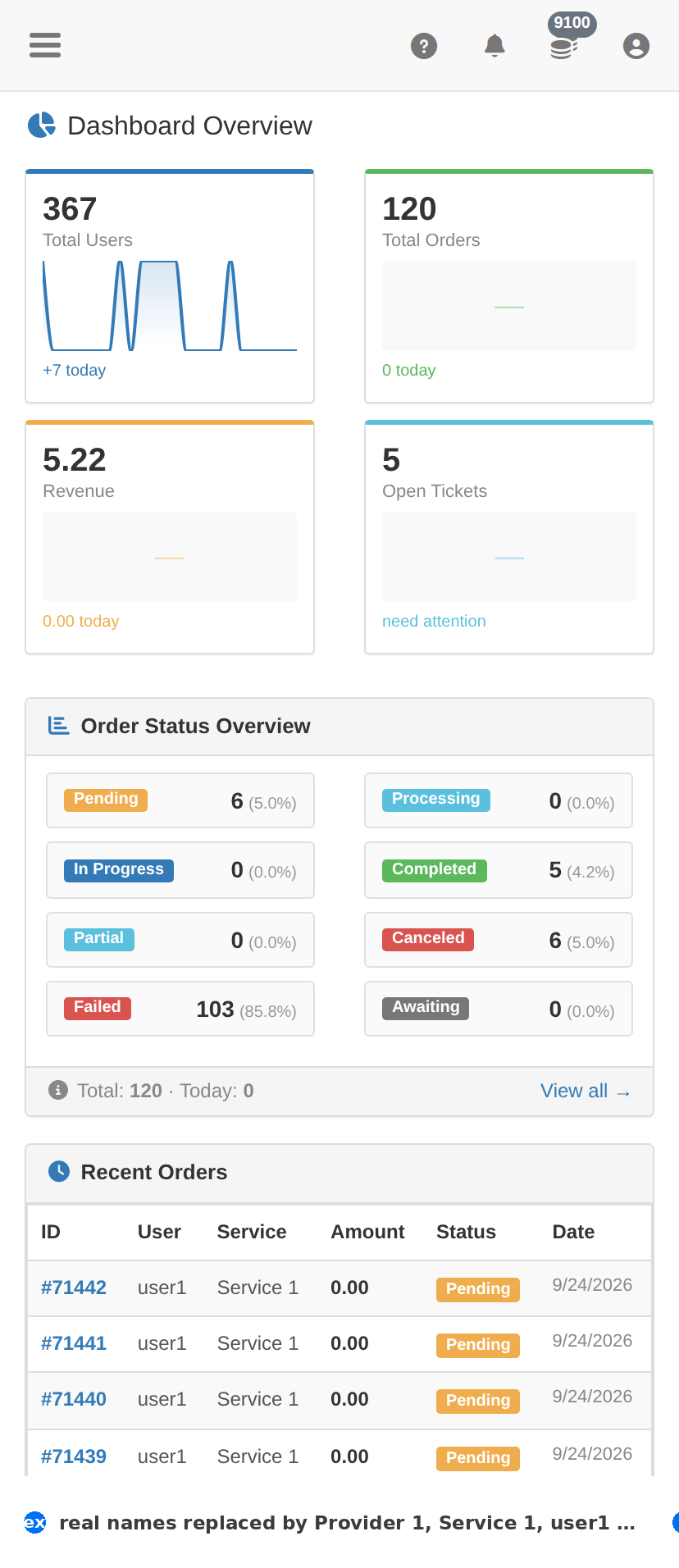
On a phone
Troubleshooting
The dashboard numbers look frozen
- Hard-refresh the page — the numbers are loaded when the page opens, not pushed live.
- If they are still stale after a refresh, the panel's background jobs are not running. That is a server-side problem, not a UI one.
Orders exist but no status card moved
- Check the order's own Status on the Orders page — the dashboard counts orders, not money.
- A payment that has not completed does not create an order, so it will not appear here.