Payments is the money-in page: every deposit a client made, by gateway or by hand, with the state it reached. Live admin: smmpanelz.com/go-admin/payments.
Reading the screenshots. Blue boxes mark a data value, blue numbered badges mark what you click, client names read as user1 and the amounts are scaled by one constant so the column still adds up
Page anatomy
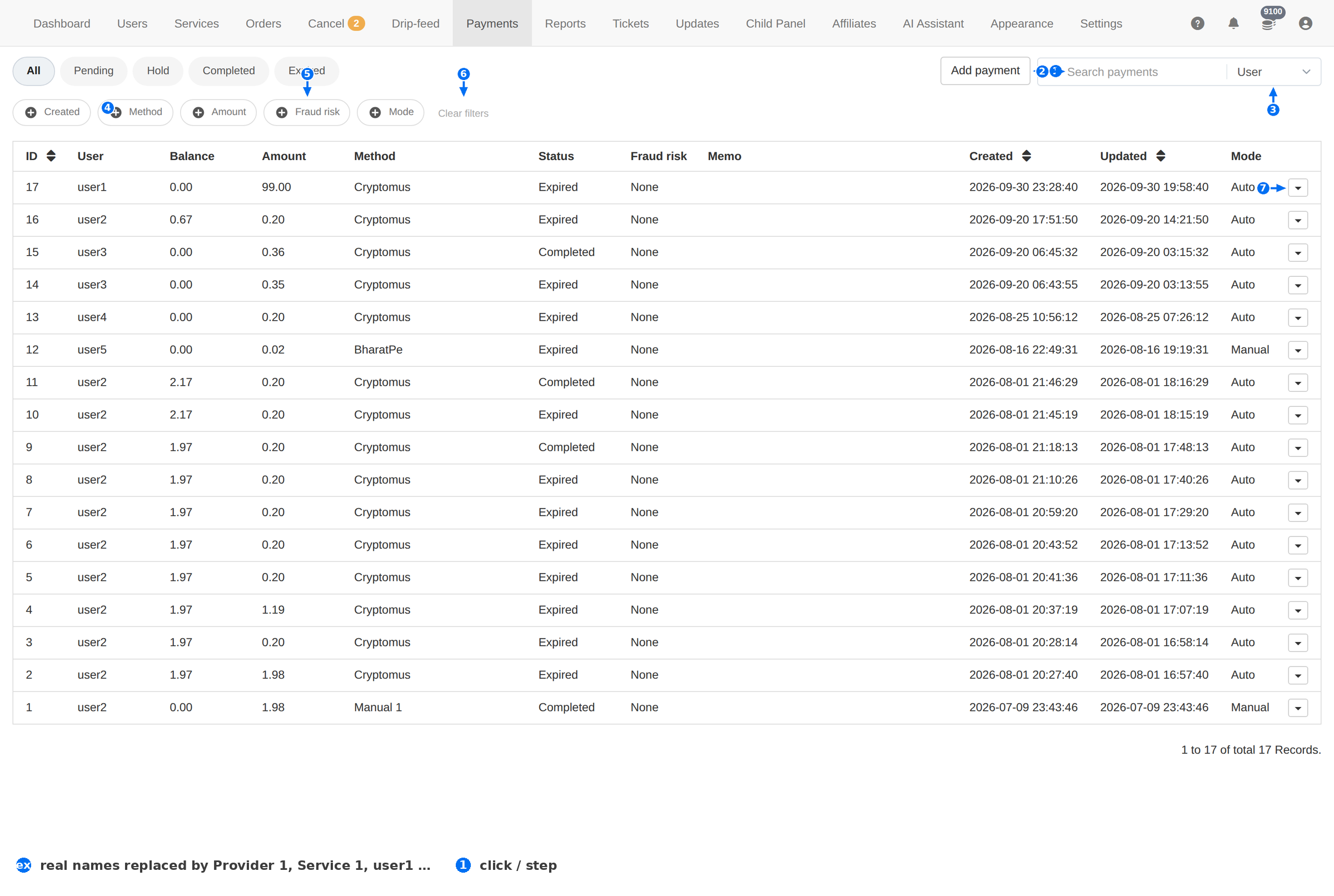
| # | Element | What it does |
|---|---|---|
| 1 | Add payment | Records a payment by hand — for money that arrived outside a gateway. |
| 2 | Search | Looks up a payment. |
| 3 | Search field | Chooses what the search matches: User, Payment ID or Memo. |
| 4 | Method | Filters by gateway — Cryptomus, a bank transfer, a manual credit, and so on. |
| 5 | Fraud risk | Filters by the risk score the panel recorded for the transaction. |
| 6 | Clear filters | Resets every filter and returns to the default list. |
| 7 | Actions | The per-payment menu. |
Payment statuses
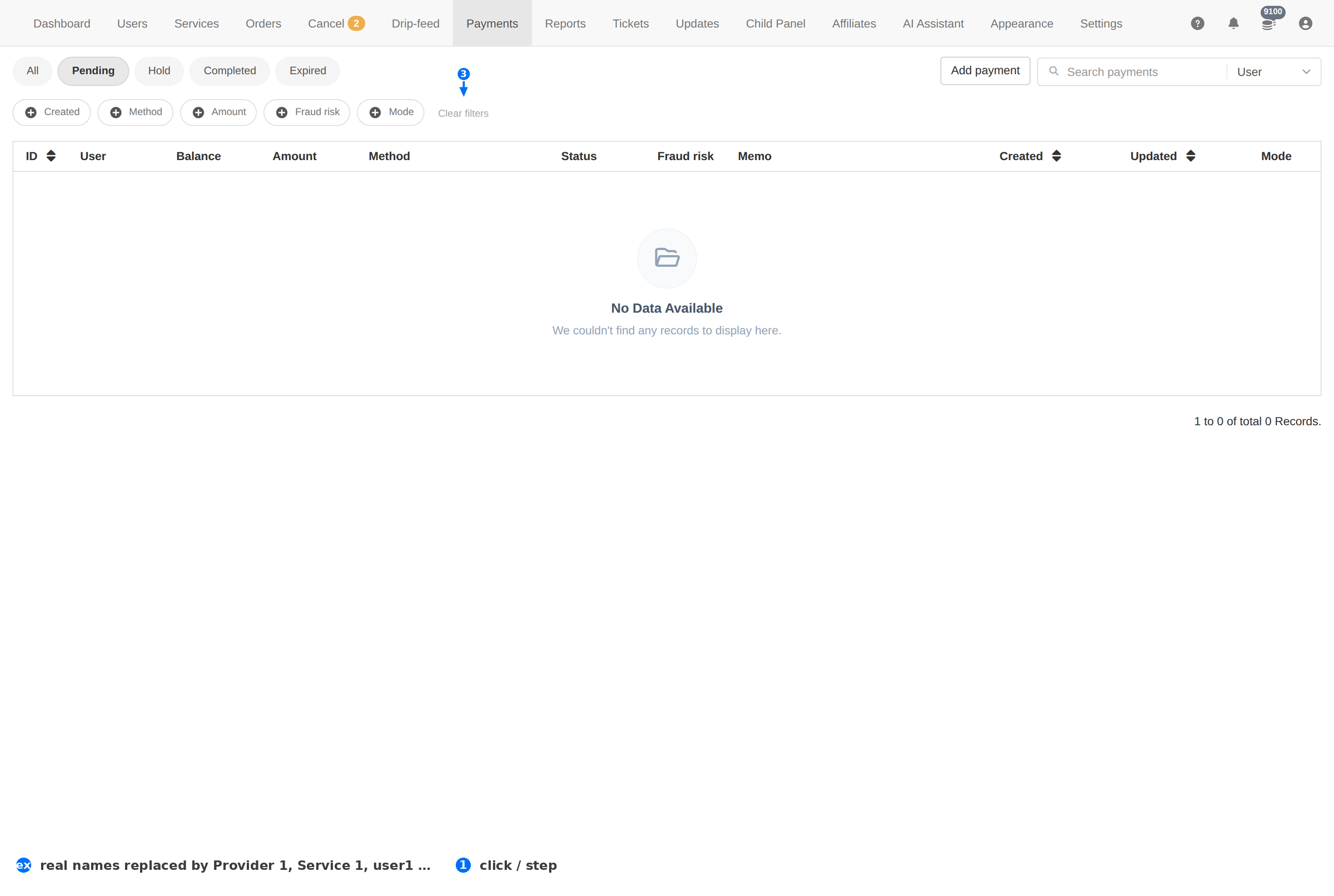
| Tab | Read it as |
|---|---|
| All | Every payment, newest first. |
| Pending | The client started a payment but it has not settled. The balance has not moved yet. |
| Hold | Settled at the gateway but held back by you or by the panel's risk rules — the money is not spendable yet. |
| Completed | The money is in and the client's balance was credited. |
| Expired | The gateway's payment window closed before the client paid. |
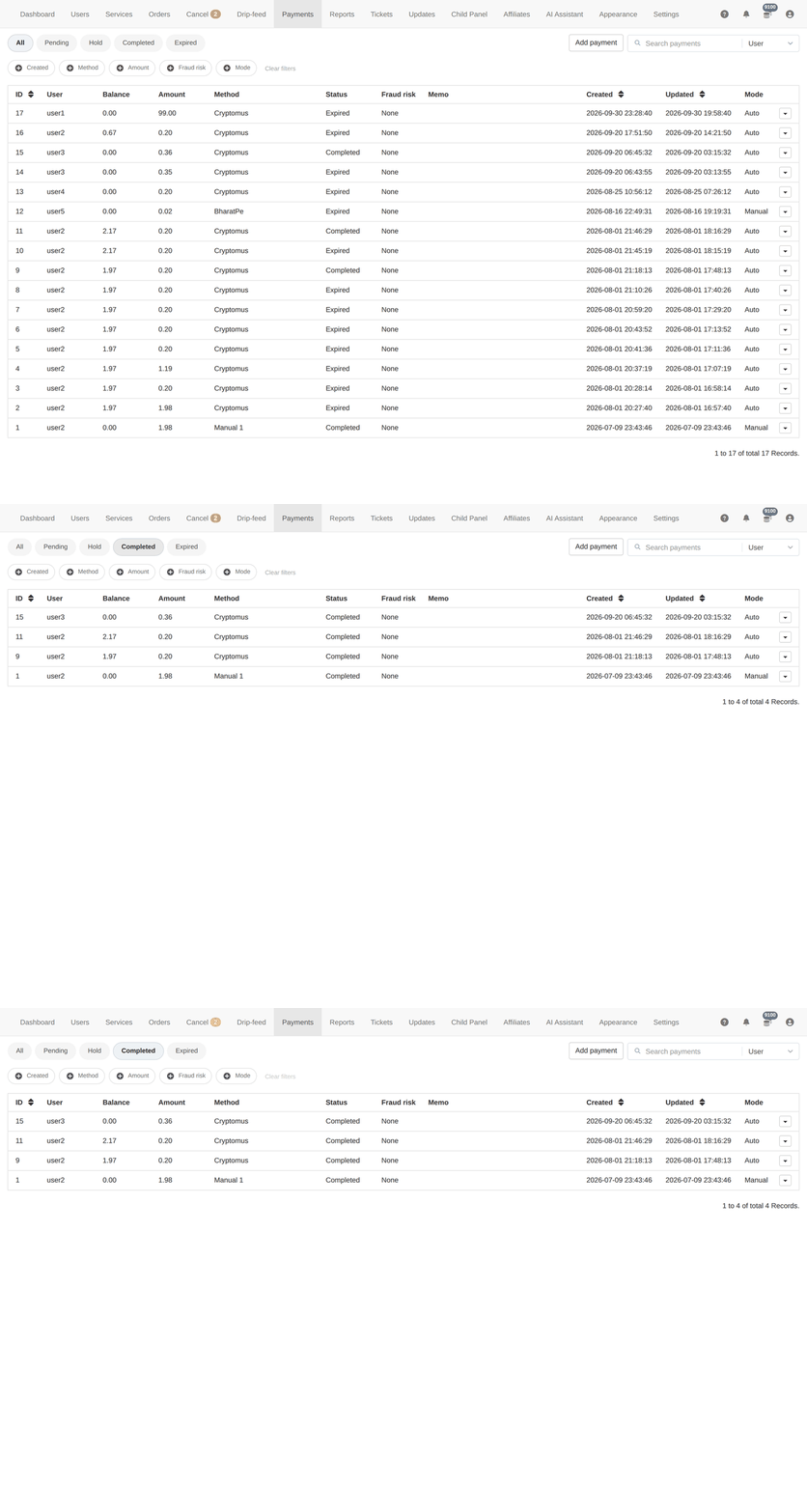
Pending is not money. Do not credit a client or release an order because a payment shows as Pending — only a Completed payment has actually arrived. Expired is the gateway closing an unpaid invoice, not a client who paid and was refused.
Column reference
| Column | Meaning |
|---|---|
| ID | The payment's number. Quote it when talking to the gateway's support. |
| User | The client who paid. |
| Balance | The client's balance at the time — useful for spotting a credit that never landed. |
| Amount | How much was paid. |
| Method | The gateway or channel the money came through. |
| Status | Pending, Completed or Expired. |
| Fraud risk | The risk score the panel recorded for this transaction. |
| Memo | A free-text note attached to the payment. |
| Created / Updated | When the payment was started and when its status last changed. |
| Mode | Auto for a gateway payment; manual for one you added by hand. |
Adding a payment by hand
Use Add payment when money reached you outside the panel — a bank transfer, a crypto wallet you checked yourself, or a correction you owe the client. A manual payment is recorded, so the client's history stays honest; editing a balance directly is not.
Prefer Add payment over editing a balance. A recorded payment shows up in the client's own history and in Reports; a balance edit shows up nowhere, which is exactly what makes disputes hard to settle.
Fraud risk
The Fraud risk column carries the score the panel recorded for the transaction, and the filter of the same name groups them. A high-risk payment that completed is worth a look before you let the client spend it: a chargeback months later costs you the money and the services already delivered.
- Filter by Fraud risk and sort to the top of the range.
- Compare with the client. A brand-new account, a large first payment and a high risk score together are the pattern to watch.
- Suspend rather than delete. Row actions on Users — suspension is reversible if you are wrong.
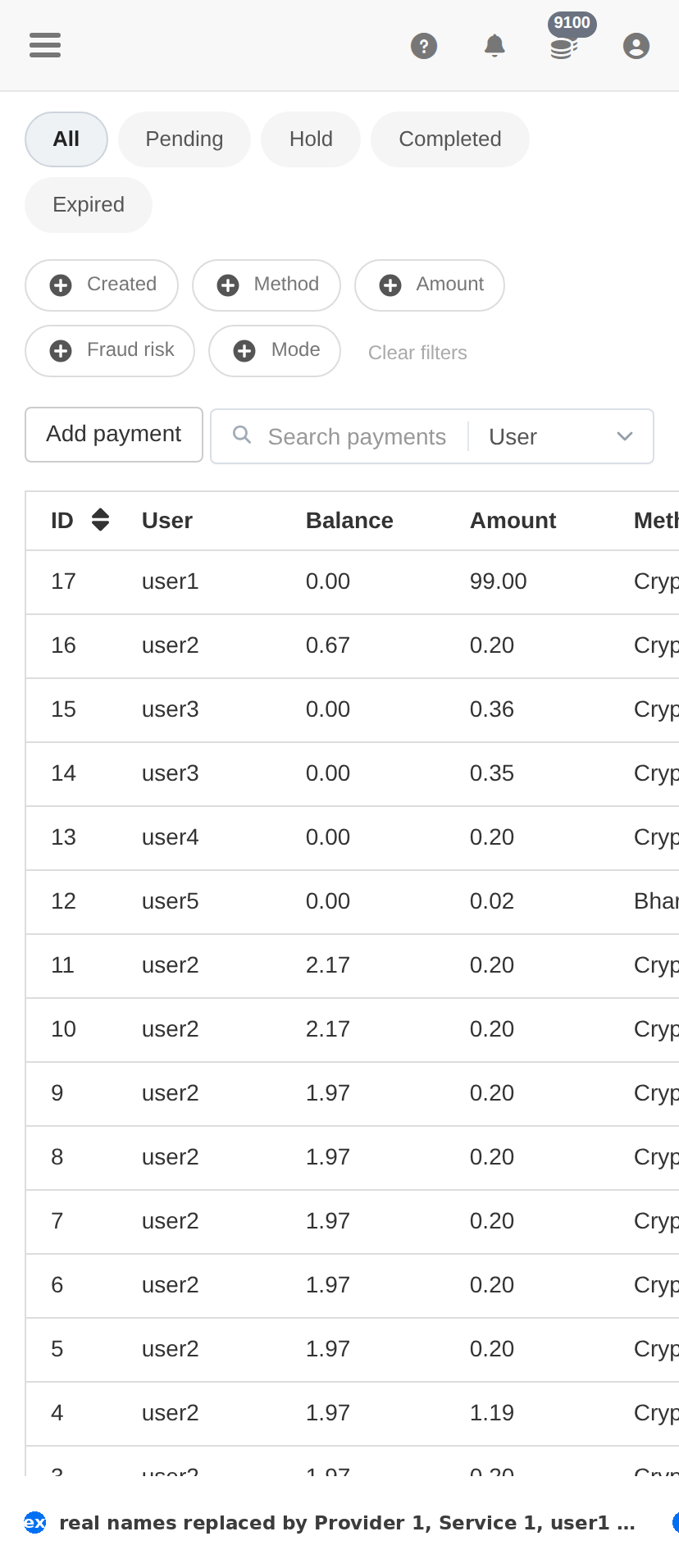
On a phone
Troubleshooting
A client paid but the balance did not move
- Find the payment on this page and read its Status — Pending means it never settled.
- If it is Expired, the gateway closed the invoice; the client has to start again.
- If it is Completed and the balance is still wrong, record the difference with Add payment so the history matches reality.
The same payment appears twice
- Check the Created timestamps — a double-submit creates two rows a few seconds apart.
- Refund or correct the duplicate, and tell the client rather than leaving them to find it.
A payment method stopped working
- Compare the last successful payment's date with when the client reports the failure.
- Gateway credentials and webhooks are configured in the gateway's own settings — a changed key or a blocked webhook is the usual cause.