How to add a service
Create a service in your catalogue by hand. The form opens as the Add Service dialog from the toolbar button.
Min and Max are the field people get wrong. If a client can order less than the provider accepts, those orders fail after the money is already charged.
What it controls
- create a service without importing a catalogue
- set its rate, category and order window
- control how clients order it
How to set it
- Open Services and click Add service in the toolbar. The Add Service dialog opens.
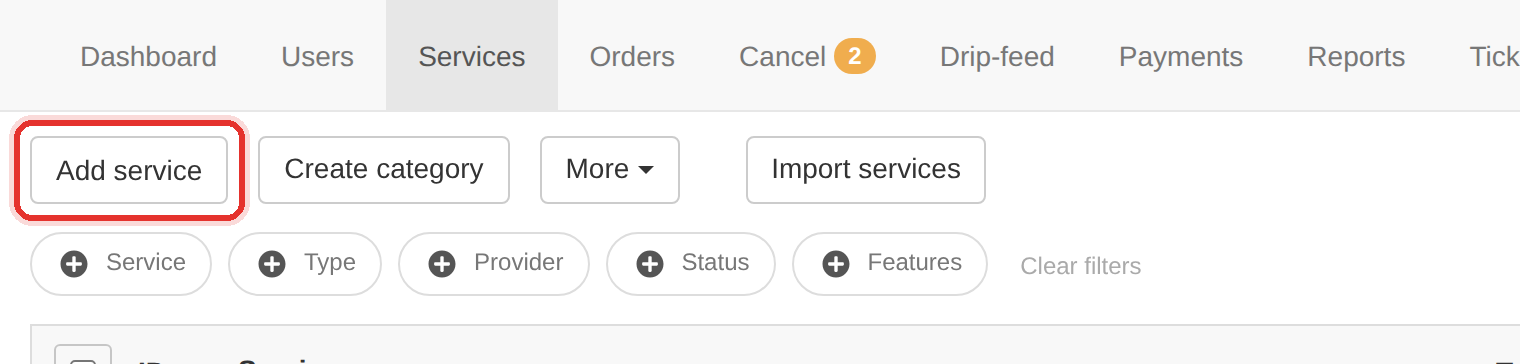
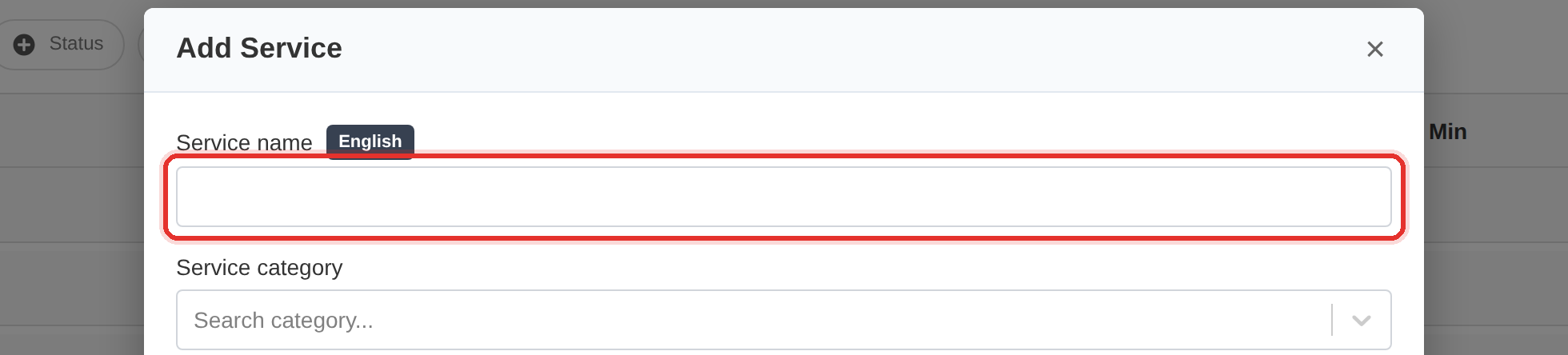
Add service in the Services toolbar. - Fill Service name, badged English — this is what the client sees, so write it the way a client searches for it.
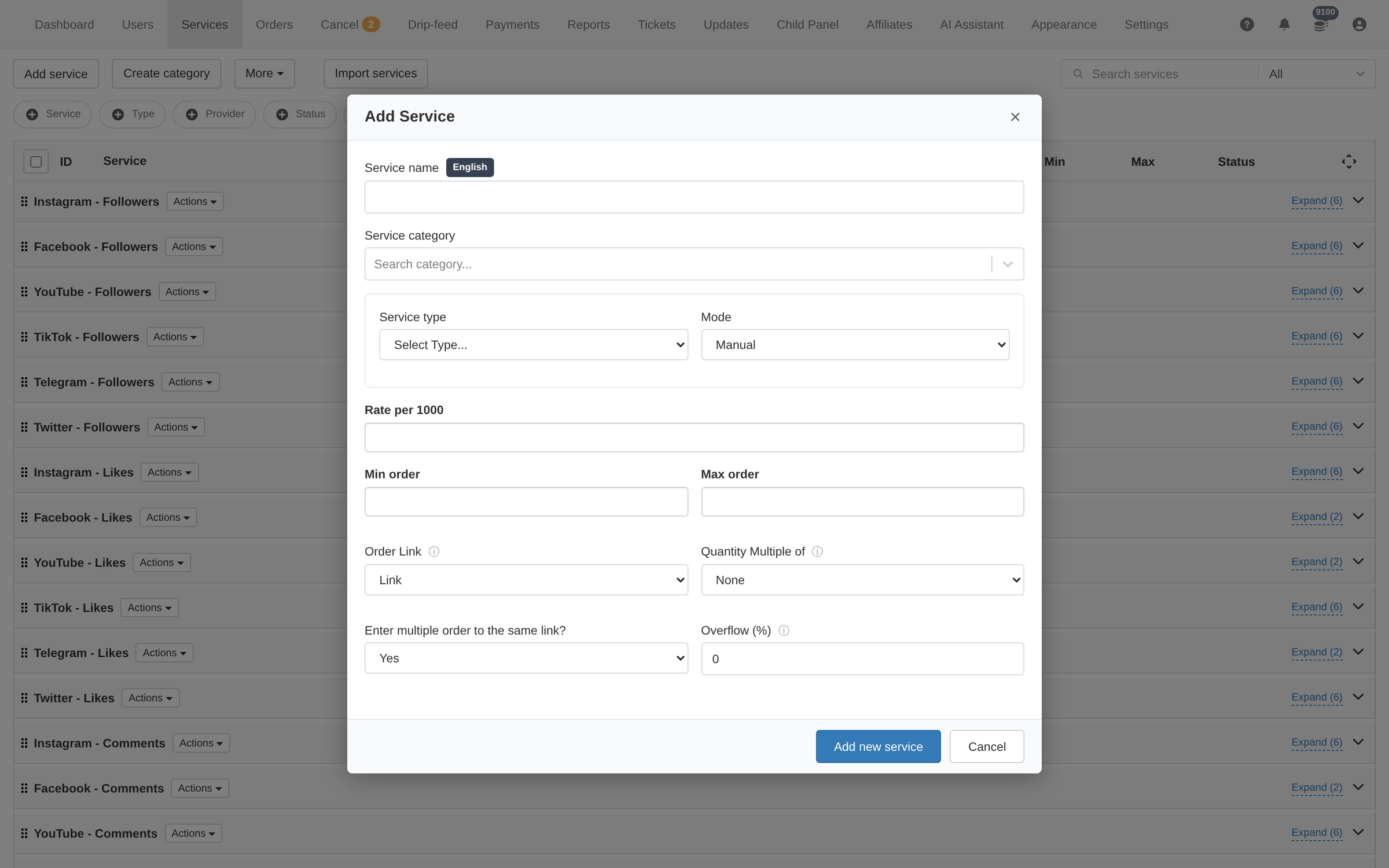
The Add Service dialog. - Choose Service category. Clients browse by category, so this decides where the service is found.
The fields, including Rate per 1000 and the Min/Max order window. - Choose Service type and Mode — Manual to fulfil it yourself, Automatic (API) for a provider service.
- Set Rate per 1000 — the price the client is charged against.
- Set Min order and Max order, then click Add new service. In API mode Min and Max are locked to the provider unless you clear the Auto sync switch.
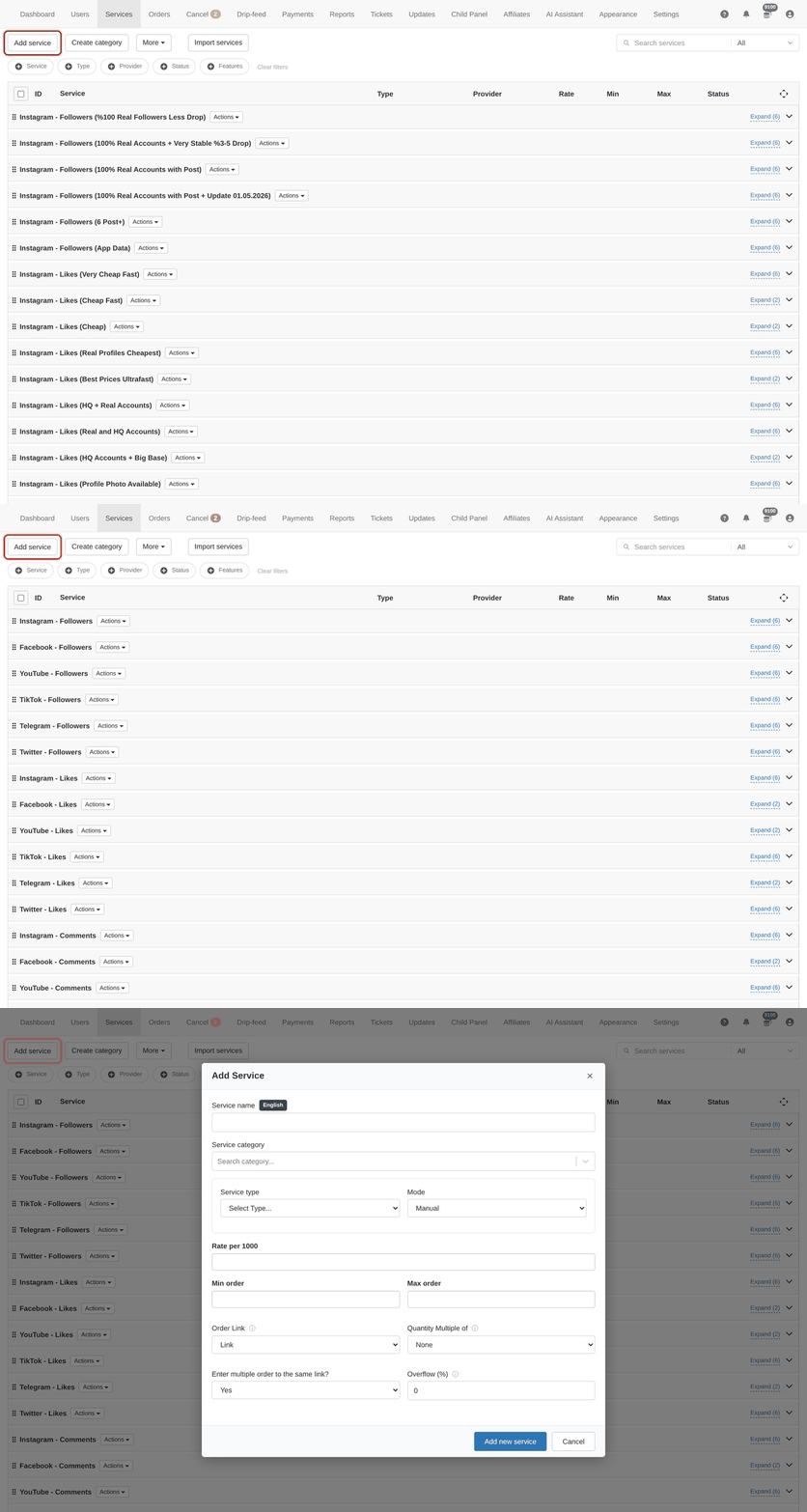
Copy the provider's limits into Min and Max. A client who can order below the provider's minimum gets an order that fails after they paid — which becomes a ticket and a refund.
Set Order Link to what the client must paste (a profile, post or video URL), and use Quantity Multiple of for services sold in packs.
To learn more, see the Services guide.