How to set up a new panel
The order to do things in when you start from an empty panel. Follow it top to bottom.
Doing these out of order is how you end up with services nobody can pay for, or a payment gateway taking money for a catalogue that is empty.
What it controls
- brand the panel before anyone sees it
- connect a supplier, then a catalogue
- take money, then invite clients
How to set it
- 1. Brand it. Open Settings → General. Set the Logo, Favicon and Panel name, and set Default Timezone to your own. Press Update Settings once at the end.
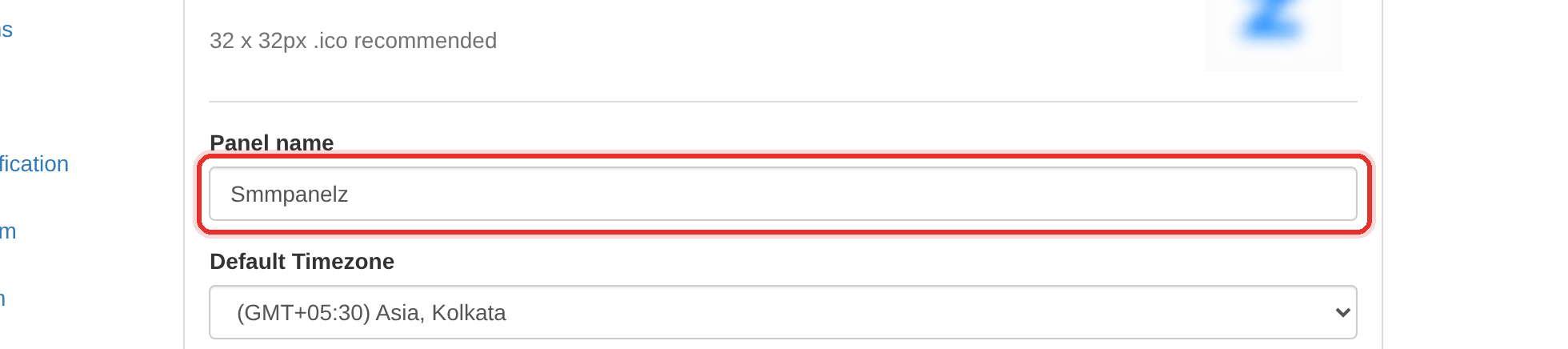
Start with the panel's identity — name, logo, favicon. - 2. Set how money reads. Still on Settings → General: choose Currency format and Rates rounding to the precision you price at.
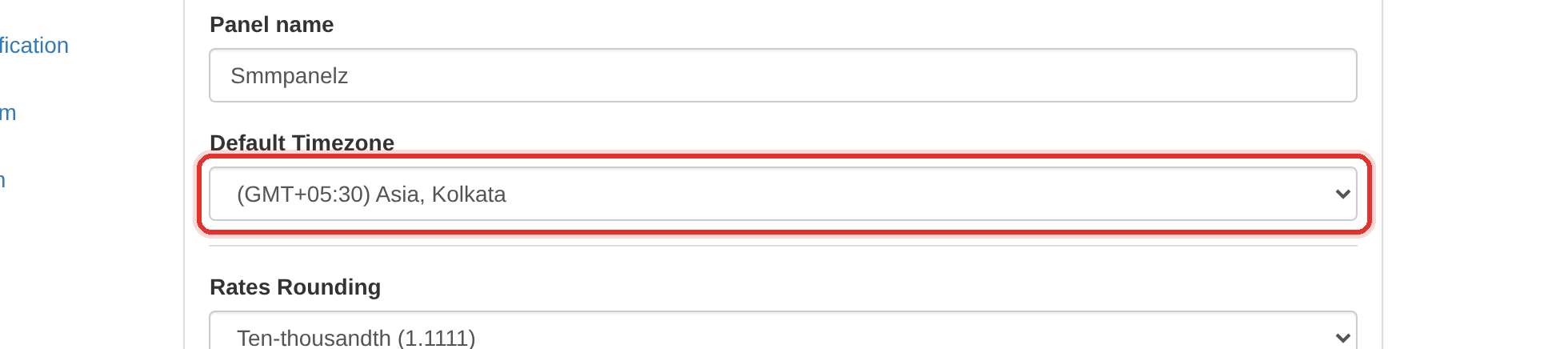
Then how money reads: timezone, rounding, currency format. - 3. Connect a supplier. Open Settings → Providers and add your provider's API key and endpoint. Check its balance shows.
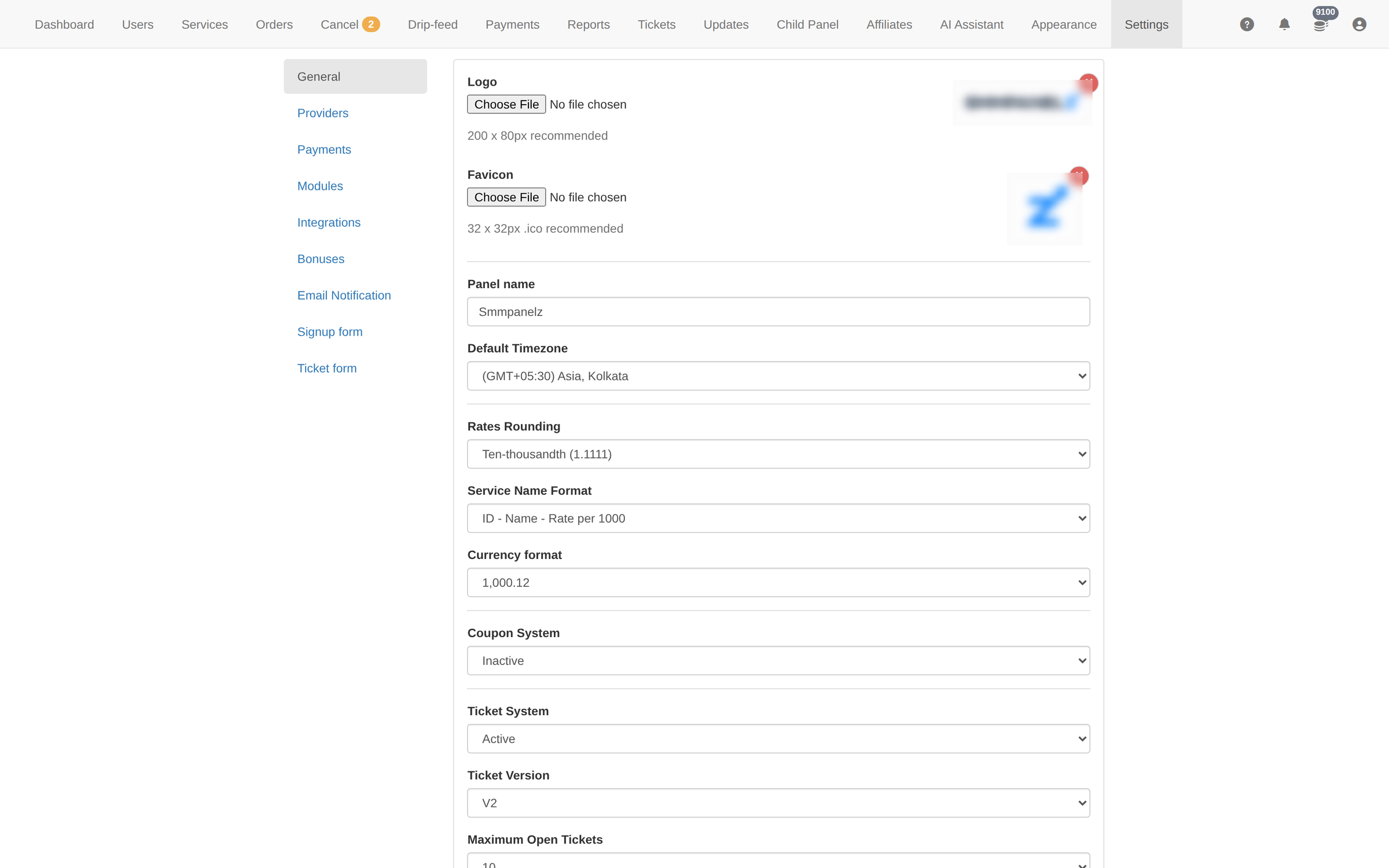
Update Settings saves the whole form at once. - 4. Fill the catalogue. Open Services → Import services, fetch that provider's catalogue, tick one category at a time, set your markup, then Import.
- 5. Check a service. Open Services, expand a category, and confirm the Rate sits above the provider's cost and the Min/Max match.
- 6. Take money. Open Settings → Payment methods and switch on the gateway you want clients to pay through.
- 7. Decide who can join. On Settings → General, set Registration Page and Email Confirmation. Leaving confirmation on is your cheapest anti-fraud measure.
- 8. Test it yourself. Sign up on the client site, place a small order, and watch it appear on Orders. Fix anything odd before you invite anyone.
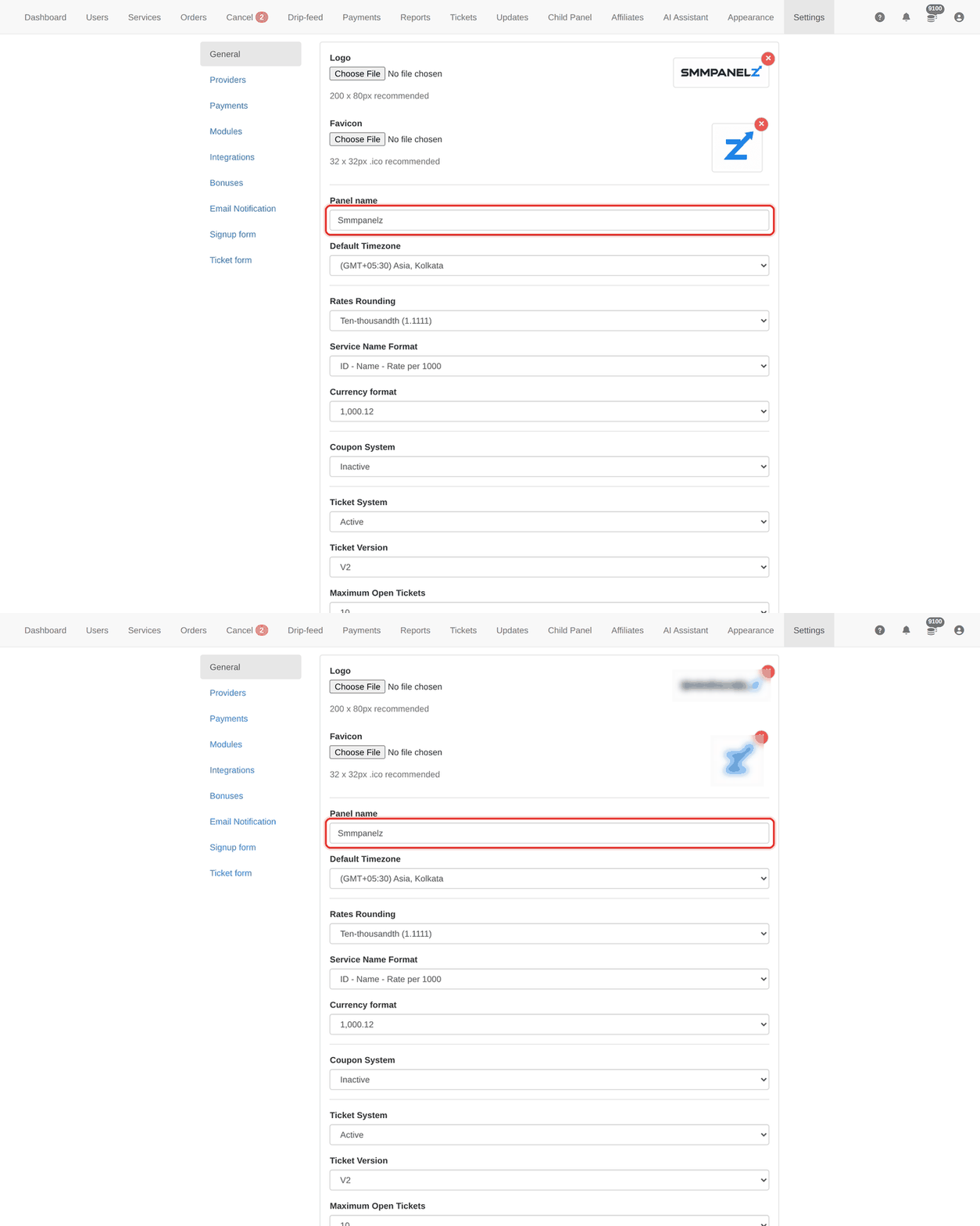
Settings is one save for the whole form. Nothing on a settings page is stored until you press Update Settings, so change what you came for and press it once.
Do step 8 before you promote anything. A panel that takes a payment and then fails the order is the fastest way to lose a first client.
To learn more, see the Admin guide.