How to find an order
Look an order up by its ID, the client's username, or the link it was placed on.
A search only looks inside what the filters are showing — a status tab or a date range left on is the usual reason an order "does not exist".
What it controls
- search by Order ID, Link, Username, Service ID, External ID, Provider or IP address
- reset the status tab and filters first
- find every order that touched one link
How to set it
- Open Orders and click the All status tab, then Clear filters. This removes any filter that is hiding the order.
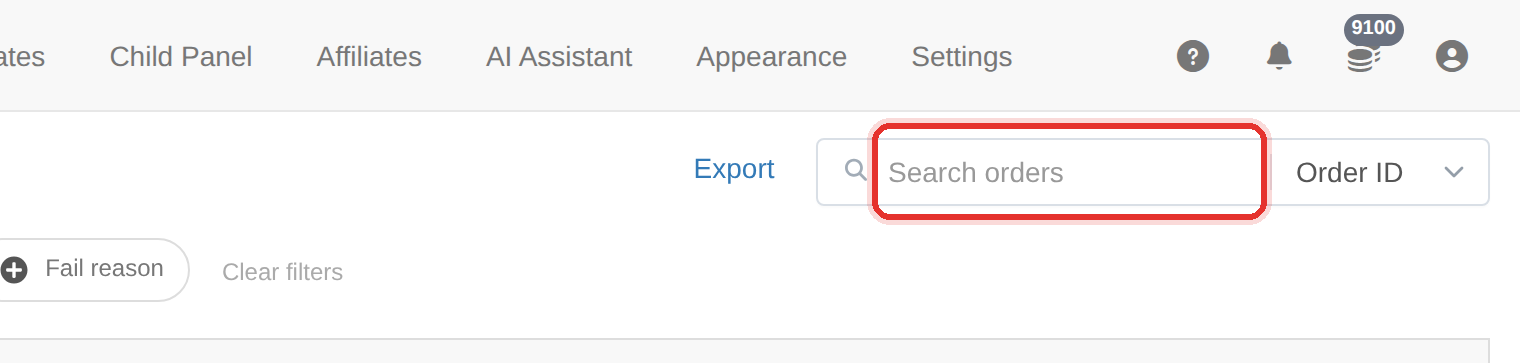
The search box on the Orders page. - Open the search scope selector and choose what to search on: Order ID, Link, Username, Service ID, External ID, Provider or IP address.
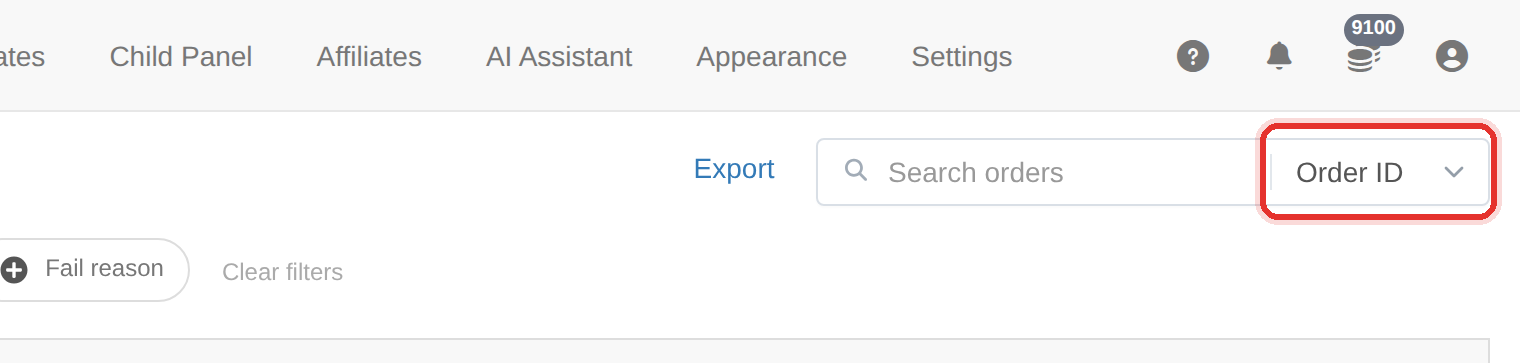
The field selector chooses what the search matches. - Type the value — the list narrows as you type; press Enter to apply it at once. The list shows the match.
- To see every order on one target, search by Link — that is the fastest way to answer "why did this account lose followers?".
Searching by Link shows every order that ever touched that target, which usually explains a count that went down as well as up.
To learn more, see the Orders guide.