How to fix a failed order
Read why the provider refused it, fix that, then send it again.
Resending without reading the error sends the same broken order and it fails identically — you lose the time and learn nothing.
What it controls
- read the provider's own error text
- fix the cause before retrying
- resend once, not repeatedly
How to set it
- Open Orders and click the Fail tab. The failed orders are listed.
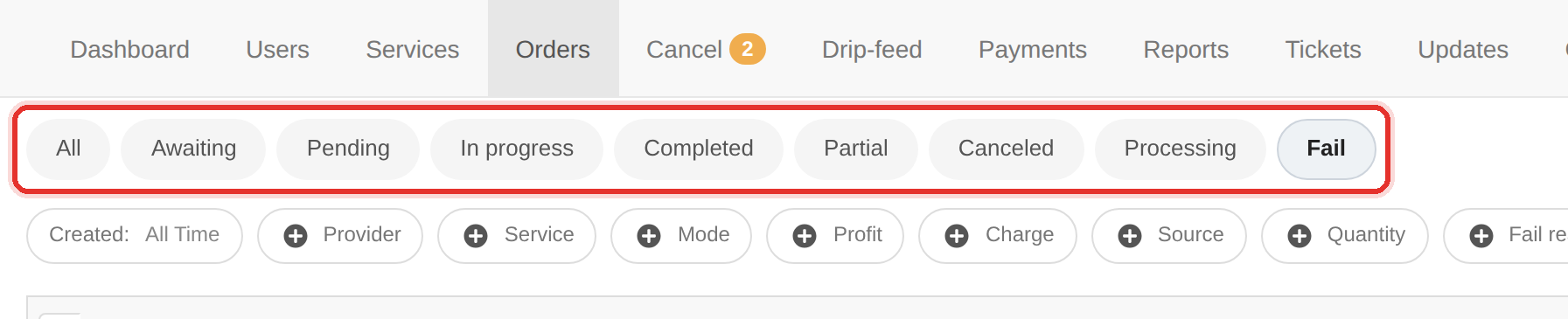
The Fail tab lists the failed orders. - Click Actions at the end of the order row, then choose Order Errors. The provider's own error text appears.
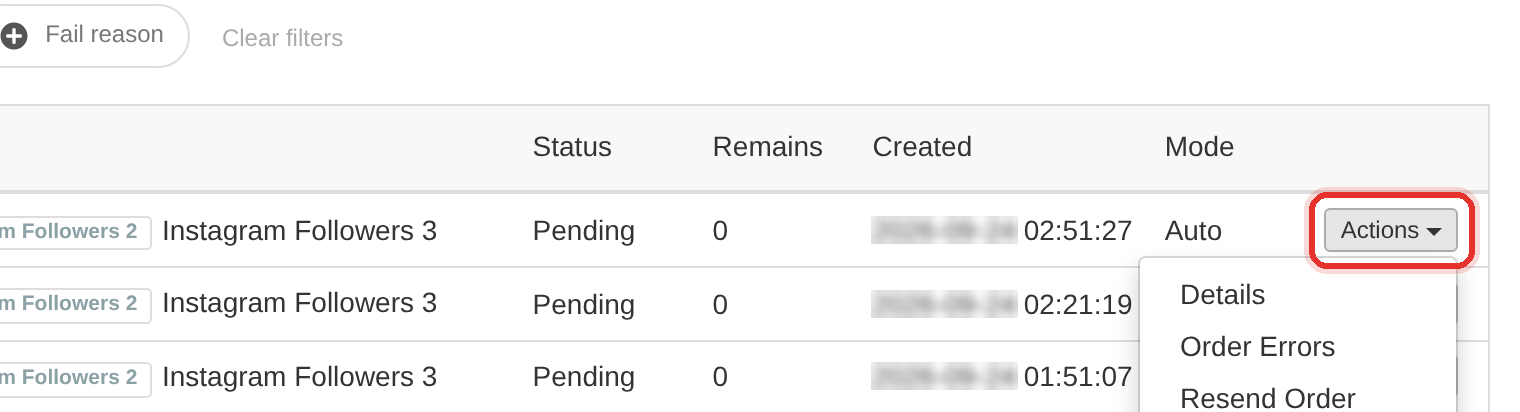
Actions at the end of the order row. - Read it and fix what it names: Not enough provider balance → top up that provider; Invalid provider API key → the key changed or was revoked; Quantity below minimum → the service's limits moved.
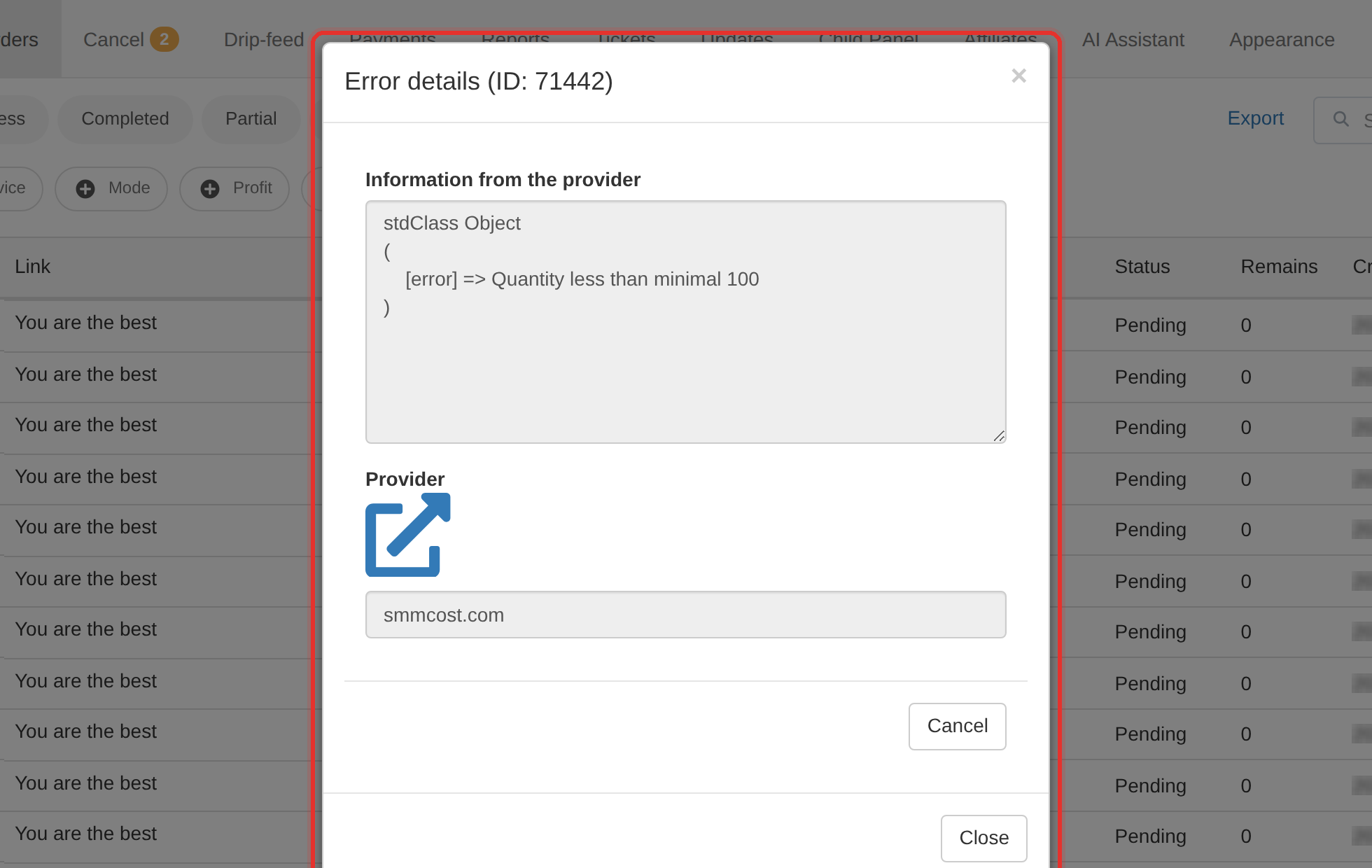
Order Errors shows the provider's own error text. - Go back to the order and click Actions → Resend Order. The order is sent to the provider again.
- Watch the order's Status for a moment. If it fails again with the same reason, the fix did not land.
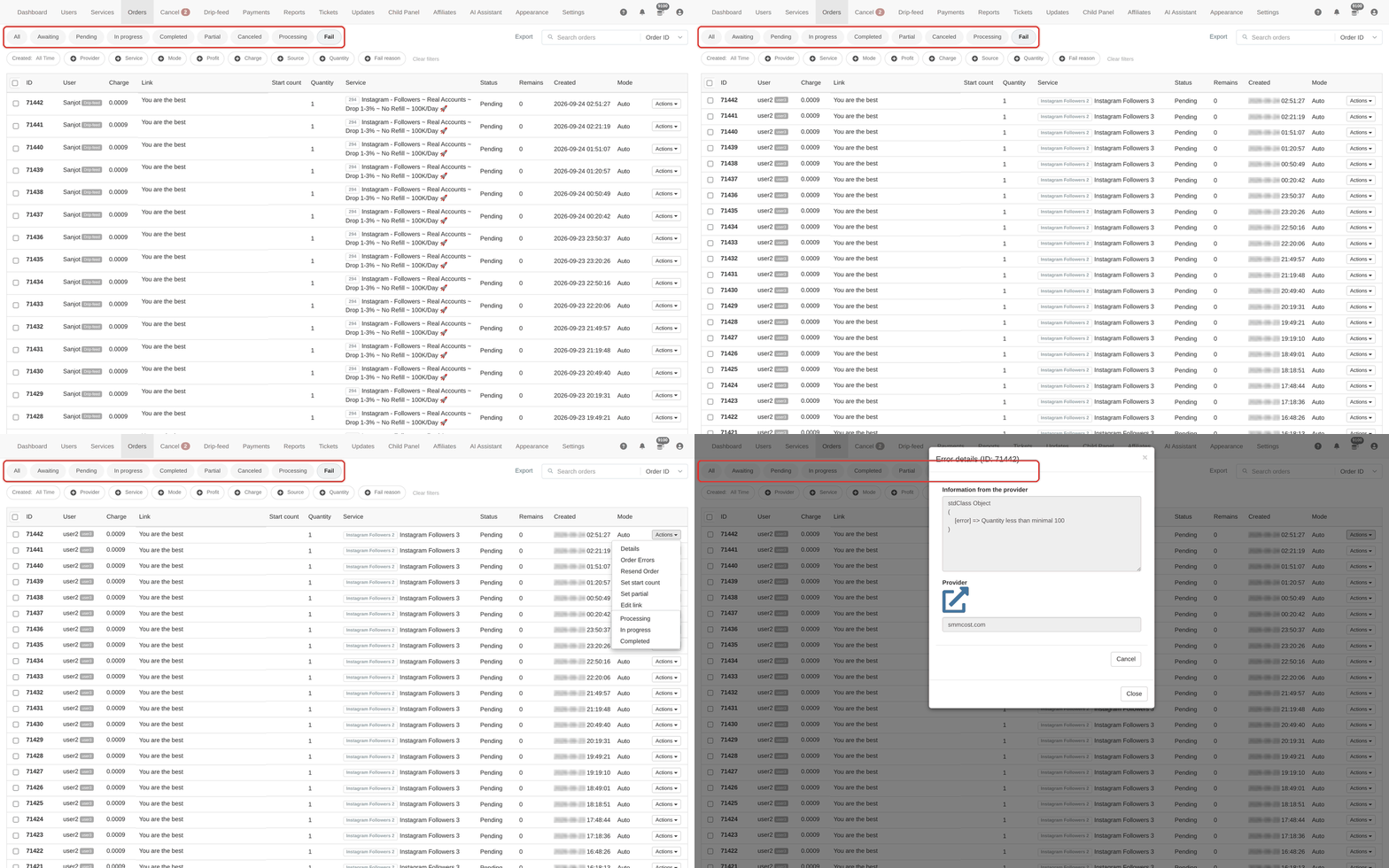
If a whole wave failed at once, open the Fail reason filter on the Orders page first — it lists the panel's standard failure reasons, so you can spot one provider's problem.
A provider that is out of balance fails every order you send it. Fix the balance before you resend anything, or you will resend the whole queue into the same wall.
To learn more, see the Orders guide.