How to add funds to a user account
Credit a client's balance when money reached you outside a payment gateway — a bank transfer, a crypto wallet you checked yourself, or a correction you owe them.
Recorded as a payment, the credit appears in the client's own history and in your revenue report. Editing a balance directly appears nowhere, which is what makes a dispute impossible to settle.
What it controls
- credit a balance for money received off-gateway
- leave a transaction record the client can see
- keep the revenue report true
How to set it
- Open Payments and click Add payment. The Add New Payment dialog opens.
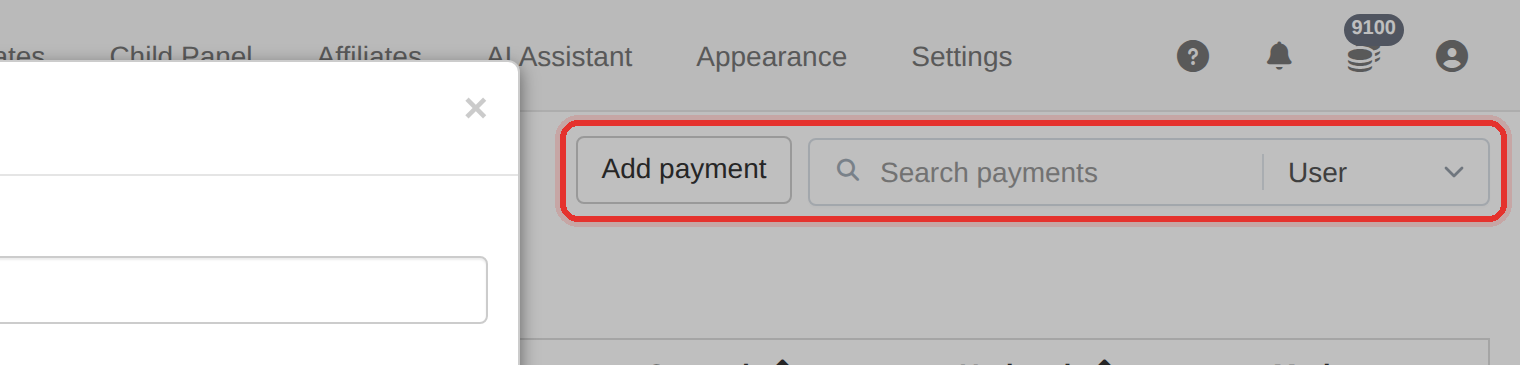
Add payment on the Payments page. - Type the client's Username in the first field. Check the spelling — it must match an account exactly.
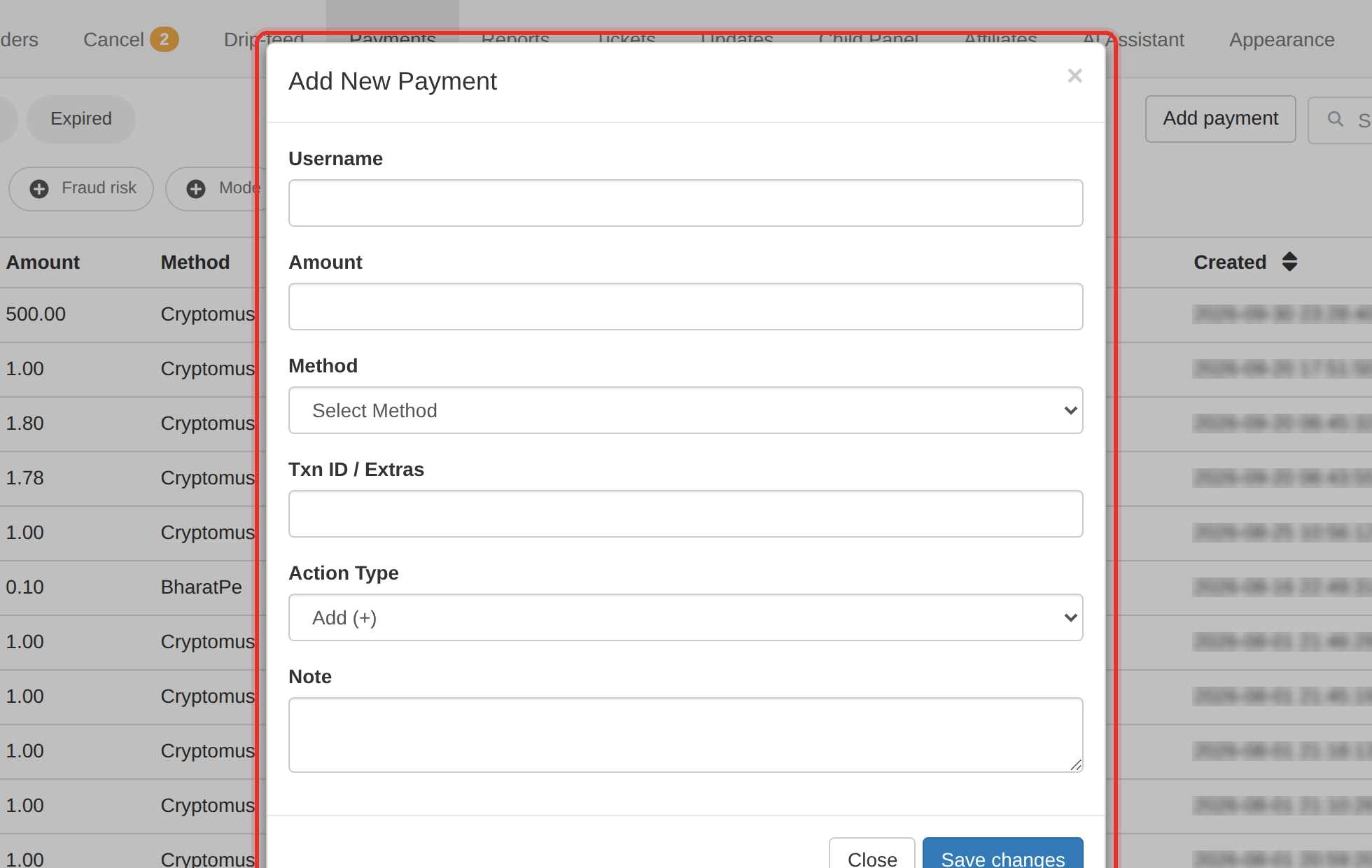
The Add New Payment dialog. - Enter the Amount you actually received.
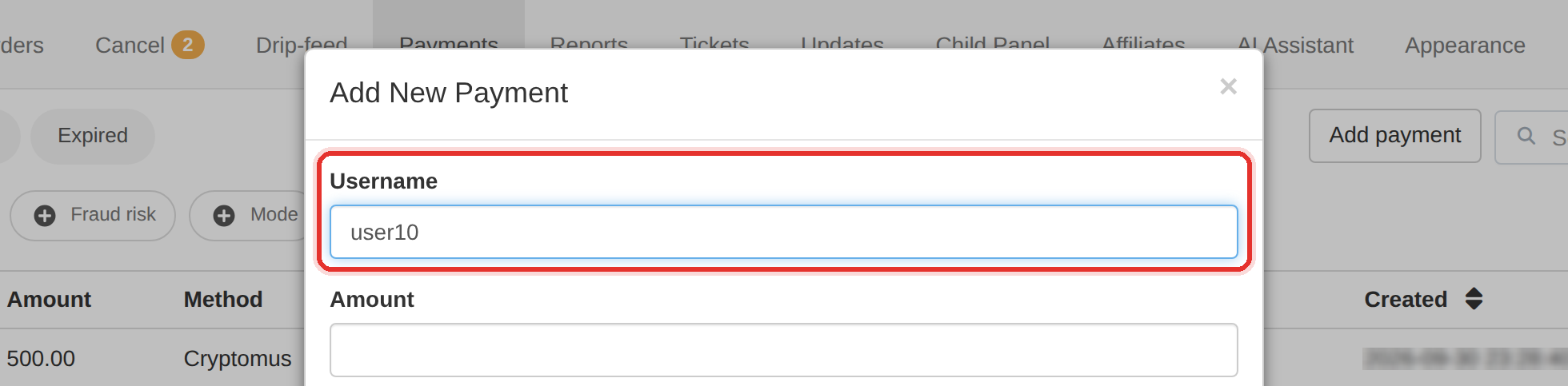
Enter the username first — it is a free-text field, not a picker. - Pick the Method the money came through, and leave Action Type at Add (+).
- Fill Txn ID / Extras with a bank reference and Note with the reason — this is what you will search for in six months.
- Press Save changes. The payment appears in the list and the client's balance goes up by that amount.
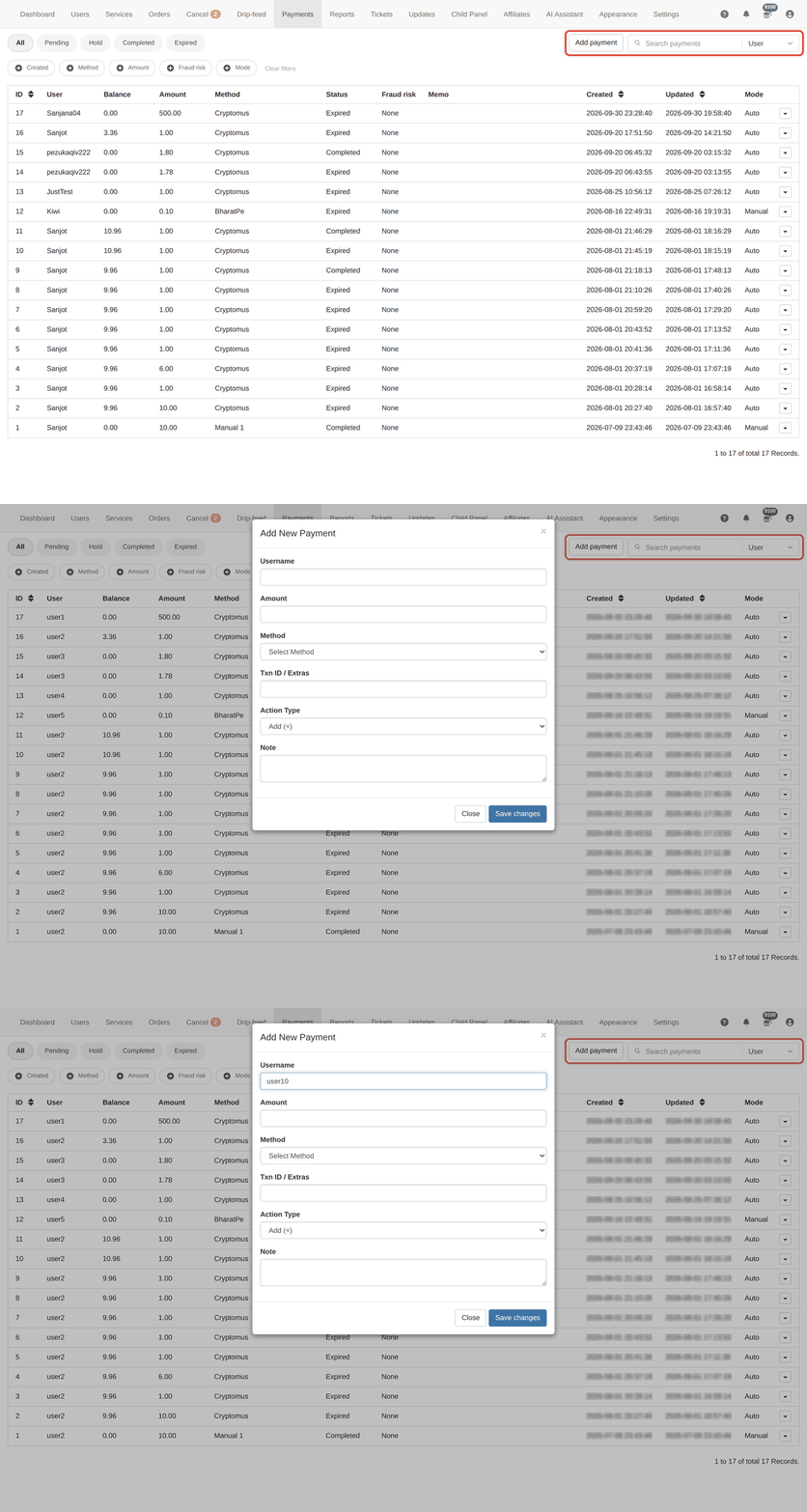
Prefer this over editing a balance. A recorded payment shows in the client's history and in Reports; a balance edit shows up nowhere.
Verify the balance moved before you reply to the client: open Users, search the ID, and read the Balance column.
To learn more, see the Payments guide.