Email notification settings
Which events send an email — registration confirmation, password reset, deposits and more — and where those emails are sent.
This is where a silent mail failure lives. If confirmations and resets stop arriving, this page and the mail configuration are the two places to look.
What it controls
- which events send an email at all
- the address a notification goes to
- the message behind each event
How to set it
- Open Settings → Email Notification.
- In User Email Notifications, switch each template on or off — only Welcome Email is optional, the rest stay active.
- Press Edit Template on a row to change its E-Mail Subject and E-Mail Message, then Save Changes.
- Under Admin Email Notifications, toggle the mail the admin receives.
- Use Edit in the Authorized Information block to set the address that receives them.
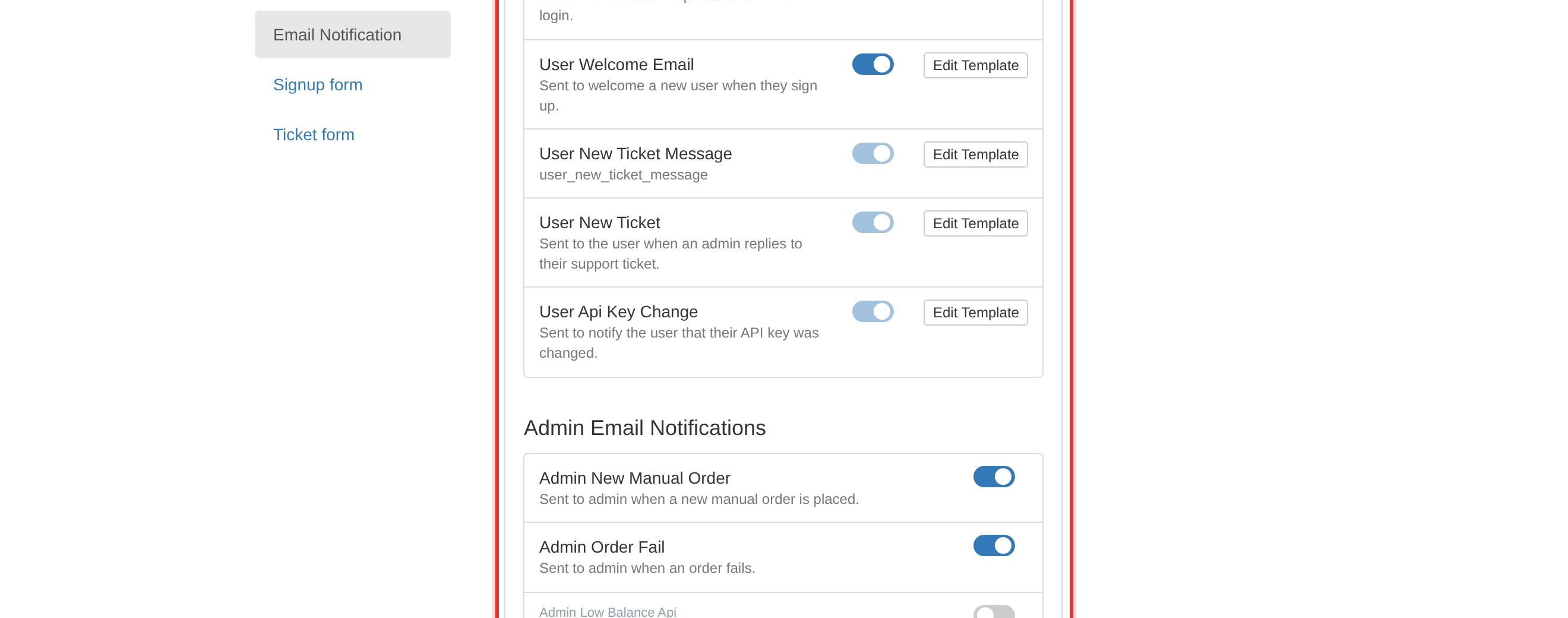
If confirmation and reset emails stop, check this page and the mail configuration together. A panel that sends nothing usually has both the switch and the transport to check.
Test the events clients notice: registration confirmation, password reset and deposit. Those three are the ones whose silence triggers a ticket.
To learn more, see the Settings guide.