How to change a user password
Set a new password for a client — the usual answer when they are locked out and the reset mail is not arriving.
The old password stops working the moment you save, so the client must be told the new one before you close the dialog.
What it controls
- set a new password without any email
- end a session on an account that looks compromised
How to set it
- Open Users and find the client — search by ID if you have it.
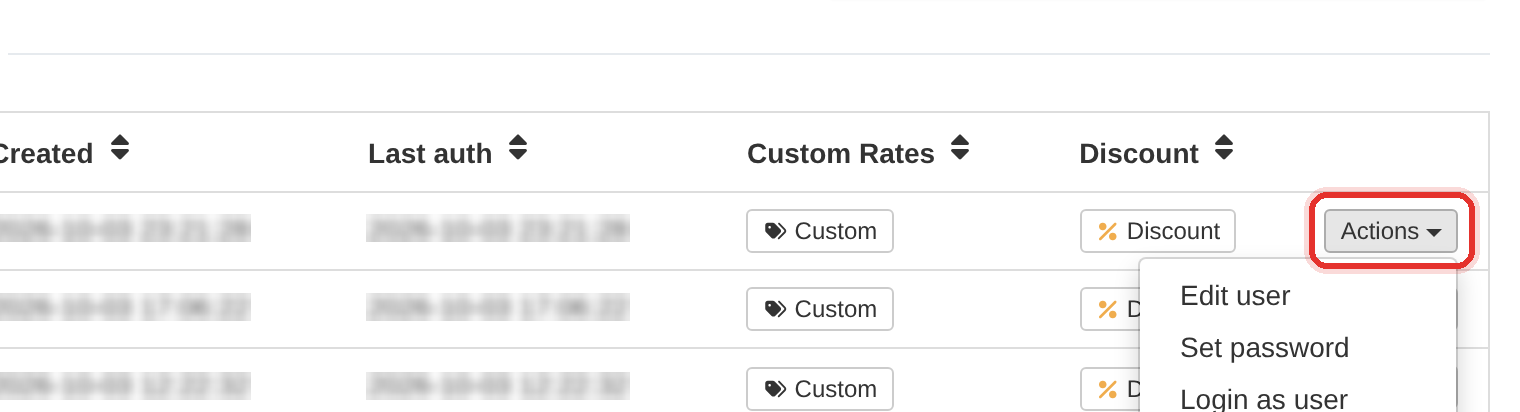
Actions at the end of the client's row. - Click Actions at the end of that client's row. A menu opens.
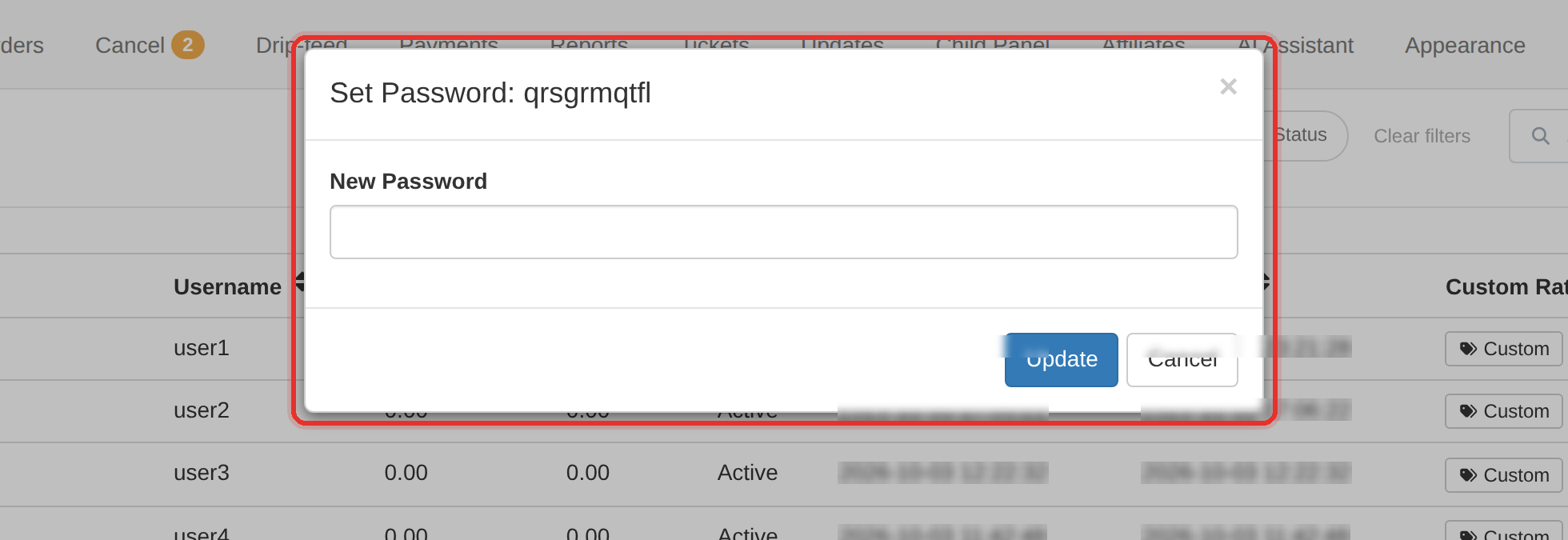
The Set Password dialog — note the title carries the username. - Choose Set password. A dialog opens with a single New Password field.
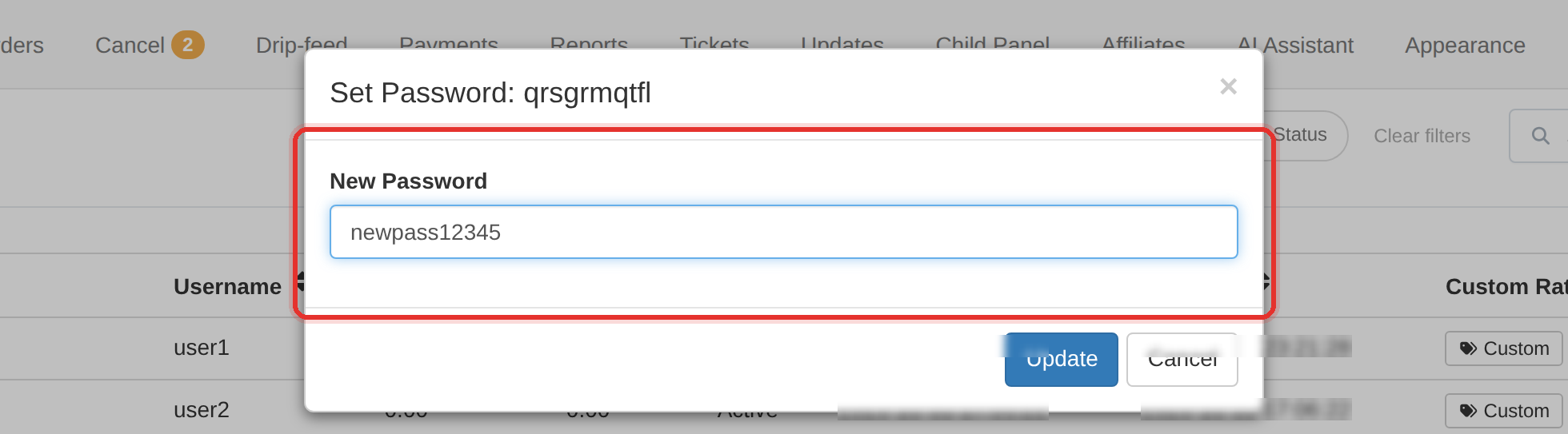
Type the new password; the field takes at least 8 characters. - Type the new password and press Update. The dialog closes and the change takes effect immediately.
- Send the new password to the client over a channel you trust, and ask them to change it themselves afterwards.
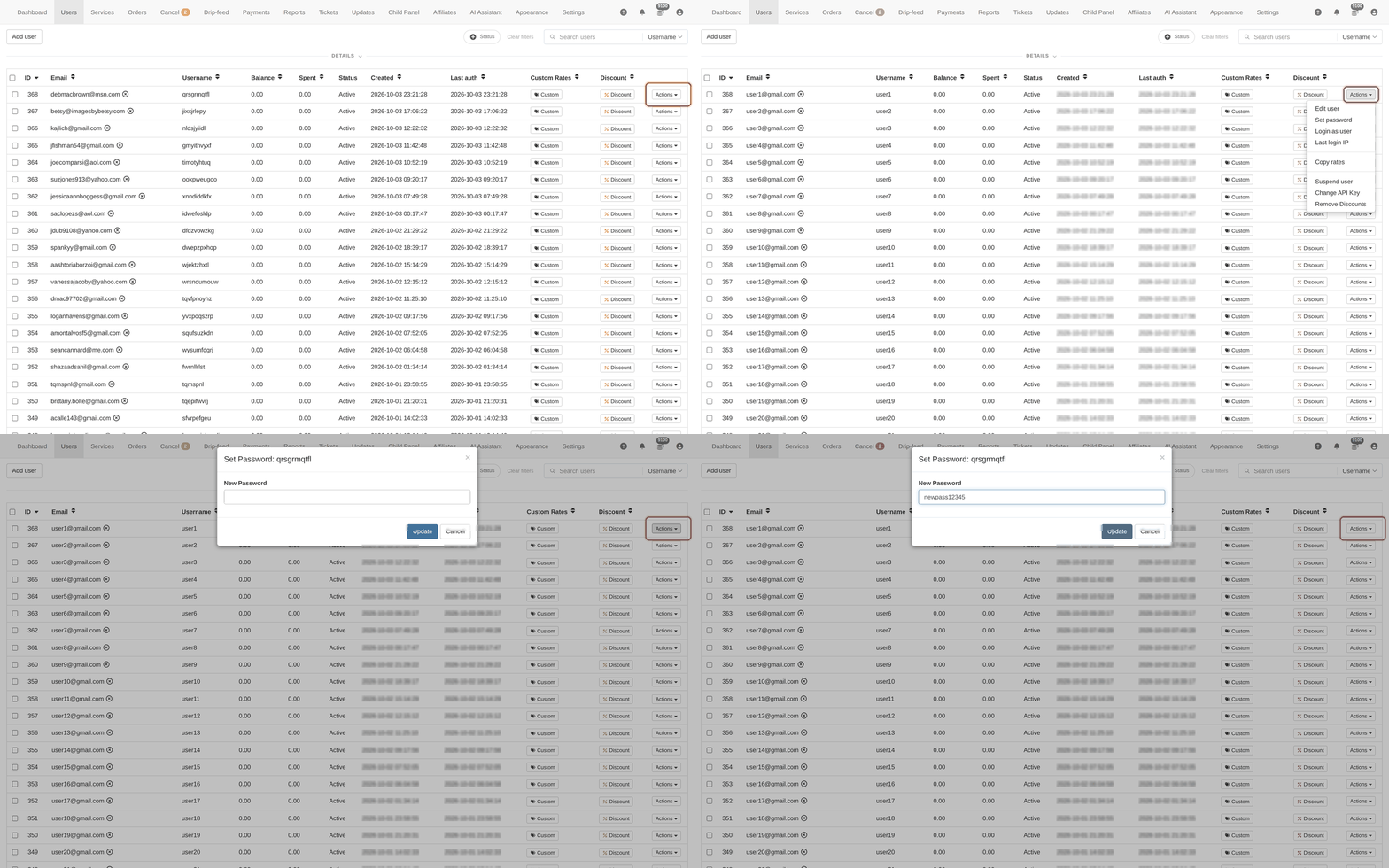
The dialog's title carries the client's username. Read it before you save — setting the wrong client's password is a real support incident.
Changing a password is also the fastest way to end every session on an account you think is compromised.
To learn more, see the Users guide.