How to import services from a provider
Pull a provider's catalogue into yours, pick what you want, set your prices, then commit.
Nothing is committed until the last step — but the import is one-way once you press it, and cleaning up a thousand wrongly-priced services afterwards is the expensive part.
What it controls
- fetch a provider's live catalogue
- tick only what is actually new
- set your selling prices before anything is created
How to set it
- Open Services and click Import services. The importer opens at step 1, Choose Provider.

Step 1 — choose the provider, then Fetch Services. - Pick the provider — each entry shows the currency it bills you in — set Profit Percentage (default 10%), then click Fetch Services and wait.
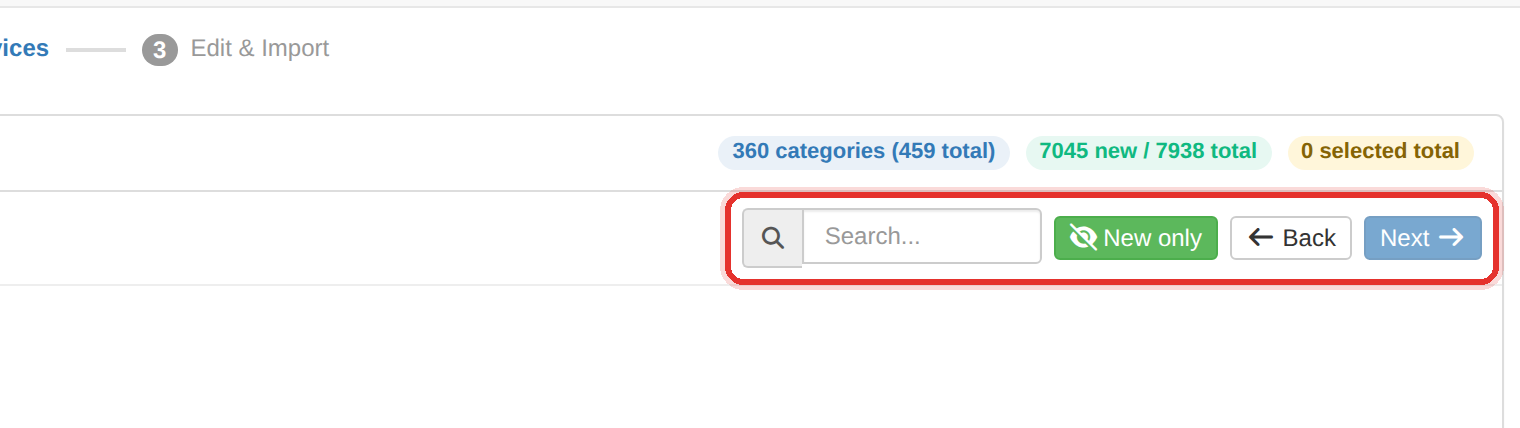
The fetched catalogue, with New only to hide what you already have. - On step 2, Select Services, switch on New only so you are not re-importing what you already have.
- Tick one category at a time. Each category shows N services (M new); the badge counts your selection.
- Click Next to reach step 3, Edit & Import. Map each category with its dropdown — ➕ Create New Category or an existing one.
- Check each row's API: x.xxxx cost under the Price and the Total, then press Import N. The services are created in your catalogue.
Do not press Select All on a provider with thousands of services. In testing, ticking an entire 8,000-service catalogue made the browser tab crash. One category at a time is 10–30 services and imports in a moment.
The Profit Percentage is set on step 1 with the fetch — it is baked into the fetched prices. To change it, click Back and re-fetch.
To learn more, see the Services import.