How to confirm a user email
Mark a client's email address as confirmed without them clicking a link — for when the confirmation mail never arrives.
Account status and email confirmation are two different things. Confirming an email does not activate a suspended account, and suspending one does not un-confirm it.
What it controls
- confirm an address when the mail did not arrive
- correct a wrong address and confirm it in one pass
- clear the unconfirmed backlog
How to set it
- Open Users and click the Status filter. Tick Unconfirmed to see the accounts waiting on this.
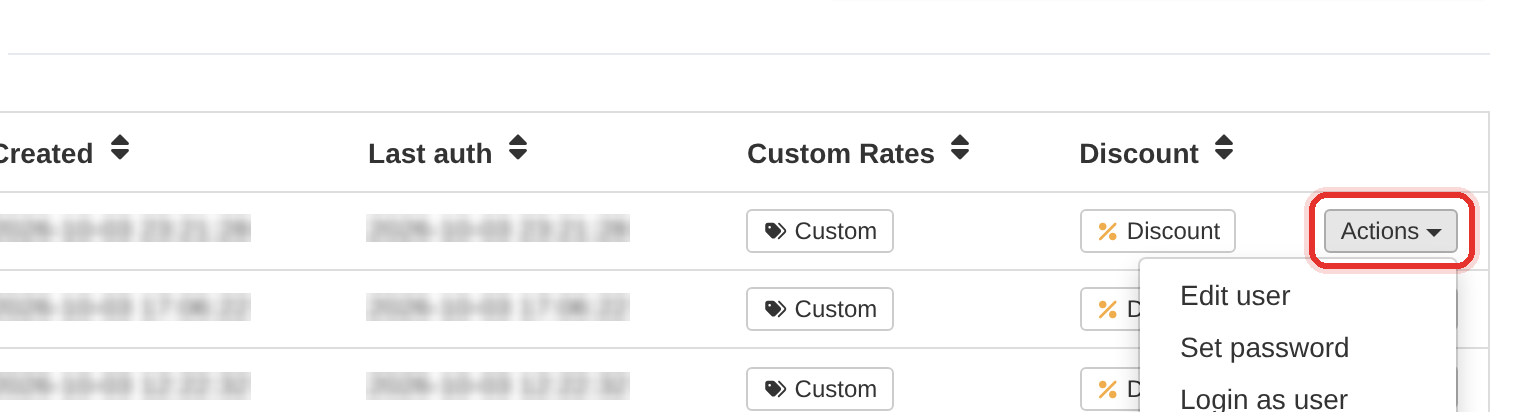
Actions at the end of the row. - Click Actions at the end of the client's row and choose Edit user. A dialog opens.
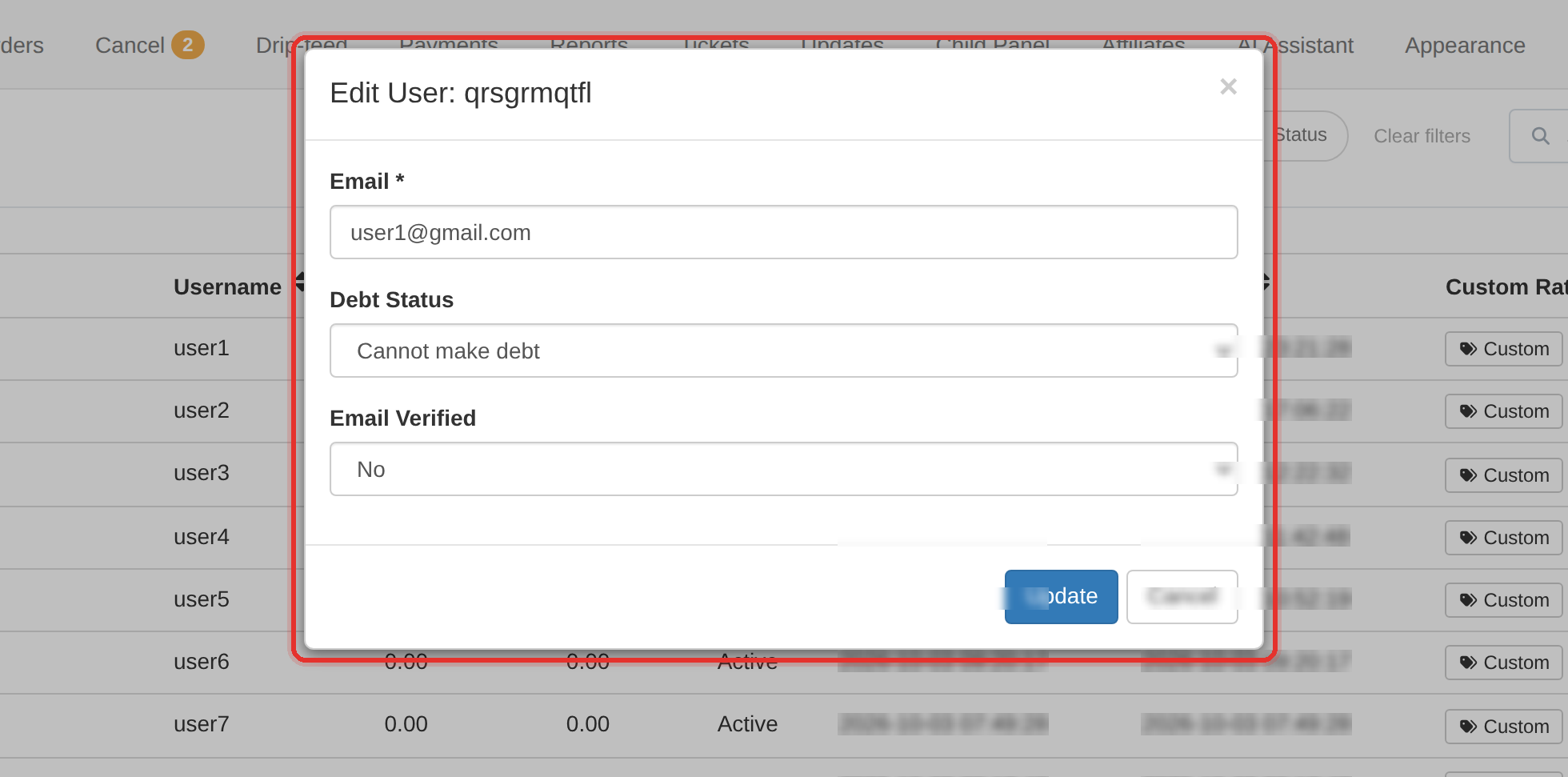
Choose Edit user. - Check the Email field. If the address is wrong, correct it now — a typo is the usual reason the mail never arrived.
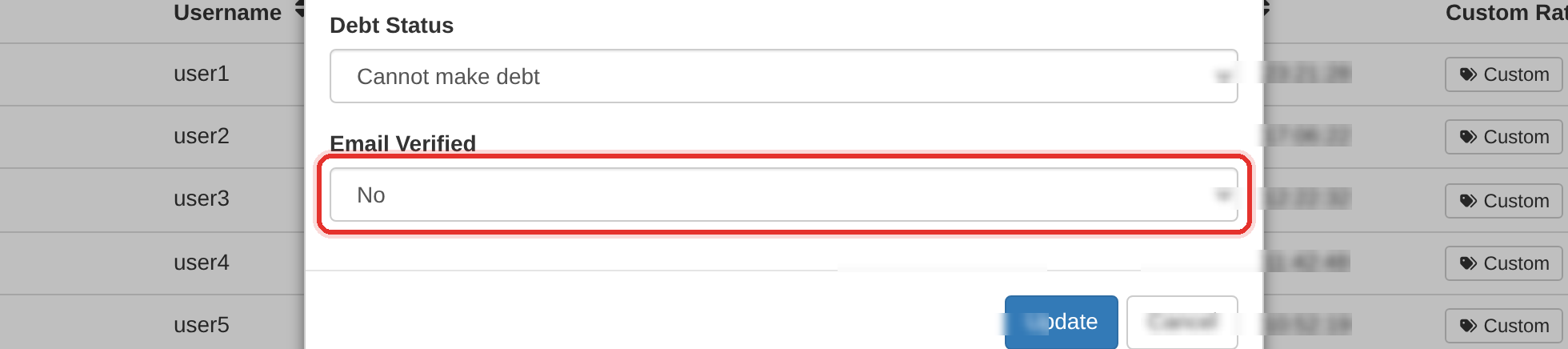
Set Email Verified to Yes, then press Update. - Set Email Verified to Yes.
- Press Update. The dialog closes and the account is confirmed immediately, with no mail sent.
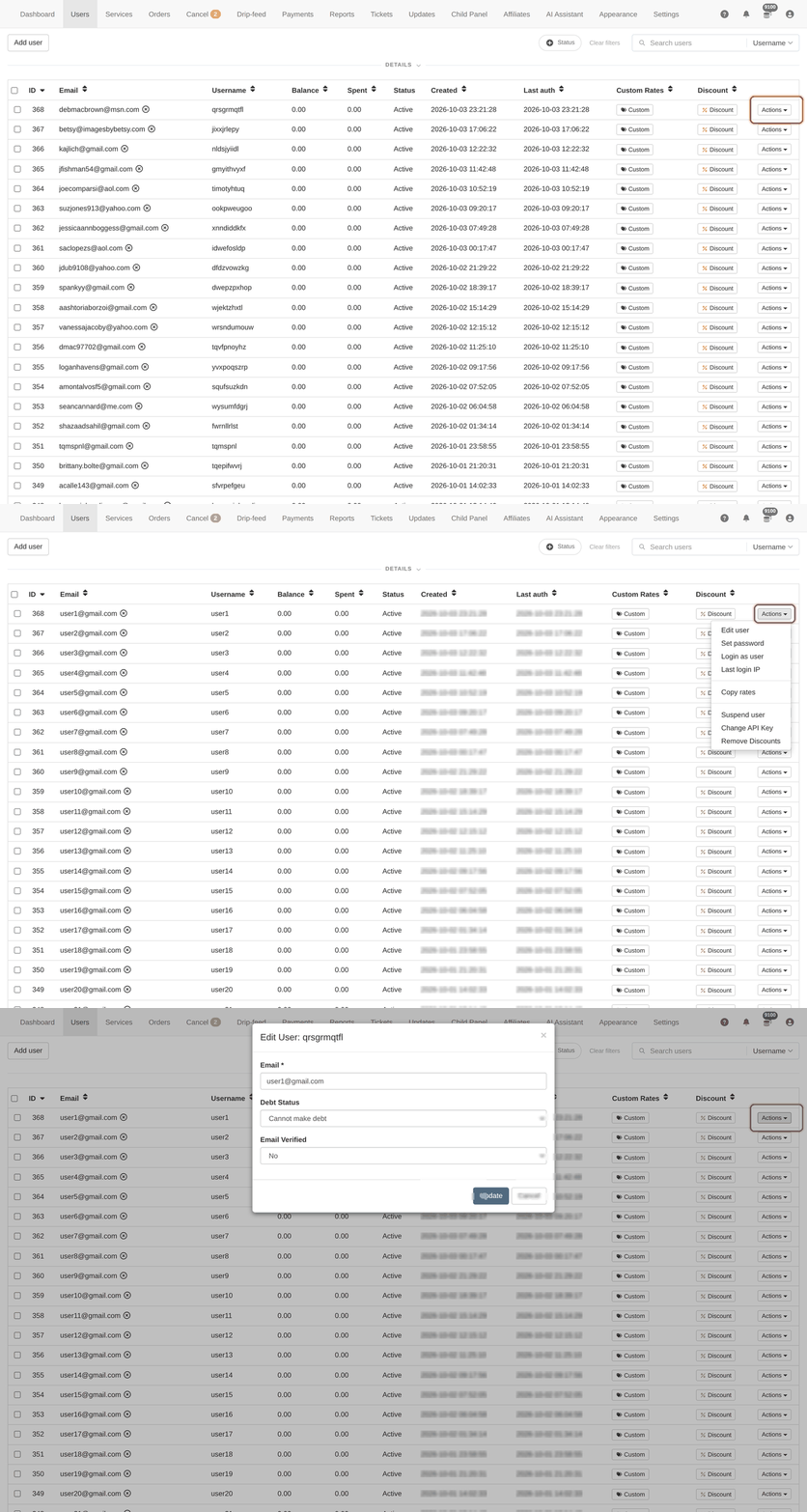
Do not suspend an account just because the email icon is unconfirmed. Check the Status column first — a client can be Active, ordering and using the API, with an unconfirmed email.
The Unconfirmed count is also your fake-signup meter: fake accounts rarely confirm.
To learn more, see the Users guide.