How to change your logo and favicon
Replace the panel's branding on the client site and in the browser tab.
A missing favicon reads as an unfinished panel. Clients notice that before they notice anything you wrote.
What it controls
- upload a logo for the client site header
- set the favicon shown in the browser tab
- rename the panel everywhere it appears
How to set it
- Open Settings → General and find the Logo field near the top.
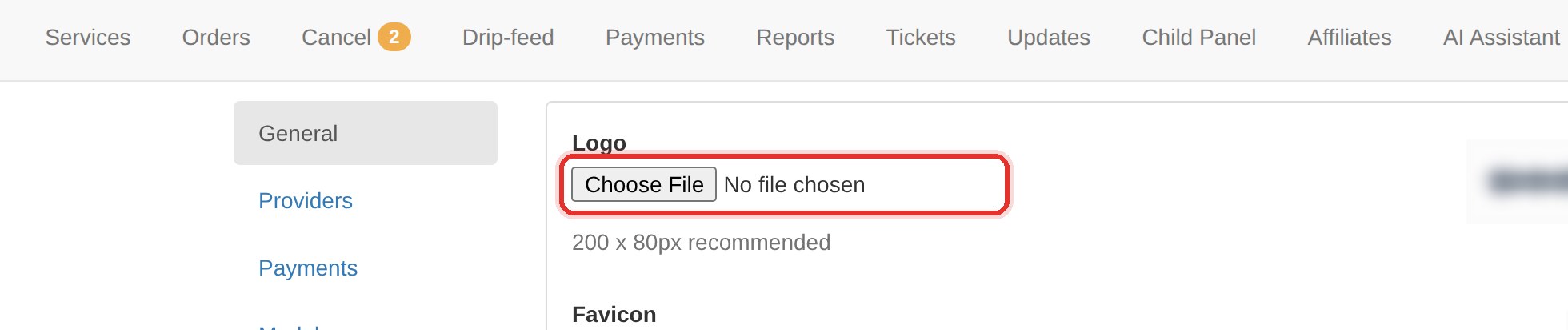
The Logo field on Settings → General. - Upload your logo file, then do the same for Favicon. The favicon should be a small square image.

And the Favicon, which is what shows in the browser tab. - Change Panel name if you want the panel renamed in the header and in outgoing mail.
- Press Update Settings at the bottom. Nothing is stored until you do.
- Open the client site in a new tab and hard-refresh. Client-facing assets are cached, so a soft refresh can show the old logo.
Logos and favicons are also stored under Appearance → Files — the file lives there, the choice of which file is live is here.
Two versions of the same logo in Appearance → Files is how the wrong one ends up live. Replace rather than piling up.
To learn more, see the Settings.