Confirming an email
Marks a client's email as verified, which is the step that lets an unconfirmed account sign in and order when email confirmation is switched on.
Confirming an email only touches verification — it does not change the account's status. Confirm an email to fix a sign-in problem and you will find the account still suspended.
What it controls
- whether the address counts as verified
- whether an unconfirmed client can sign in
- nothing about the account's Active or Suspended status
How to set it
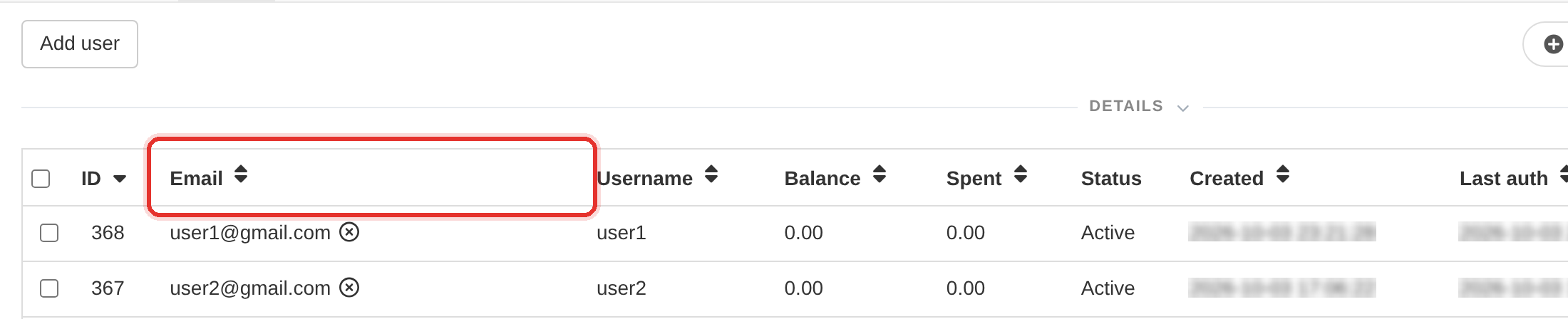
- Open Users and find the account — an unconfirmed address carries a red cross in the Email column.
- Open the row's Actions menu and choose Edit user.
- Check the Email field — if the address is wrong, correct the typo here.
- Set Email Verified to Yes and press Update. The icon turns to a green tick, with no mail sent.
Email confirmation and account status are different fields. Confirming an email does not unsuspend an account, and an Active account can still be waiting on confirmation.
Switch confirmation on under Settings → Signup. It is the cheapest anti-fraud check you have.
To learn more, see the Users guide.