How to refund an order
Stop an order and return the money to the client's balance — and know when a partial close is the honest answer instead.
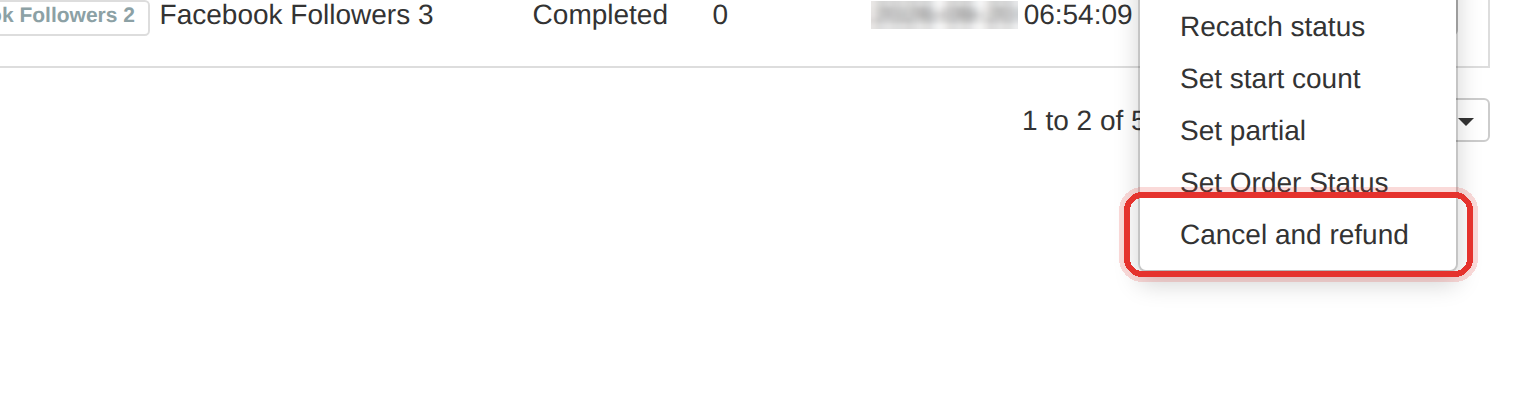
Cancel and refund returns the whole order value, not the undelivered part. Refunding an order that was mostly delivered overpays the client and you cannot take it back.
What it controls
- return the full order value to the client's balance
- close an under-delivered order without overpaying
- check what was actually delivered first
How to set it
- Open Orders and find the order — search by Order ID if the client gave you one.
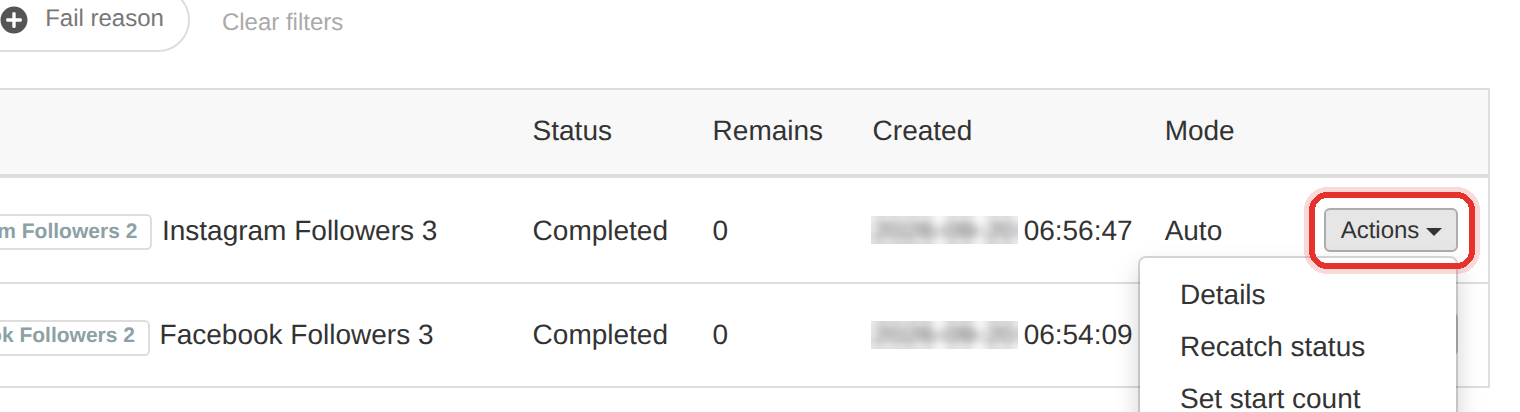
Actions on the order row. - Read the Remains column. 0 means the provider reported full delivery; a large number means part of it never arrived.
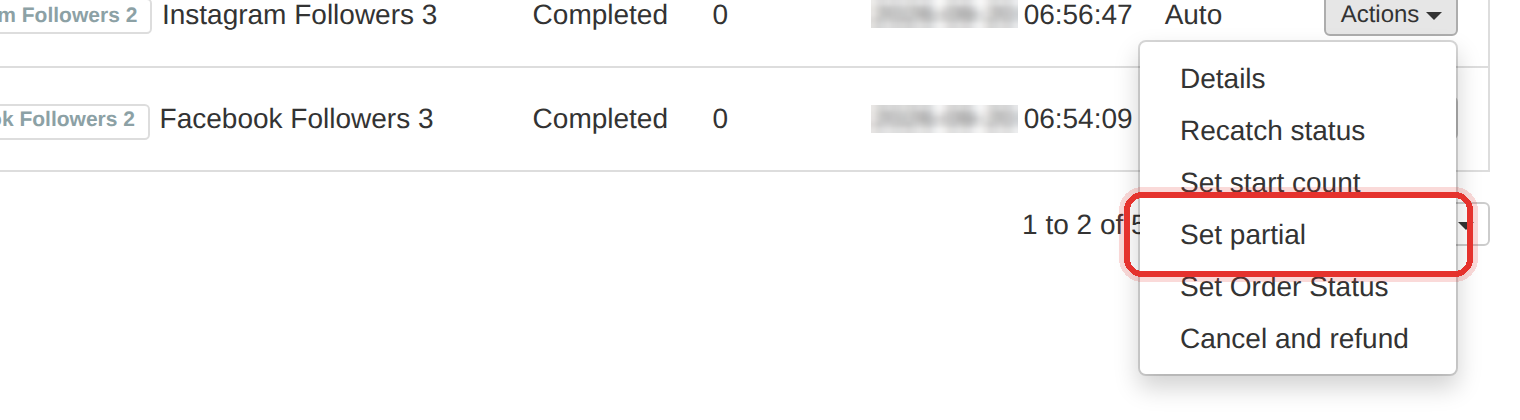
Set partial closes an under-delivered order. - If nothing was delivered: click Actions → Cancel and refund. The order stops and the full order value goes back to the client's balance.
Cancel and refund returns the whole order value. - If part of it was delivered: click Actions → Set partial instead. Enter the not-delivered figure in Remains (not going amount) and press Update Partial — that part is refunded to the client's balance and the order closes as under-delivered.
- Confirm the client's new balance on Users before you reply to them.
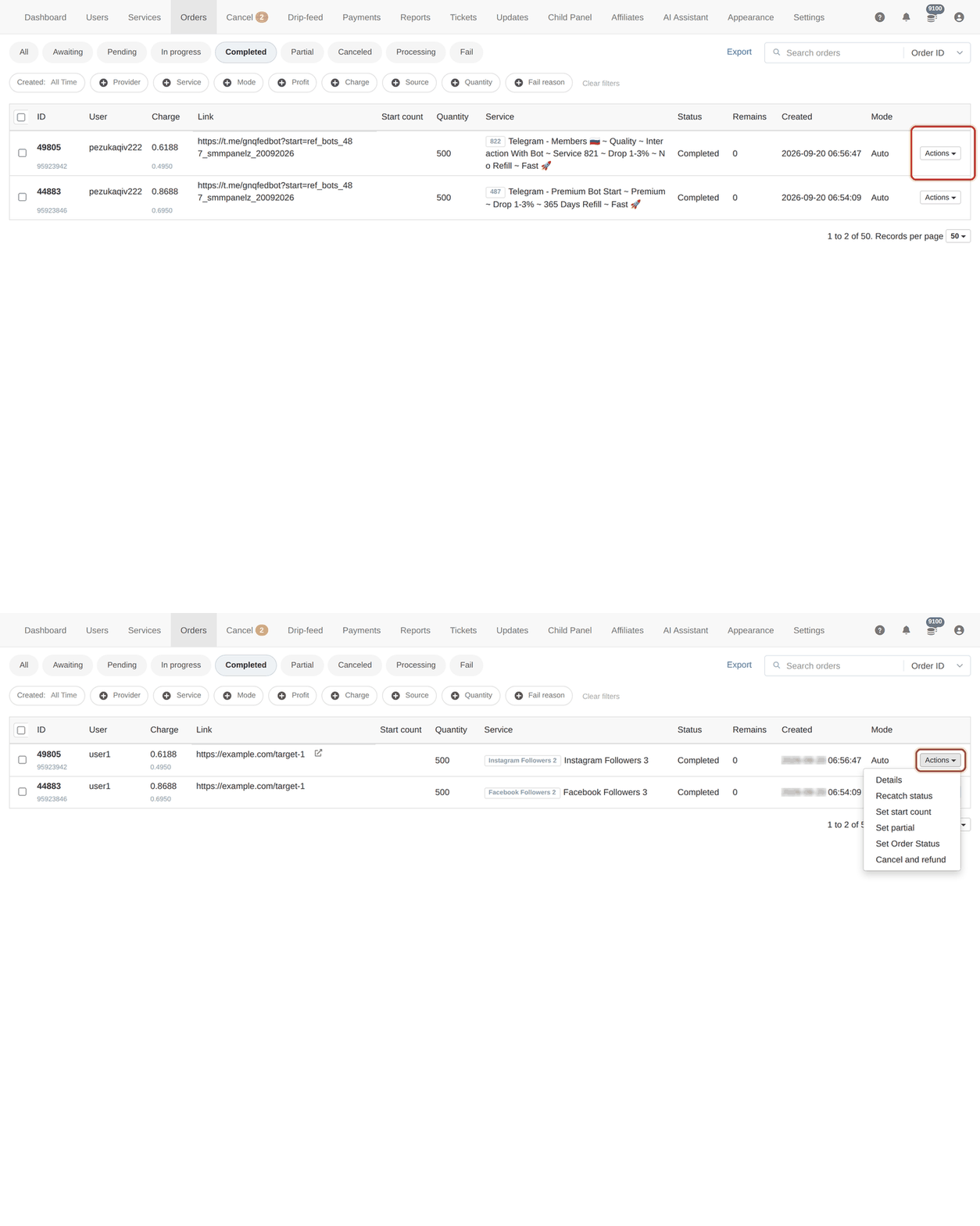
Cancel and refund pays back the full order value. On an order that was 80% delivered, use Set partial. There is no undo on a refund.
Open Actions → Details first to see the provider's raw answer — it is the source of truth when the list and the client disagree.
To learn more, see the Orders guide.